Bids and leveling
When a scope goes out to bid, the bids come back into the same scope. Struction lines each bid up against the scope's own lines, so you can see what every bidder included, left out or qualified, plug the gaps, and see which bid is lowest once everything is on the same footing.
Updated 3 minApplies to: MapFeedback →
Where bids live
Every scope of work has a Bidders tab and a Leveling tab in the detail panel, beside Scope & Bid Form, Drawings, Quantities and Schedule. On the map, a scope card's Bids and Level buttons open them; see Maps. Adding bids moves the scope along: in the example on this page the scope went from In review to Receiving · 1 of 1 received with its first bid, and to Leveled once a bid was carried. The stage menu also offers Put on hold and Self-perform.
Adding bids
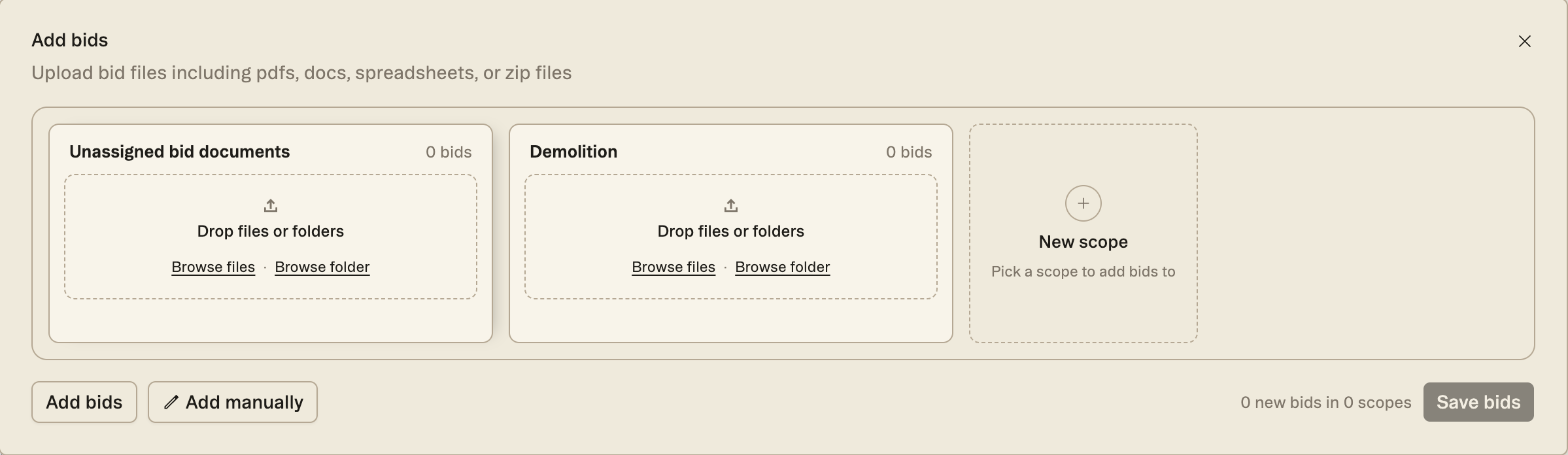
Click + Add bids at the top of the scope. The dialog asks for bid files, including PDFs, Word documents, spreadsheets and zip files. Each scope has its own drop area with Browse files and Browse folder, files you haven't sorted yet go under Unassigned bid documents, and New scope adds another scope to drop bids on. The footer counts what you're adding (0 new bids in 0 scopes) until you press Save bids. To type a bid in yourself, choose Add manually: a new bidder column opens in the leveling sheet with a company search, where you pick a company or add a new one.
The leveling sheet
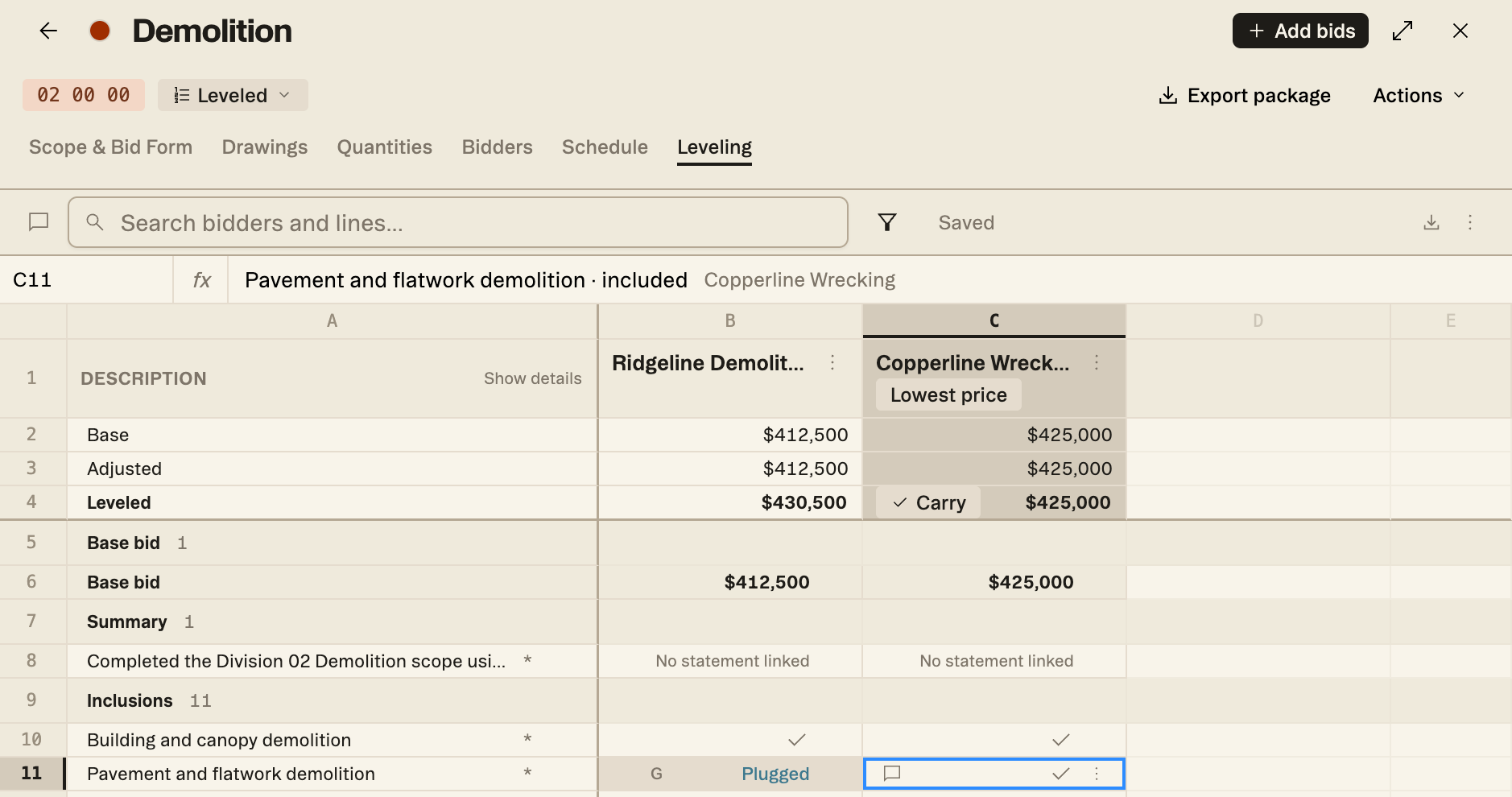
The Leveling tab is a spreadsheet with one column per bidder. The top three rows are the totals: Base, the bid as submitted; Adjusted; and Leveled, which adds your plugs. Below them come the scope's own sections — the base bid, the summary, inclusions, exclusions and the rest — with a row for every line. Until a bid speaks to a line its cell reads No statement linked. Select a cell and the bar above the sheet shows what it holds (Pavement and flatwork demolition · included); double-click a cell to type in it, then press Enter to save or Esc to cancel. The lowest leveled bid gets a Lowest price badge, and Carry marks the bid you're carrying. Search with Search bidders and lines…; Show details sits at the top of the description column.
Coverage and plugs
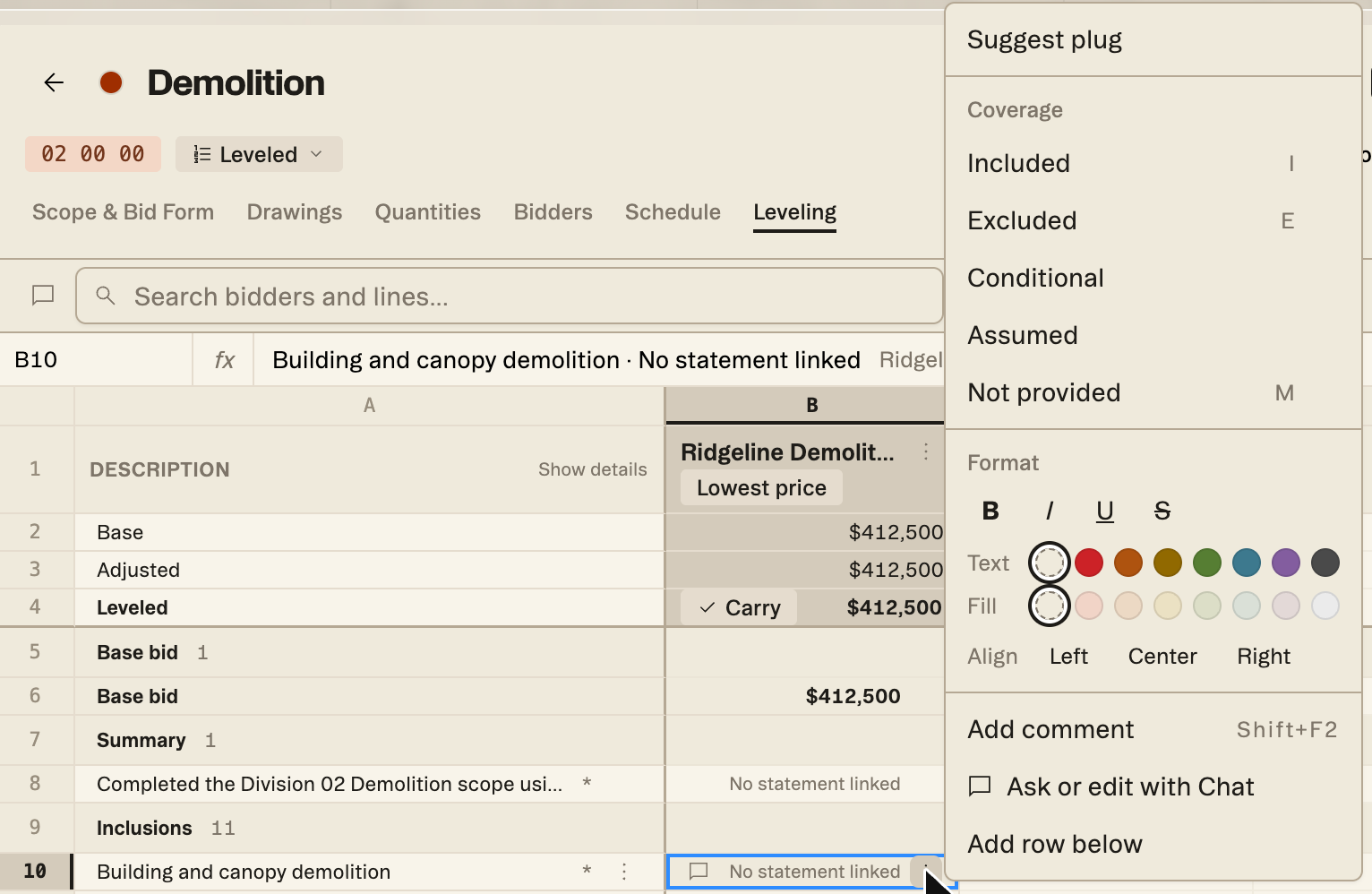
Each cell's ⋮ menu sets the bidder's Coverage for that line: Included (I), Excluded (E), Conditional, Assumed or Not provided (M). An included line shows a check mark and an excluded one turns red. For a line a bidder left out, Suggest plug proposes a price copied from another bid; when no other bid prices that line it says No price to copy, and you can enter your own amount and press Add plug. The cell then reads Plugged and the plug goes into that bidder's Leveled total. The same menu holds text and fill colors, Add comment (Shift+F2), Ask or edit with Chat and Add row below.
Breakdown by cost category
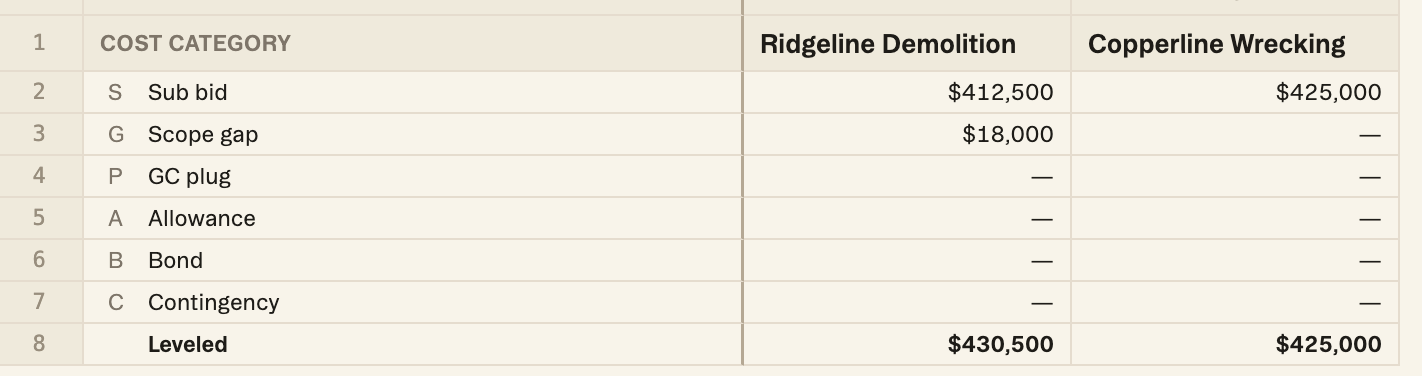
The tabs at the foot of the sheet switch between the comparison (Comparison 1) and Breakdown by Cost Category, which shows each bidder's leveled total split into Sub bid, Scope gap, GC plug, Allowance, Bond and Contingency. The sheet's ⋮ menu holds Add comparison line and Edit cost categories. Each bidder column has its own ⋮ with Open bid, Edit bid, Carry, Add adjustment (a description, an amount and a cost category), Upload revised bid files and Remove from comparison.
Bidders and bid status
The Bidders tab lists the companies on the scope. Use Add bidders to add a company by name, and switch between Outreach and Bids; Bids lists the companies that answered, with their contacts as the people to call. Each company carries a status — Bid submitted, Won, Lost or Not bidding — and its ⋮ menu removes it from the scope. Removing a bidder keeps their submitted bids in leveling.
More docs