Sticky notes
A sticky note is a free-form note on the project map — a place to think out loud, sketch a workflow with your team, or park a question before bid day. Notes live on the map itself, not on a sheet.
Updated 2 minApplies to: MapFeedback →
Add a note
Pick Sticky note from the markup menu on the toolbar — the hotkey is N. The bar reads Click anywhere on the map to place a note. Click, and the note drops where you clicked, open for typing. Click away to keep it; a note left blank is thrown away. Once a note is placed the tool goes back to the pointer, so press N again for the next one — press Esc first, or the N lands in the note you were typing. Esc or the ✕ on the bar stops placing notes.
You can place a note at any zoom, with or without a sheet open. A new note is sized to read comfortably at the zoom you placed it.
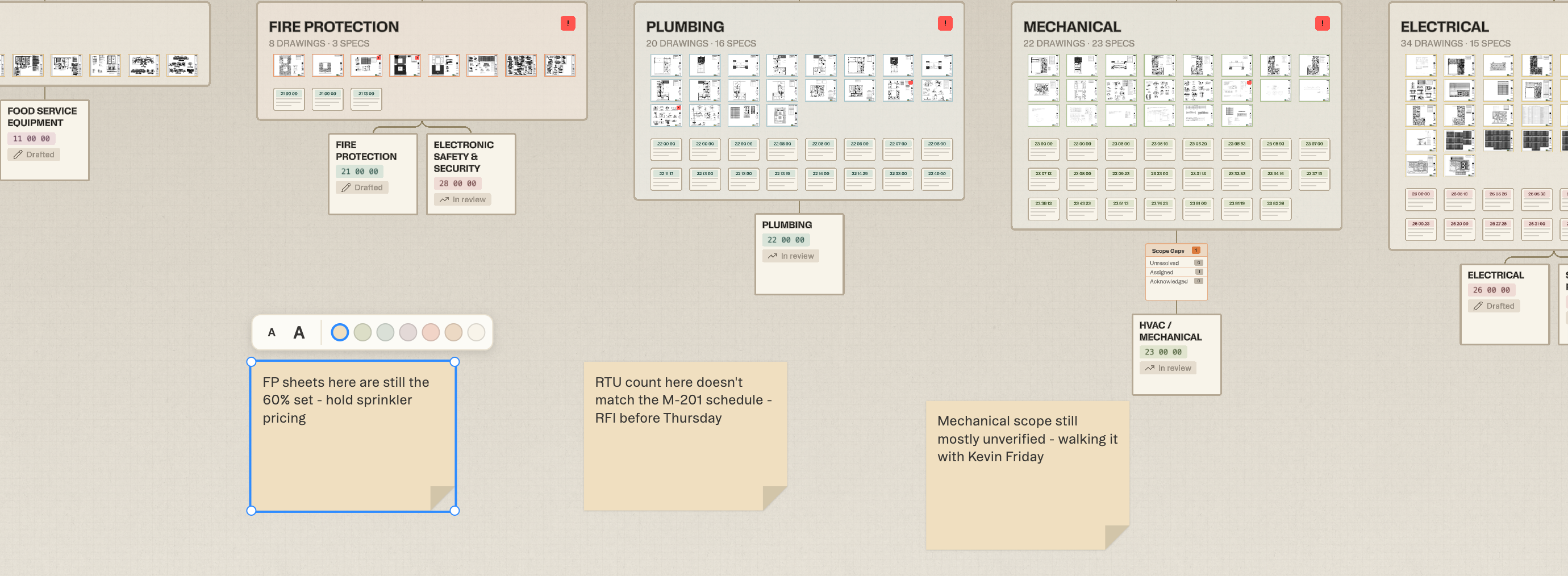
Move, resize and style a note
- Select a note by clicking it. Drag its body to move it, drag a corner to resize it — notes have a maximum size — and double-click to edit the text.
- Font size and color sit on a small strip above the selected note. Whatever you pick there also becomes the style of your next note.
- Copy a note with Cmd+C and paste it with Cmd+V (Ctrl on Windows). The copy lands under your pointer, the same size as the original.
- Delete the selected note with Delete or Backspace, or clear its text. Undo brings it back.
Who can do what
Everyone who can open the project sees its notes. Owners and editors can add, change and delete any note. Collaborators can add notes and change or delete their own. Viewers see notes but can't change them. Sticky notes are on the project map only — the takeoff view doesn't have them.
Notes versus markup versus comments
Three tools mark things up; they do different jobs.
- Sticky notes live on the project map, anywhere, and say whatever you like.
- Markup (Draw, Highlight, Dimension, Cloud, Callout, Link) lives on a drawing sheet and stays with it — see Snapping, shortcuts and annotations.
- Comments attach to a specific thing — a scope, a sheet, an issue, even a sticky note — and start a thread other people can reply to — see Working with your team.
Good to know — Chat doesn't read sticky notes today. Anything you need Struction to act on belongs in a scope, an issue or a chat message.
More docs