The Quantities panel
Every quantity in the project, in one list: what it measures, where it came from, and which scope items it funds. The panel is where you rename, merge, tag, convert and link.
Updated 2 minApplies to: MapFeedback →
Open it
Click the # button on the right-hand rail. The panel opens on the right, beside the map or the sheet you have open in Focus View.
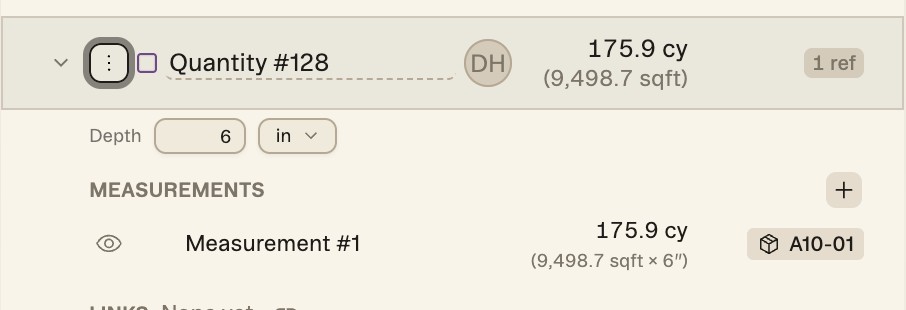
Expand a row and it unfolds into two parts. Measurements lists every individual measurement feeding the total, each with its own show/hide eye, its own number and the sheet it was taken from; the + beside the heading adds another. Links shows the scope items this quantity funds, and reads None yet until you link one.
Find and arrange
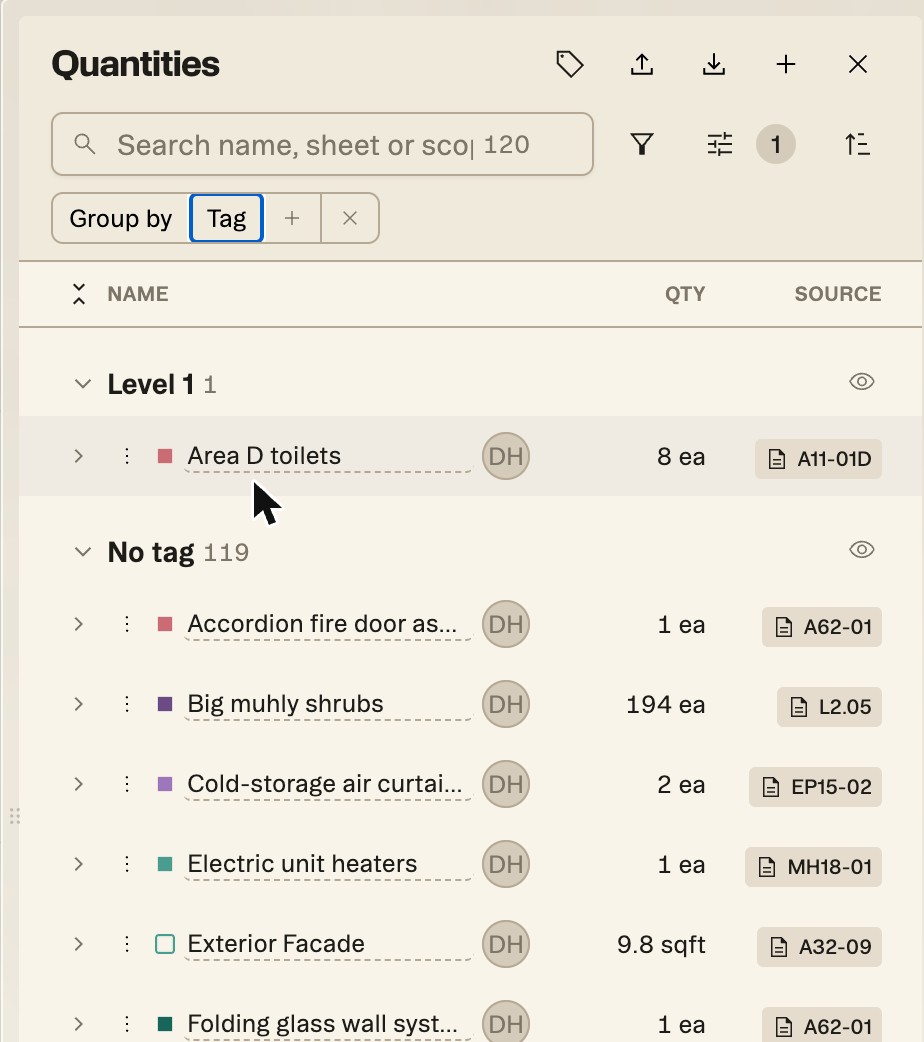
Search by name, sheet or scope; the box shows how many quantities match. Each row shows the quantity's name, total and unit, with the traced source on a second line when the quantity is derived.
- Filter adds filters for Sheet, Measurements, Origin and Unit.
- Group by arranges the list by Package, Sheet, Takeoff type, Tag or Created by. The view options set a second level (then by), and the × clears the grouping.
- Sort reorders the list.
Each group has its own eye, so you can take a whole package off the drawing while you work on another; each measurement has one too.
Create, rename, merge
- + at the top right creates a new quantity. Name it, or leave the name blank to have it numbered for you.
- Picking a takeoff tool also creates a quantity, ready for the measurements you draw.
- The ⋮ menu on a row holds Add measurements, Rename, Change unit, Merge into, Tags, the Convert to … options, Set formula… and Delete. See Derived quantities for converting and formulas.
- The quantity you're drawing into offers Stop adding measurements in place of Add measurements.
Units
Change a quantity's unit from its row menu: linear feet to linear yards, square feet to square yards, cubic yards to cubic feet.
Header buttons
Along the top: Manage tags, Import takeoffs, Export quantities and New quantity.
Tip — Filter and group first. Grouped by tag, the panel reads like the schedule of values a sub bids against.
Good to know — Deleting a quantity deletes the measurements only it uses; measurements shared with another quantity are kept. Struction asks before it deletes.
More docs