AI preferences and exemplars
Struction can write scopes in your company's format and language rather than a generic one. Two things make that happen: written preferences that steer how it generates and talks, and exemplar scopes that show it how your company writes a scope. Both live under Settings › AI Settings.
Updated 2 minApplies to: MapFeedback →
Where it lives
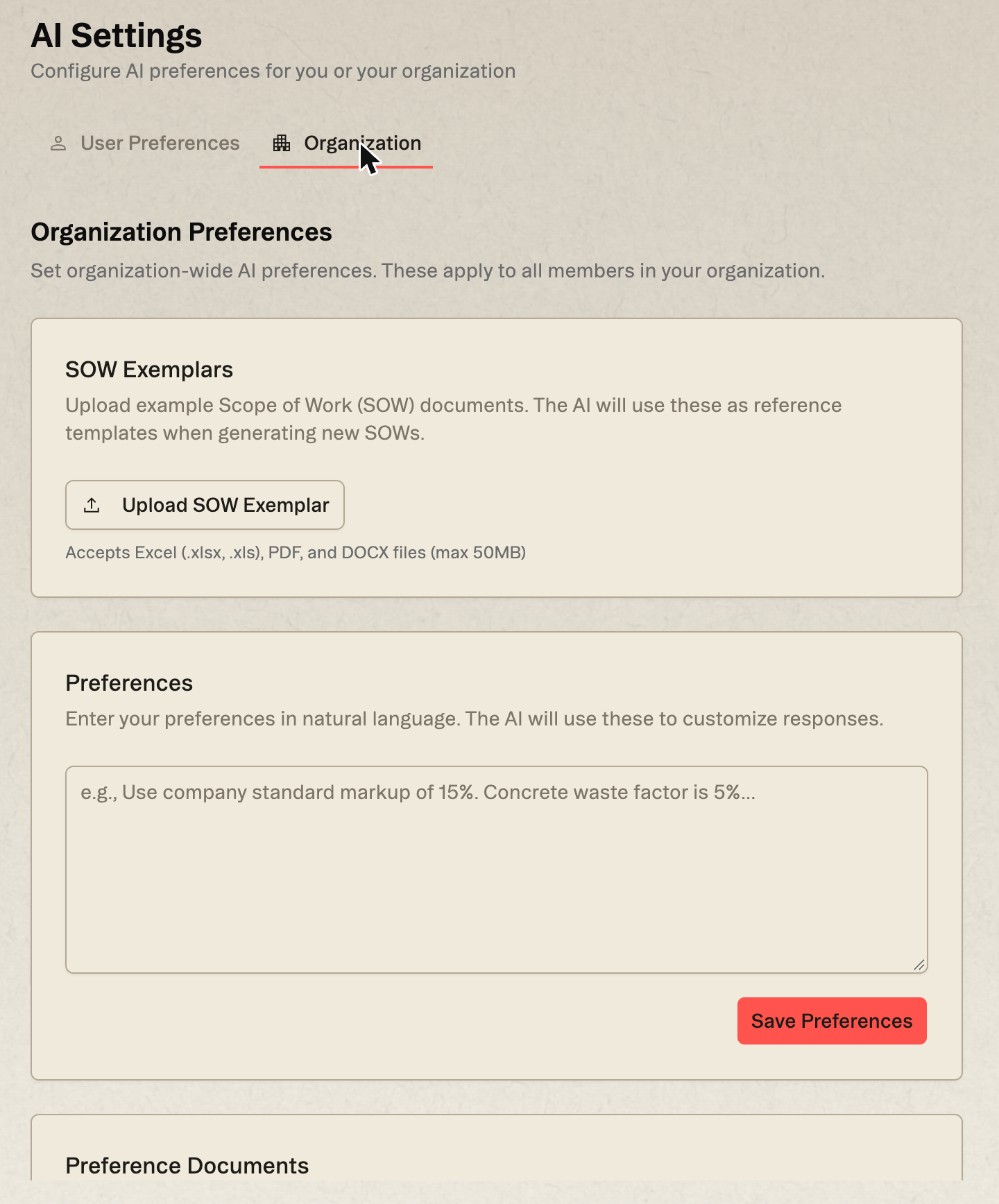
Open Settings › AI Settings. There are two tabs: User Preferences, which apply to your conversations across all projects, and Organization, which apply to all members in your organization.
Written preferences
Each tab has a Preferences field where you describe, in plain language, how Struction should work for you: how to word scope items, which trades you break out, what to always exclude, how formal chat should be. The placeholder gives the idea (Use company standard markup of 15%. Concrete waste factor is 5%…). Click Save Preferences to keep it.
Below it, Preference Documents takes PDF or DOCX files of your standards (up to 50 MB) via Upload Document; Struction extracts and learns from them.
Chat can help you build preferences as you go. Tell it remember that we always exclude trenching from the electrical scope and it shows a card (Remember this for future chats? Adds this to Settings › AI preferences) with Deny and Remember.
Tool approvals
By default, chat asks before it does anything that creates, edits or deletes: it proposes the change and waits for you. On the User Preferences tab, Tool Approvals › Skip approval prompts turns that off, and chat tools run immediately instead. The same switch appears in chat's options menu as Bypass tool approval.
Good to know — Leave approvals on while you're learning what chat will do with a loose instruction. "Tidy up the electrical scope" is a much bigger sentence than it looks.
Exemplar scopes
On the Organization tab, SOW Exemplars takes examples of your own scopes of work through Upload SOW Exemplar: Excel (.xlsx, .xls), PDF or DOCX, up to 50 MB each. Struction uses them as reference templates when it generates new scopes.
Good to know — Preferences and exemplars apply to scopes generated after you set them up. A project generated earlier won't reflect them until you regenerate its scopes.
Workflow example — Your firm never carries hoisting in the drywall scope and always calls Division 09 "Finishes — Interior". Write both into the organization preferences and upload last year's best drywall SOW as an exemplar, so the next project's drywall scope starts from how your firm writes them.
More docs