Measurement presets
A preset is a saved recipe for a takeoff: its tool, the quantities one drawn shape fills, the values those need, its appearance, and the tags and scopes it carries. The fifth slab you trace this week is set up the same way as the first, and so is your colleague's.
Updated 2 minApplies to: MapFeedback →
What a preset holds
- Name and Folder.
- Takeoff type. Manual is Area, Lineal or Count, placed by Draw or Stamp. Auto is Auto count, Auto pattern or Auto room, with where to search (This sheet or Sheets in this trade) and the confidence its review opens at.
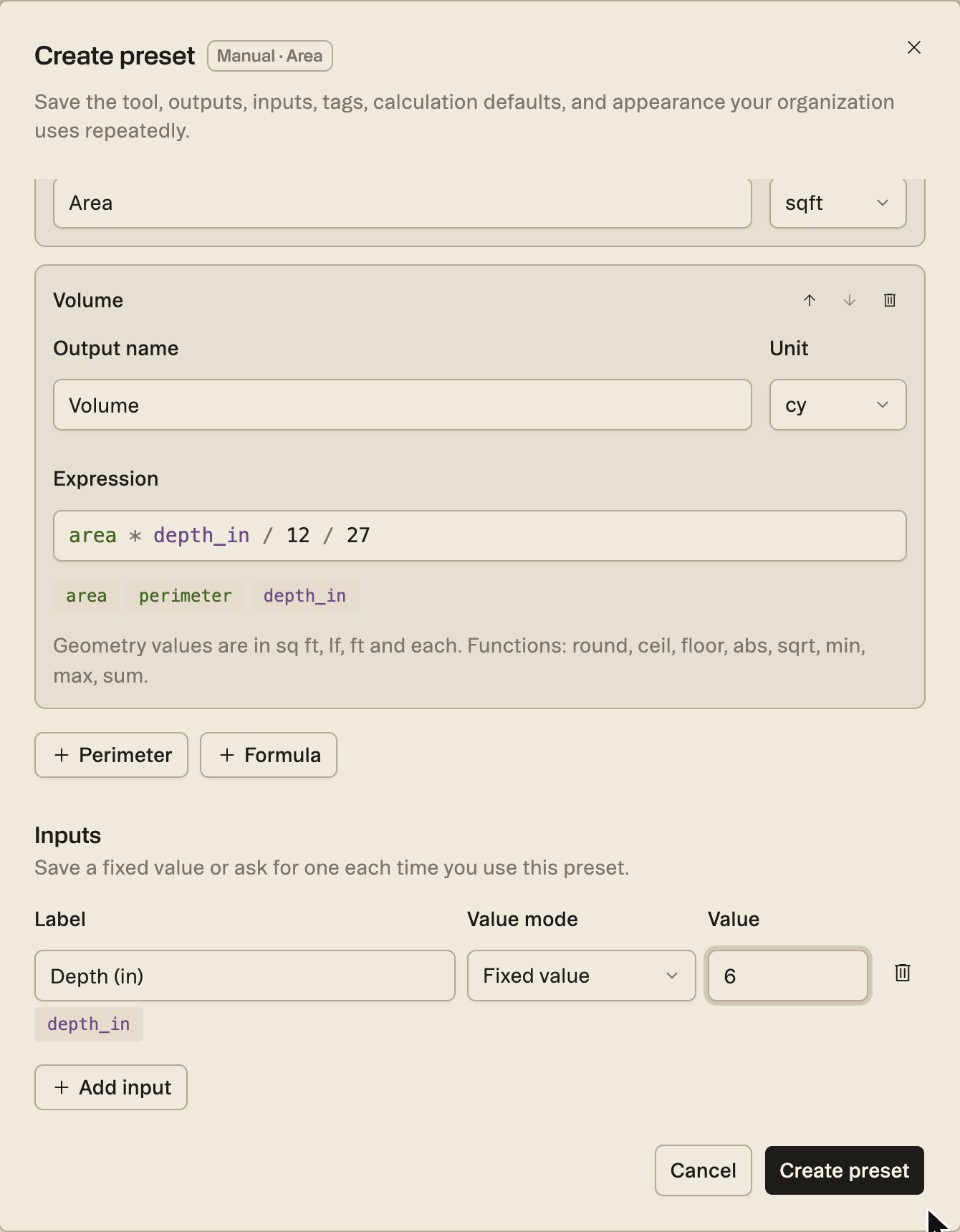
- Measurements: what one shape produces. An Area preset starts with an Area output; add a Volume, a Perimeter or your own Formula. Each output is its own quantity, and every shape you draw adds to all of them at once.
- Inputs: values the formulas use, saved as a Fixed value or set to Ask when used. Adding Volume adds a Depth (in) input, and the volume reads area depth_in / 12 / 27*.
- Appearance: color, fill opacity, line thickness and line style.
- Tags & Scope: tags applied to every quantity the preset creates, and scopes of work to link them to.
Use a preset
- Open a sheet in Focus View and pick Presets from the toolbar (Option+X). A palette opens with a search box and, at its foot, + New preset and Manage presets.
- Choose a preset, then trace as usual.
Build and organize presets
Presets live in the Preset library, reached from Manage presets in the palette or from Settings › Takeoff. It has two kinds of folder: the Shared library, available to everyone in your organization, and My presets, which is yours alone. Every preset belongs to a trade folder, so create the folder first with New beside either heading. Search presets or trades, filter by Tool, and sort by name. Delete a folder from its ⋮ menu; takeoffs already drawn from its presets aren't affected.
Bring presets over from On-Screen Takeoff
If your firm's recipes live in On-Screen Takeoff, you don't have to retype them. In Settings › Takeoff, choose Import OST or OSP and pick an .ost or .osp file. Create a folder first; the import needs one to write into.
This imports presets, not takeoffs.
Workflow example — Your concrete presets: SOG 4″, SOG 6″, Footings — continuous, Footings — spread. An estimator opens the structural set, picks SOG 6″, traces six footprints across three sheets, and has cubic yards without typing a depth once.
Good to know — A preset sets the starting values. You can still change a quantity's depth or unit afterwards from its row.
More docs