Working with your team
Everyone in your organization works on the same map. Comment on anything, mention a colleague, and see every thread that needs you in one place. Changes are stamped with who made them.
Updated 3 minApplies to: MapFeedback →
Comments
Comments attach to a thing — a sheet, a scope, a spec section, an issue, a measurement — and start a thread.
- Pick the Comment tool from the bottom toolbar.
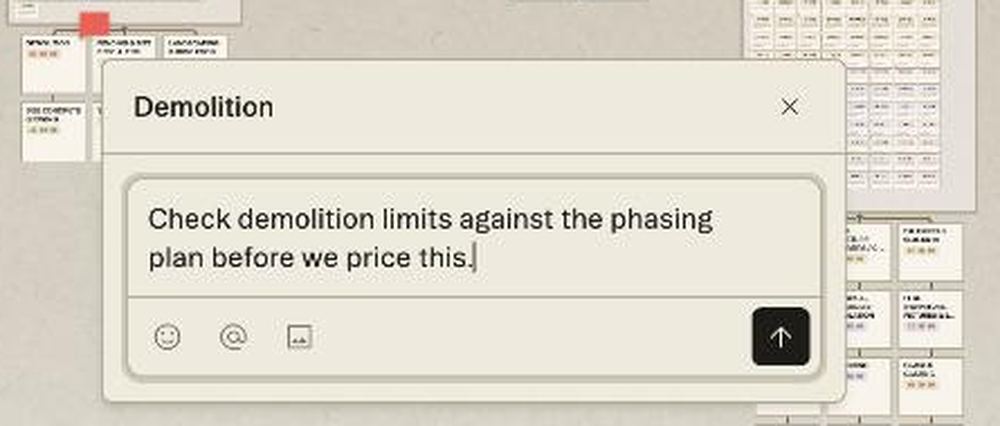
- Click the item (or the spot on a sheet) you want to talk about. A small composer opens, headed with the thing's name.
- Type. Three controls sit under the box: emoji, @ to mention a colleague, and attaching an image. Send with the arrow.
- Post. The thread pins to the item — a small initials marker — and stays the same size as you zoom.
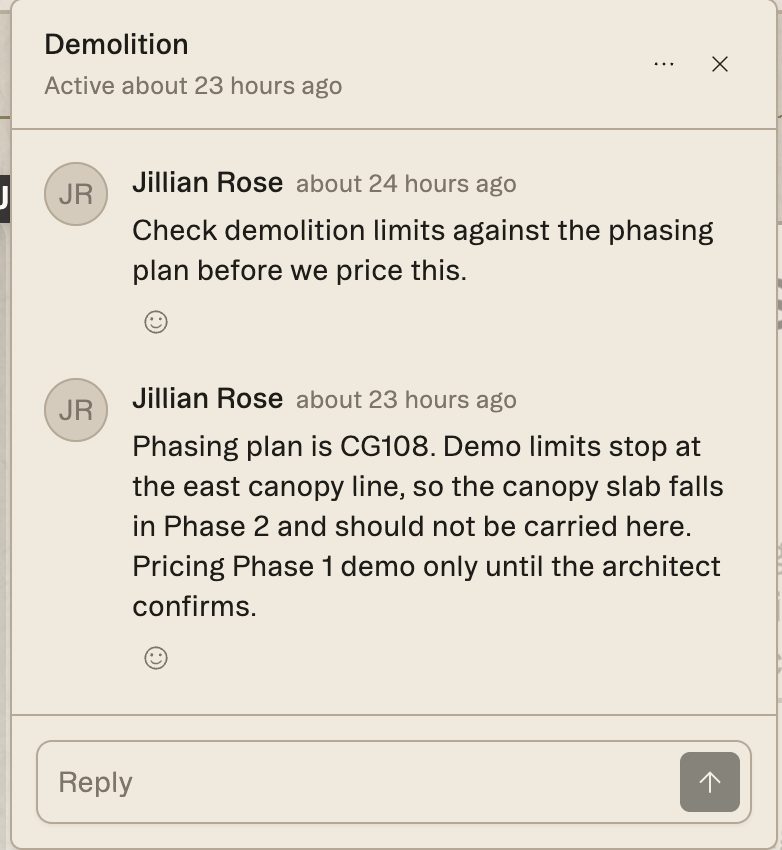
Once posted, the thread shows the author, how long ago, a Reply box and an emoji reaction. Reply, react, and resolve it when the question is settled. Threads you haven't read yet show as unread.
An open thread also puts its own address in the browser bar, so you can send a colleague a link that lands them on that exact conversation.
Mentions and Collaboration
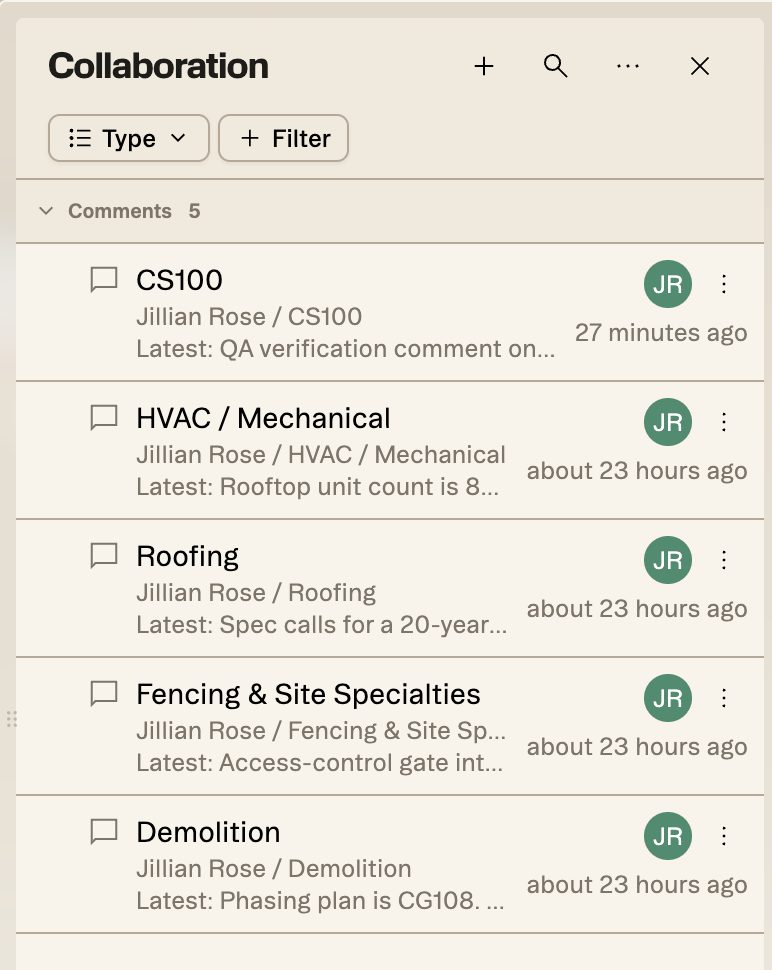
Mentioning someone with @ notifies them inside Struction. The Collaboration button at the foot of the right rail opens a list of every comment thread and assignment in the project. Group it by Type, Date or Entity, and filter it by type, status, assignee, due date or entity: Assignee › Me shows what is assigned to you, and Inbox narrows the list to unread threads or ones that mention you. Items you haven't read are marked; Mark all read, in the ⋯ menu, clears them all at once.
Notifications stay inside the app; Struction doesn't send comment emails.
Working at the same time
Two people can have the same project open at once, but there are no live cursors on the map, so if you are both editing the same scope item, agree who goes first.
Scope owners
Each scope of work can be assigned to one or more people, with a due date, so everyone knows who is carrying it. Choose Assign scopes from the ⋮ menu in Scopes of work to set people and dates for many scopes at once: change rows one by one, or tick several and edit them together, then Save assignments. You can also ask chat (assign the Masonry scope to Emily Sutton, due November 20) and approve the card it shows. Assignments appear in the Collaboration panel with their due dates and are marked Overdue when the date passes.
Good to know — Comments and mentions are visible to everyone who can open the project. To bring in someone from outside your organization, share the project with them; see Sharing & Access.
Workflow example — Bid day is Thursday. The precon lead comments on the M-201 sheet with a question about the RTU count and mentions the mechanical estimator, who answers in the thread from the same sheet and resolves it. The lead's Collaboration panel empties as the questions close.
More docs