Editing
Shape a draft by hand or with chat — edit any field in place, move items between scopes, verify what you've checked, and regenerate a section or a whole trade when the documents change.
Updated 2 minApplies to: MapFeedback →
Edit in place
Click or double-click almost any field — an item's text, its quantity, its unit, its CSI code — and change it directly on the scope. Edits autosave and are stamped with who made them and when; a small saved indicator confirms it.
Edit with chat
Tell chat what you want: Consolidate the plumbing items into bid-ready lines. Add an exclusion for trenching.
Every section carries five controls of its own — Add item, Regenerate section, Ask or edit with Chat, Delete section and Toggle section — so you can point chat at one section rather than the whole scope, or rebuild just that section when the drawings move under it.
Move, combine and split
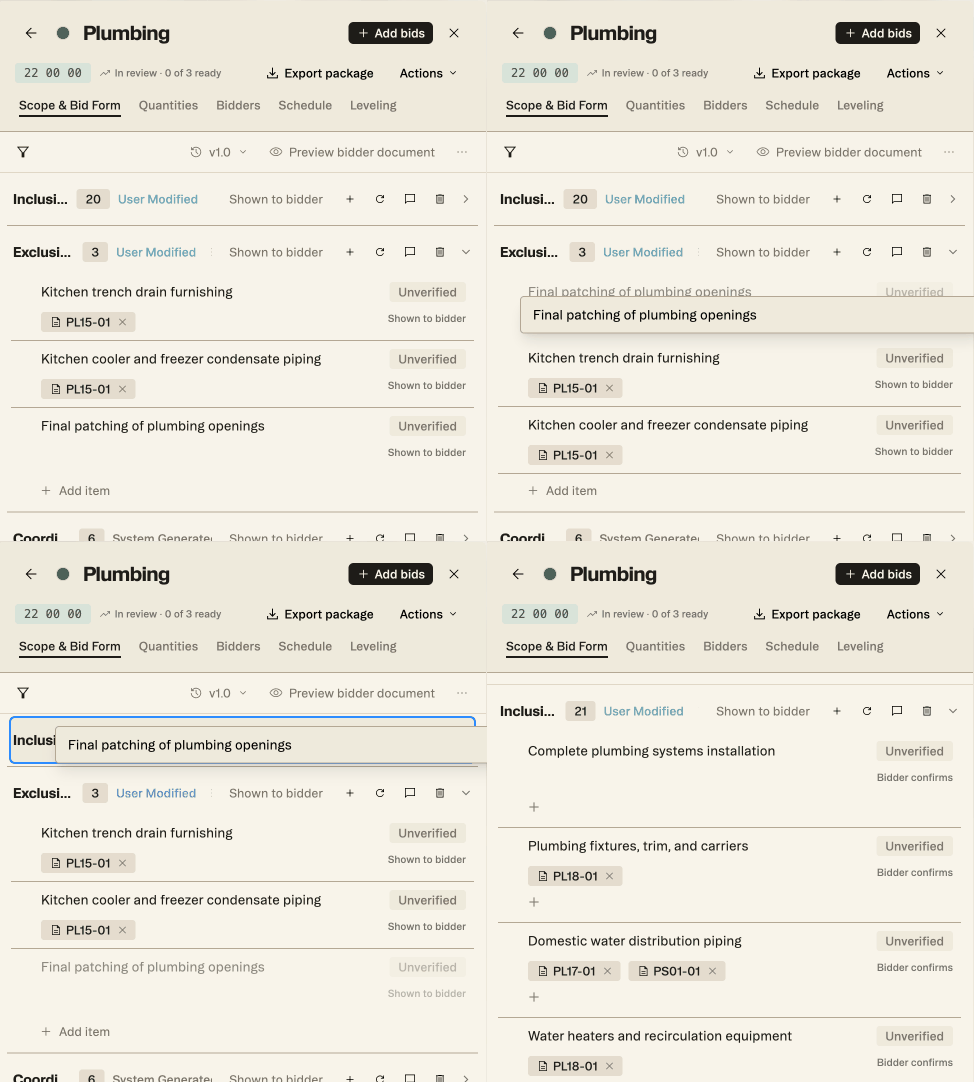
Move an item from one scope to another, combine two scopes, or split one apart — by hand or through chat. To send one item to another trade, open its ⋮ menu and choose Move, then pick the trade. Within a scope, drag an item by its handle onto another section's header: an exclusion becomes an inclusion when you drop it on Inclusions.
Verify
Click an item's Unverified pill to mark it Verified as you confirm it against the sources; click it again to undo. Verified and hand-edited items are protected: a regeneration won't overwrite them.
Regenerate
Re-run a single section or a whole trade's scope through chat when you want a fresh draft reflecting the latest documents and issues. Struction warns you before overwriting edits and leaves your verified and hand-edited items untouched. Regeneration ignores evidence from documents you've since deleted, and the previous version stays in Version History.
Good to know — After an addendum, review the scopes the new sheets touch and regenerate the sections that need it — your verified and hand-edited items are kept.
Issues on an item
There is no add-issue control on a scope item itself. To raise an RFI or a risk against one, click + in the Risk Register and pick the item under Link SOW item. To flag an item that no single trade owns, choose Create Scope Gap from the item's ⋮ menu.
Tip — Items that don't fit cleanly into any one trade become scope gaps rather than being forced into the wrong scope. Resolving gaps is part of finishing a scope.
Workflow example — Bid day is Thursday. You open the Mechanical scope, verify the inclusions you trust, fix two items where the drawings show more than the draft caught, ask chat to consolidate a dozen detailed lines into bid-ready items, clear the one scope gap that belongs to HVAC, and confirm the trade's open issues are resolved or accepted. The scope is ready to export.
More docs