Snapping, shortcuts and annotations
Your points can lock to the drawing's line-work instead of landing exactly where you click. This page covers snapping, the keys you use while drawing, and the markup tools that never count toward a quantity.
Updated 1 minApplies to: MapFeedback →
Snapping while you draw
When you pick a measuring tool, a card at the foot of the sheet names it (Lineal on A10-01) and spells out the controls. Points snap to the drawing's geometry as you place them. Two keys change that for the point you're placing:
- Hold A to lock to 45° increments.
- Hold Shift to bypass snapping and place the point exactly where you click.
Click and drag while placing a point to bow the new segment into a curve. Click Done on the card when you've finished with the tool.
Keyboard and mouse reference
| While drawing | Does |
|---|---|
| Click | Place a point or a count marker |
| Click the first point again (Area) | Close the shape |
| Enter (Lineal) | Finish the run |
| Drag while placing a point | Bow the segment into a curve |
| Hold Shift | Place a point without snapping |
| Hold A | Lock to 45° increments |
| On a saved takeoff | Does |
|---|---|
| Click (Cursor) | Select a saved takeoff |
| Right-click a segment of a selected run (Lineal) | Split Lineal Here · Add Segment Adder |
The tool keys themselves are on Keyboard shortcuts.
Annotations
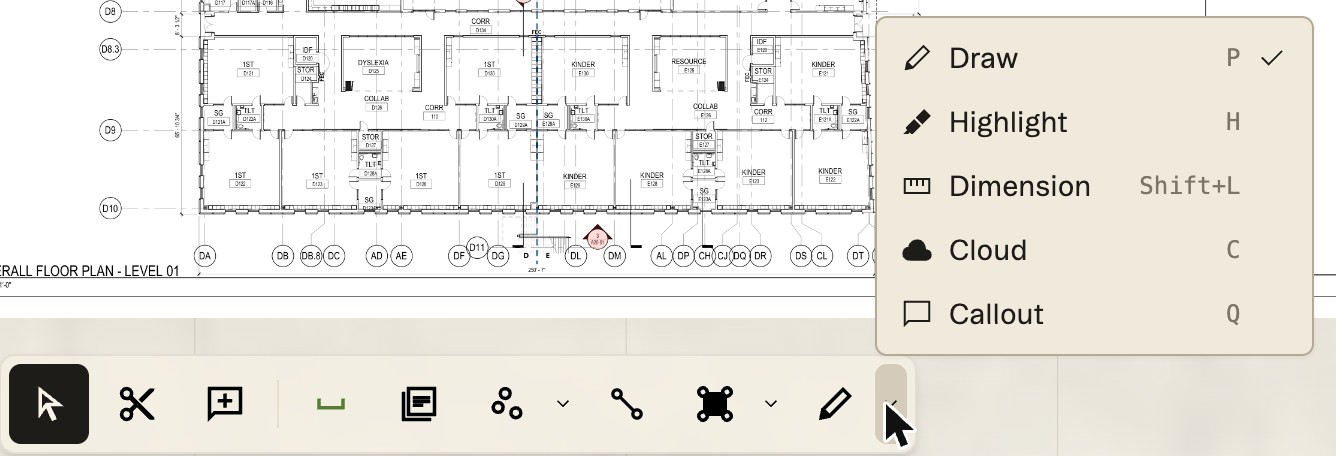
Alongside takeoff you get markup tools under the Annotation tool options chevron beside Draw: Draw (P), Highlight (H), Dimension (Shift+L), Cloud (C) and Callout (Q). Annotations mark up the sheet and never count toward a quantity. To start a discussion on a sheet, use the Comment tool (R) instead; see Working with your team.
More docs