Scope packages
A scope of work is also the package you send to one trade. Open any scope and its panel is laid out as that package: the scope and bid form the trade answers, the quantities behind it, and the schedule they're bidding against.
Updated 2 minApplies to: MapFeedback →
Open a package
Open Scopes of work from the rail on the right and click a scope. The panel's header carries the scope's name, its CSI code and its status — Drafted, or In review · 1 of 3 ready once review starts — with Export package and an Actions menu: Edit scope…, Assign scope…, Merge into…, Split scope… and Delete scope.
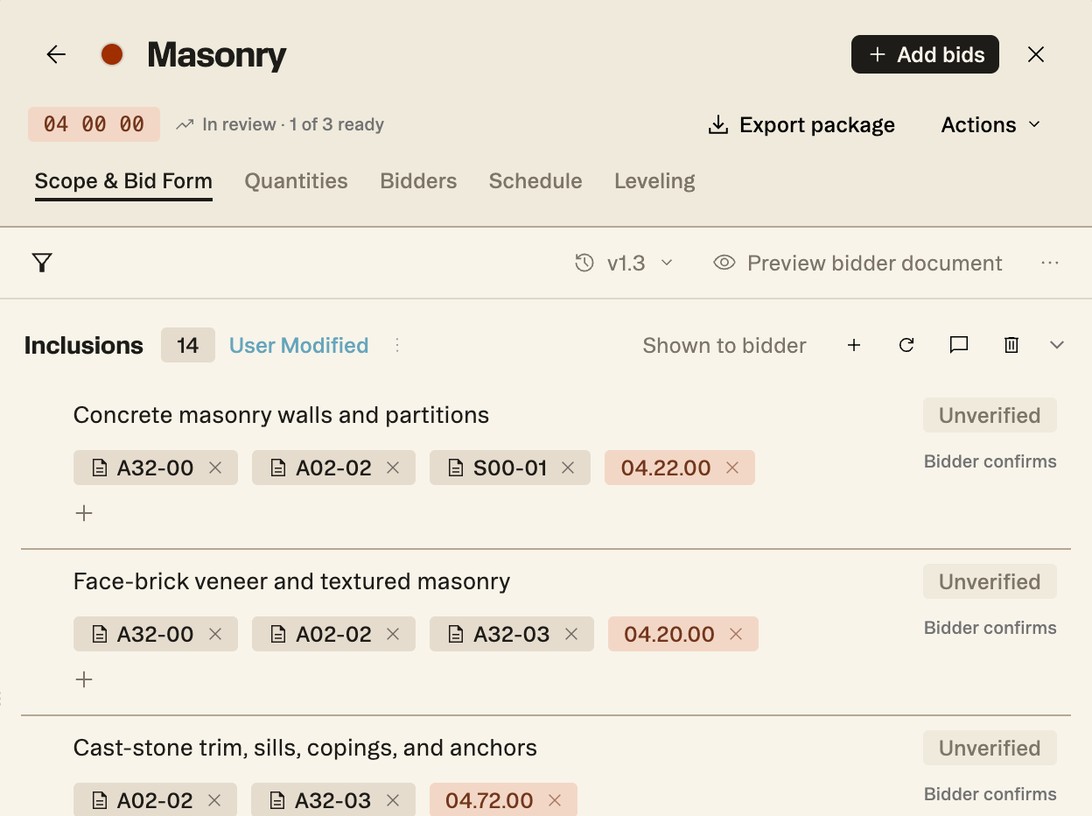
Scope & Bid Form
The first tab is what the trade receives, top to bottom: the scope's Inclusions, Exclusions, Coordination and Compliance items, then the bid form — Base bid (a Lump-sum base bid, Amount required, with Add to base bid for a breakdown), Alternates (Add alternate) and Supplemental pricing (Add supplemental pricing). Anatomy of a scope covers the items themselves.
Each item says what the bidder is asked to do — Bidder confirms, for example. Click it to change that: Show in bidder document, the Response the bidder gives (a confirmation or a written answer), and Answer required. A section shown to bidders says Shown to bidder in its header.
Project bid form at the foot of the tab holds the questions every package shares. Open project form edits them in one place; the Scopes of work panel also lists it at the top, Shared across all bid packages.
Preview what the bidder sees
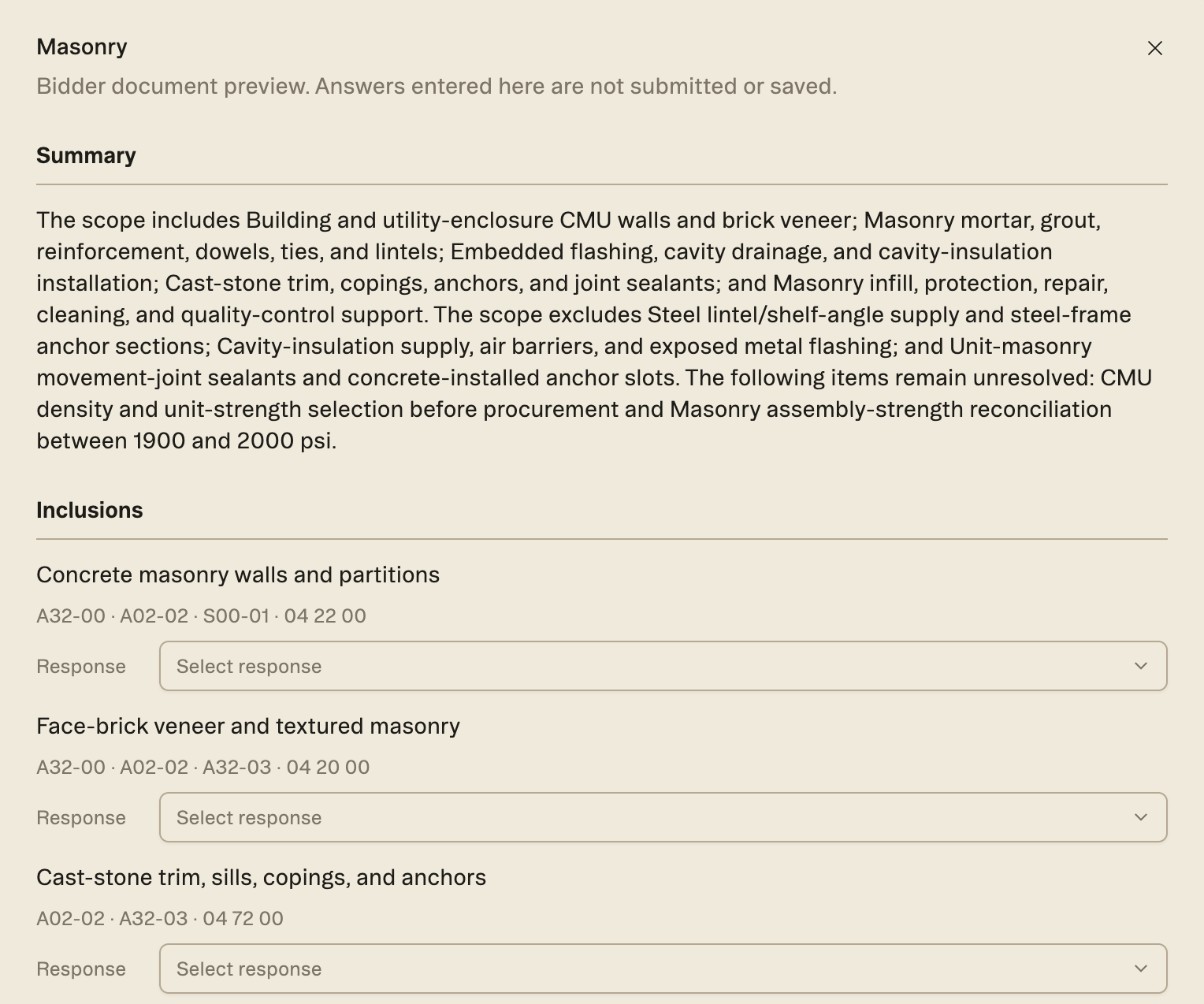
Preview bidder document opens the package as the trade will read it — Bidder document preview. Answers entered here are not submitted or saved. It starts with a Summary of what's in, what's out and what's still unresolved, then every item with its Response box, the base bid, Acknowledgements and Referenced documents.
Quantities
The Quantities tab is the Quantities panel narrowed to the quantities linked to this scope. Until you link some, it says No quantities linked to this scope yet.
Schedule
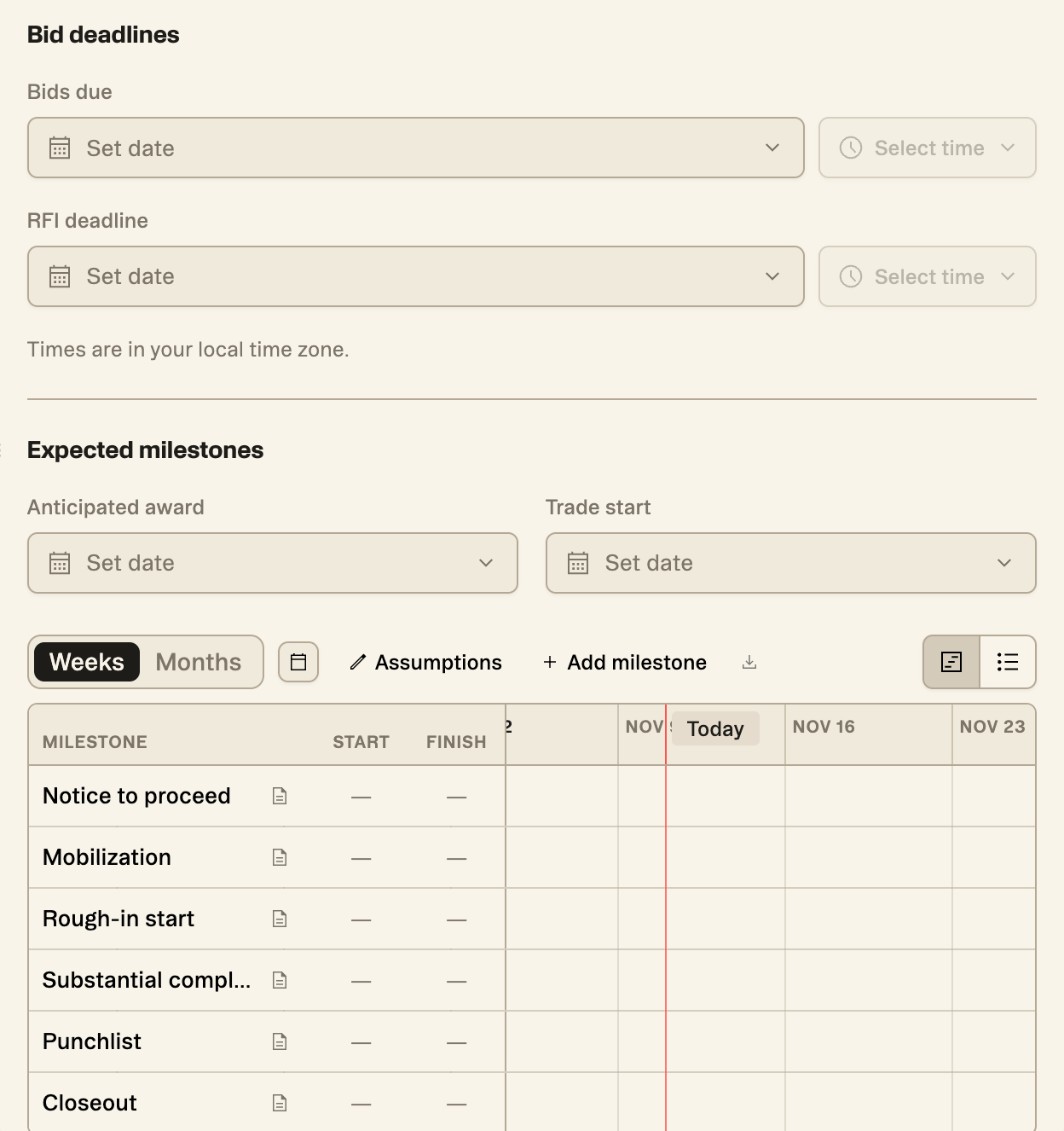
- Bid deadlines — Bids due and RFI deadline, each a date and a time. Times are in your local time zone.
- Expected milestones — Anticipated award and Trade start, then a timeline: Notice to proceed, Mobilization, Rough-in start, Substantial completion, Punchlist and Closeout. Drag across a row to set its dates, or type them in. Add milestone adds your own, each row takes a note, and Weeks and Months change the scale.
- Assumptions holds the assumptions and constraints behind the dates.
- The download button beside Add milestone exports the schedule to Excel. Save your changes first.
Export the package
Export package downloads the whole package as one Excel workbook, with tabs for the Invitation to Bid, Scope of Work, Bid Form, Project Bid Form, Terms and Schedule. See Exporting.
More docs