History and controls
Where chat lives, how to start a fresh conversation or find an old one, how to stop a reply, and the smaller controls around the prompt box.
Updated 2 minApplies to: MapFeedback →
Opening chat
Chat is always available. Press Cmd+J from anywhere, in any view. It sits in the bottom-left, over the map, and stays open while you work. Minimize chat collapses it out of the way; the placeholder — Ask anything, or / for commands… — tells you the other way in.
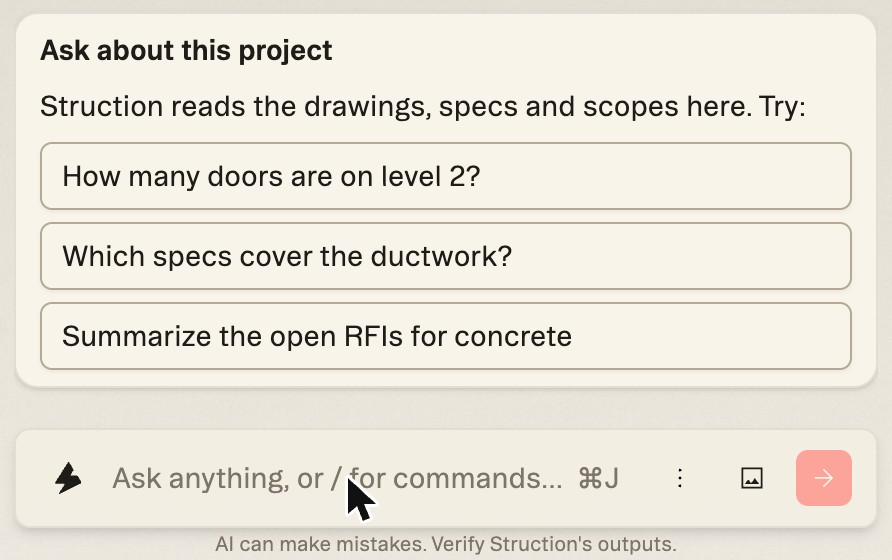
Ask about this project
Start a new chat and an Ask about this project card appears above the prompt box with three questions to try: How many doors are on level 2?, Which specs cover the ductwork? and Summarize the open RFIs for concrete. Click one and it runs as your prompt. They show the kind of question chat answers well.
Conversations
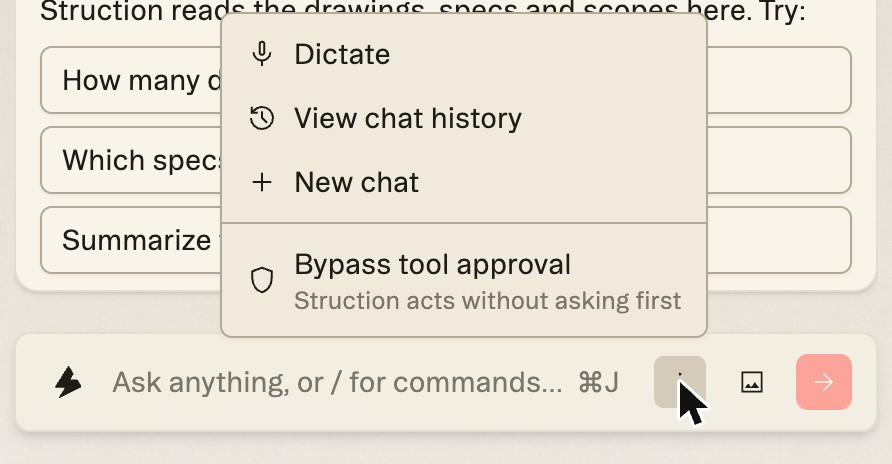
Open the chat options menu beside the prompt box for:
- New Chat — start a fresh conversation. Context from your view still applies; the history doesn't.
- View chat history — a list of your earlier conversations on this project, newest first, each dated and titled automatically from what you asked, so Level 01 Area A Import Quantities finds itself. Hover a row to delete it; Back to chat returns you to the conversation you were in.
Your conversation, including a reply that's still being written, survives a page refresh.
While a reply is running
Chat works in the open. Above the answer it prints what it's doing as it does it — Searching project documents, how many results it found, how long it thought — so a slow reply is legible rather than a spinner.
- Stop it at any point: while a reply is running, the send button becomes a red square. What's been written stays.
- Retry sits under every reply, not just failed ones — a second attempt at the same question.
- Good response and Bad response under each reply tell the team what worked.
Other controls
- /goto — type /goto and a sheet, trade, scope, issue or scope gap to jump the map there.
- Images — attach an image, or snip a region of a drawing straight into the prompt; see Context-Aware.
- Voice — speak your message instead of typing: choose Dictate from the chat options menu.
- Replies use tables where it helps — schedules, comparisons, lists of scopes and issues.
- Under the prompt box: AI can make mistakes. Verify Struction's outputs. Check the citations.
Good to know — Chat is per project. Preferences you approved for saving carry across projects; conversations don't.
More docs