Quickstart
Struction is the workspace for understanding a project and building your scopes of work, RFIs, risks and quantities. This page is the fastest path from a fresh account to a scoped, bid-ready project.
Updated 3 minApplies to: MapFeedback →
The five things to remember
Everything in Struction comes back to these five ideas. Remember just this much and you'll be fine.
- Your documents are here. Every drawing, spec and bid document you upload is the source information for the maps.
- Your scopes come from your drawings and specs. Struction reads your documents and writes a first-draft scope of work for each trade.
- Every output has a source. Any item, quantity or risk can be traced back to the exact page it came from.
- And every source is connected. Scopes, drawings, specs and issues are linked by their relationships, so you can always see what affects what.
- Chat is your partner. Anything you can do by clicking, you can also ask chat to do.
Your first session
- Sign up with a work email.
- Create a project. Name it, add the bid date, and upload your drawings, specs, bid documents and schedules. If you have a base set and addenda, stack them as separate issuances — see Upload. Struction labels each file; fix a label from the dropdown if it guessed wrong.
- Let it process. Struction reads the documents, organizes them by discipline, and writes a first-draft scope of work for each trade.
- Land on the map. Your home base: the whole project organized by discipline, with each discipline's scopes of work below it. Zoom out to see every discipline and its scopes; zoom in to see individual sheets, scopes, and the chips that mark risks and RFIs. See Maps.
- Open a scope of work. Click a scope card to open it in the detail panel and read its items. Check the sources on a few items — every item points back to the drawing or spec page it came from — and mark the ones you've checked as verified.
- Ask chat a question. Press Cmd+J and try something specific: What are the biggest risks in the Mechanical scope? Every answer cites its sources. See Prompting.
- Look at an issue. Click a risk or RFI chip on the map to understand it and decide what to do. See Why issues matter.
- Measure something. Open a sheet in Focus View and take off an area or a count; the quantity is linked to the sheet it came from. See Takeoff basics.
- Export when ready. When your scopes look right, export them to Excel to send to subcontractors or attach to your ITBs. See Exporting.
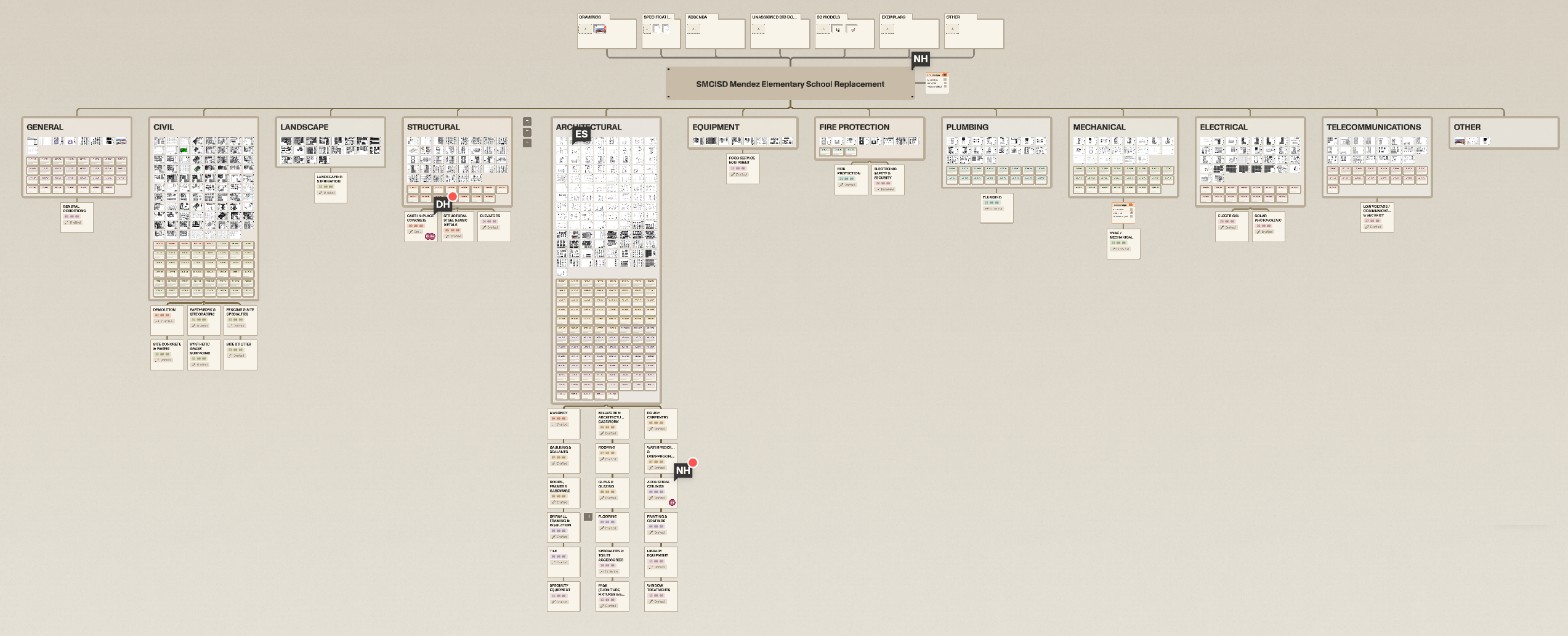
Getting around
- Zoom and pan the map like a web map: scroll to zoom, drag to pan.
- Single-click an item to select it and light up everything it connects to.
- Double-click a sheet to open it full screen in Focus View; press Esc or Exit focus to come back. Scope cards open in the detail panel instead.
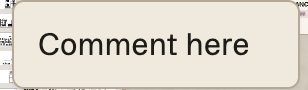
- Right-click an item for its menu. On a sheet: Ask chat · Add comment · Add assignment · Open focus view · Open detail panel · Move to · Edit title. On a scope card: Ask chat · Add comment · Add assignment · Open detail panel · Merge into… · Delete scope. Right-clicking empty canvas offers Comment here.
- Switch to the 3D model with the Map / 3D toggle at the top center.
- Open chat any time with Cmd+J.
Good to know — Your project stays confidential. Struction doesn't train on your project data. Stuck at any point? Write to help@struction.com.
Was this page useful?Stuck? help@struction.com
More docs