Editing with Chat
Chat can do almost anything you can do by clicking — create and reshape scopes, write quantities, raise and resolve issues — and, unless you switch approvals off, it shows you an approval card before any of it touches your project.
Updated 2 minApplies to: MapFeedback →
What chat can change
- Scopes. Create, rename, combine or split scopes of work, and generate or rewrite the items within them.
- Issues. Create, resolve or re-rank risks, RFIs and scope gaps.
Type / in the chat box for commands: /artifact creates a saved project artifact, /goto jumps to a sheet, trade, scope, issue, scope gap or the 3D view, and /clash finds where MEP runs into structure across the 3D models.
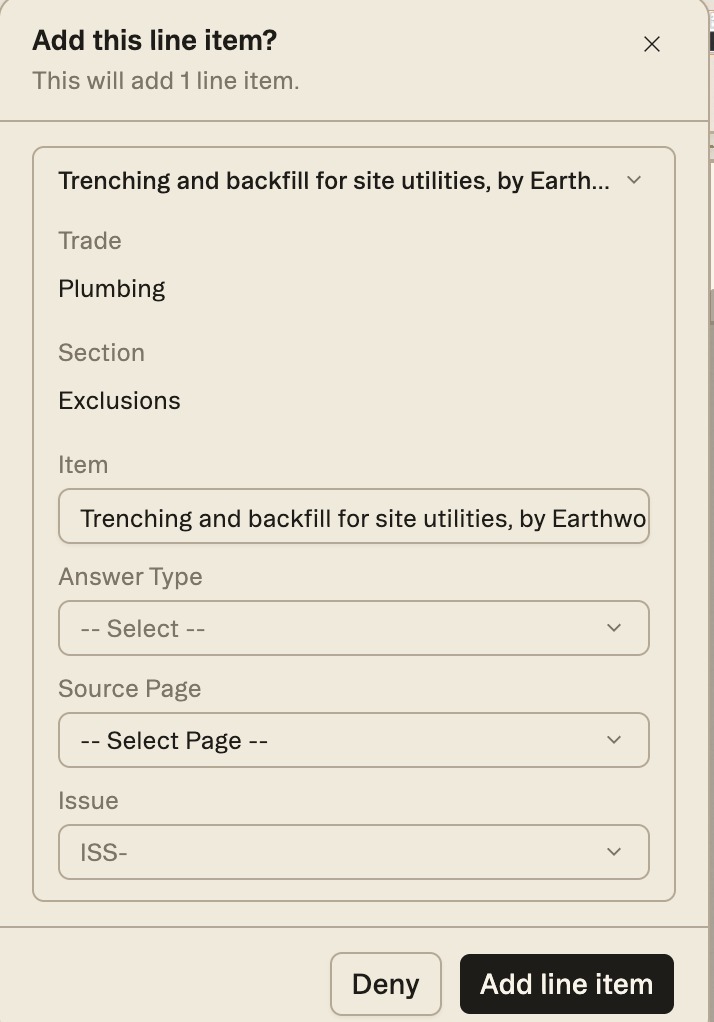
Approval cards
Anything that changes your data shows an approval card first. The card says what will happen — Add this line item? This will add 1 line item. — and lists the change; expand an item to check or edit its trade, section, wording, answer type, source page and linked issue before it goes in. Then accept with the button that names the action, such as Add line item, or choose Deny. Deny asks what to do instead: Send note tells chat, Deny without a note just stops, and Back returns to the card. If you send a new message while a card is waiting, it skips the approval.
The chat options menu (⋮ beside the chat box) includes Bypass tool approval. With it on, Struction acts without asking first. Leave it off unless you're doing a long run of edits you'd accept anyway — scopes have version history you can roll back, but quantities and issues don't.
Long jobs
Some jobs — generating or regenerating a scope, for instance — take a little time. Progress shows on the item being worked on, not stuck in the chat, so you can keep working elsewhere while it runs. You can't run two jobs on the same item at once, but you can start a job on another item.
Workflow example — You realize the drawings include an access-control system that never got its own scope. Instead of building it by hand, you tell chat: Create a Security Access scope of work from the drawings and specs, and make sure it doesn't overlap Electrical. Chat drafts the scope with sourced items, shows you an approval card, and you accept — then refine the few items you want to change.
More docs