Takeoff basics
Quantities are how a scope gets real numbers. You measure them on the drawing itself, and Struction keeps every measurement tied to the sheet it came from. This page covers where takeoff happens, the toolbar, scale, and how measurements roll up into quantities.
Updated 3 minApplies to: MapFeedback →
Where takeoff happens
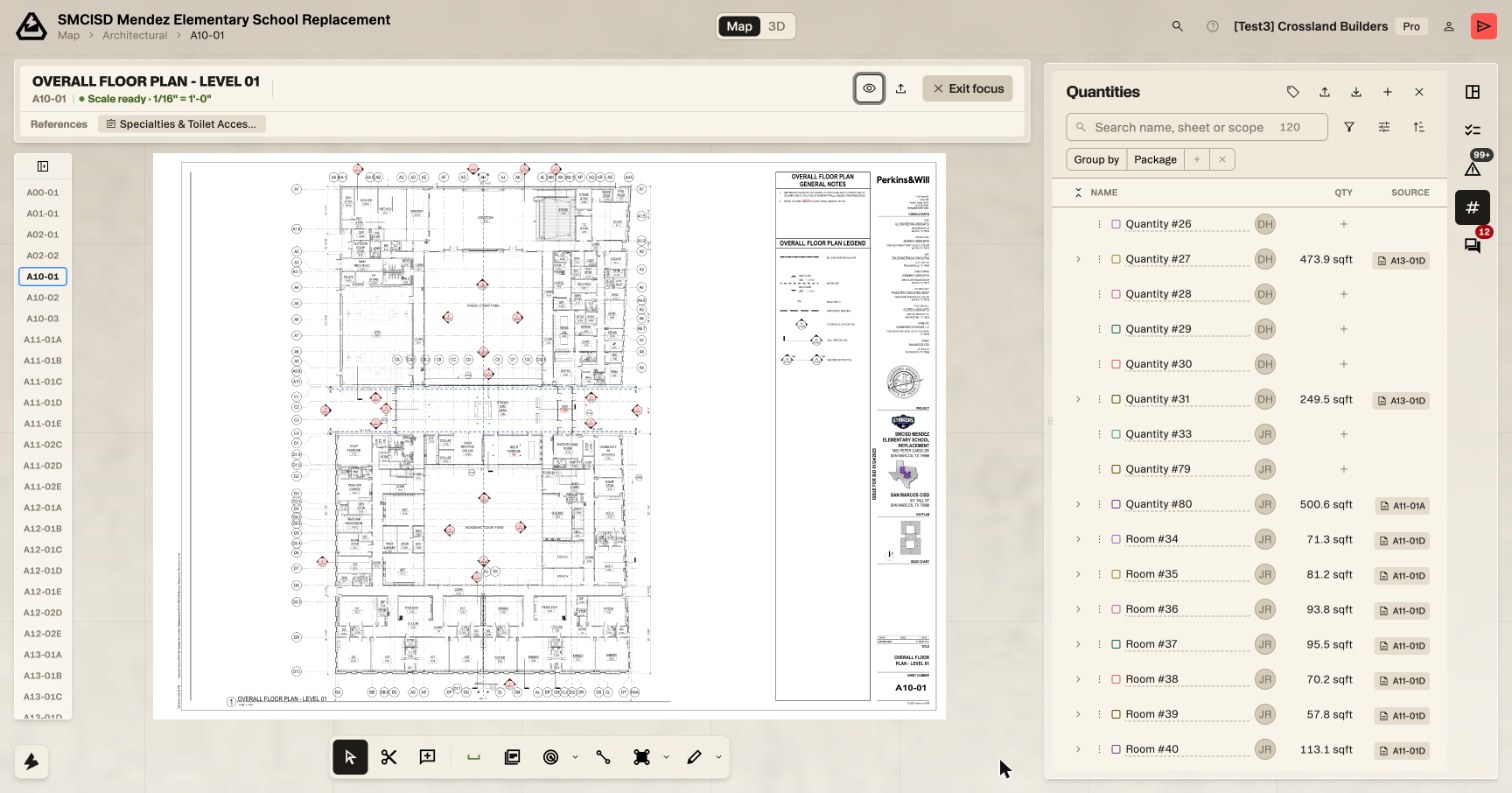
You measure on a sheet in Focus View: double-click a sheet on the map, or jump to one with /goto in chat. Out on the map, the measuring tools are grayed out and their tooltip reads Zoom into a drawing to use this tool.
Picking a measuring tool creates the quantity straight away: a new row named Quantity #n appears in the Quantities panel, ready to be renamed. A card at the foot of the sheet says what the tool is doing and which keys apply, with a Done button to finish.
The toolbar
The toolbar sits at the bottom of the screen. With a sheet open it holds, left to right:
- Cursor (V): the default. Click a saved takeoff to select it.
- Snip to Chat: box part of the drawing and send it to chat.
- Comment (R): start a comment thread on the sheet.
- Scale: the sheet's scale, and the way in to set it. Its tooltip is the status, such as Scale ready: 1/16" = 1'-0". Click to edit scale.
- Presets (Option+X): arm a saved measurement recipe.
- Count Takeoff (M then C), with a Count tool options chevron.
- Lineal Takeoff (M then L).
- Area Takeoff (M then A), with a Measurement tool options chevron.
- Draw (P): markup that never counts toward a quantity, with an Annotation tool options chevron.
Everything else lives behind the chevrons:
| Chevron | What's inside |
|---|---|
| Count tool options | Count Takeoff M then C · Auto count |
| Measurement tool options | Area Takeoff M then A · Perimeter Takeoff Shift+Option+P · Volume Takeoff Shift+Option+V · Auto pattern · Auto room |
| Annotation tool options | Draw P · Highlight H · Dimension Shift+L · Cloud C · Callout Q |
A segment shows the tool you used last, so the Count button can read Auto count after you've run one.
Scale
Measurements need a scale. Struction reads it off most drawings and shows it in the sheet's banner in Focus View: ● Scale ready · 1/16" = 1'-0".
To set or fix it, click the Scale button. Set Page Scale asks for a Drawing Distance and the Real Distance it stands for (1 in = 16 ft), each with its own unit. Apply to all regions saves it for the sheet.
Good to know — Set or confirm the scale before you measure an area or a length.
Measurements, quantities and scope items
Three words carry the whole system.
- A measurement is one takeoff on one drawing: one traced area, one run, one set of counted markers. It lives on the sheet.
- A quantity is one or more measurements added together, in one unit. Expand its row in the Quantities panel to see its Measurements, each with its sheet and scale. Rename it to what it is (Slab on grade, Type A doors) from its row menu.
- Linking a quantity to a scope item gives that item its number. The Links line under an expanded quantity lists the items it funds, and reads None yet until you link one.
Units follow the tool: square feet for areas, linear feet for runs, each for counts. Switch a run to linear yards, or an area to square yards, with Change unit in the row menu. Set formula… can report a quantity in any of ea, lf, ly, sqft, sy, cy or cf.
Good to know — To remove a takeoff, delete the quantity from its row menu. Struction asks first, deletes the measurements only that quantity uses, and keeps any shared with another quantity.
More docs