Filter & Search
A project can have thousands of pages. Struction cuts through it three ways — click to highlight connections, search names and sheet text, or ask chat — and when it filters, it brightens what matches and dims the rest without ever hiding anything.
Updated 2 minApplies to: MapFeedback →
Click to highlight
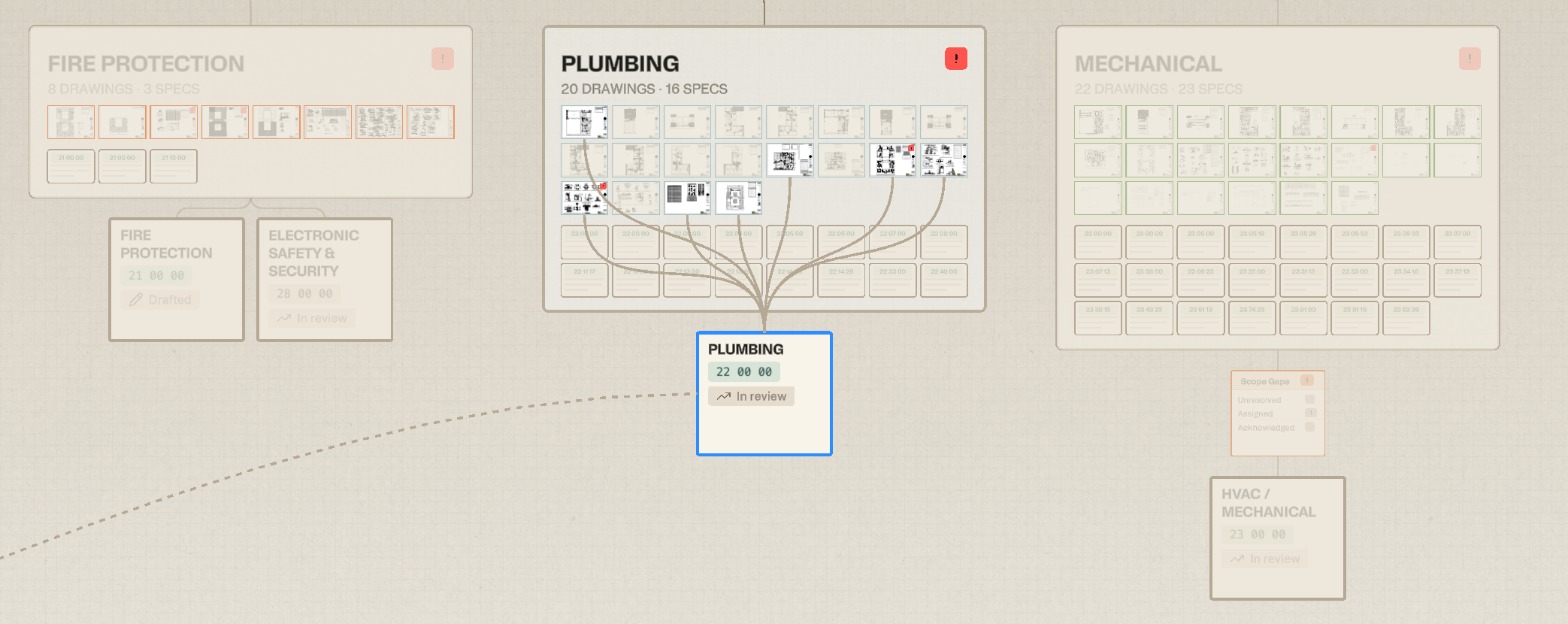
Click any item on the map and everything it connects to brightens — the sheets that fed a scope, the scopes drawn from a sheet, the spec sections behind them — while everything else dims. Dimmed items stay clickable, so you can hop from connection to connection. Click empty canvas to clear.
Search
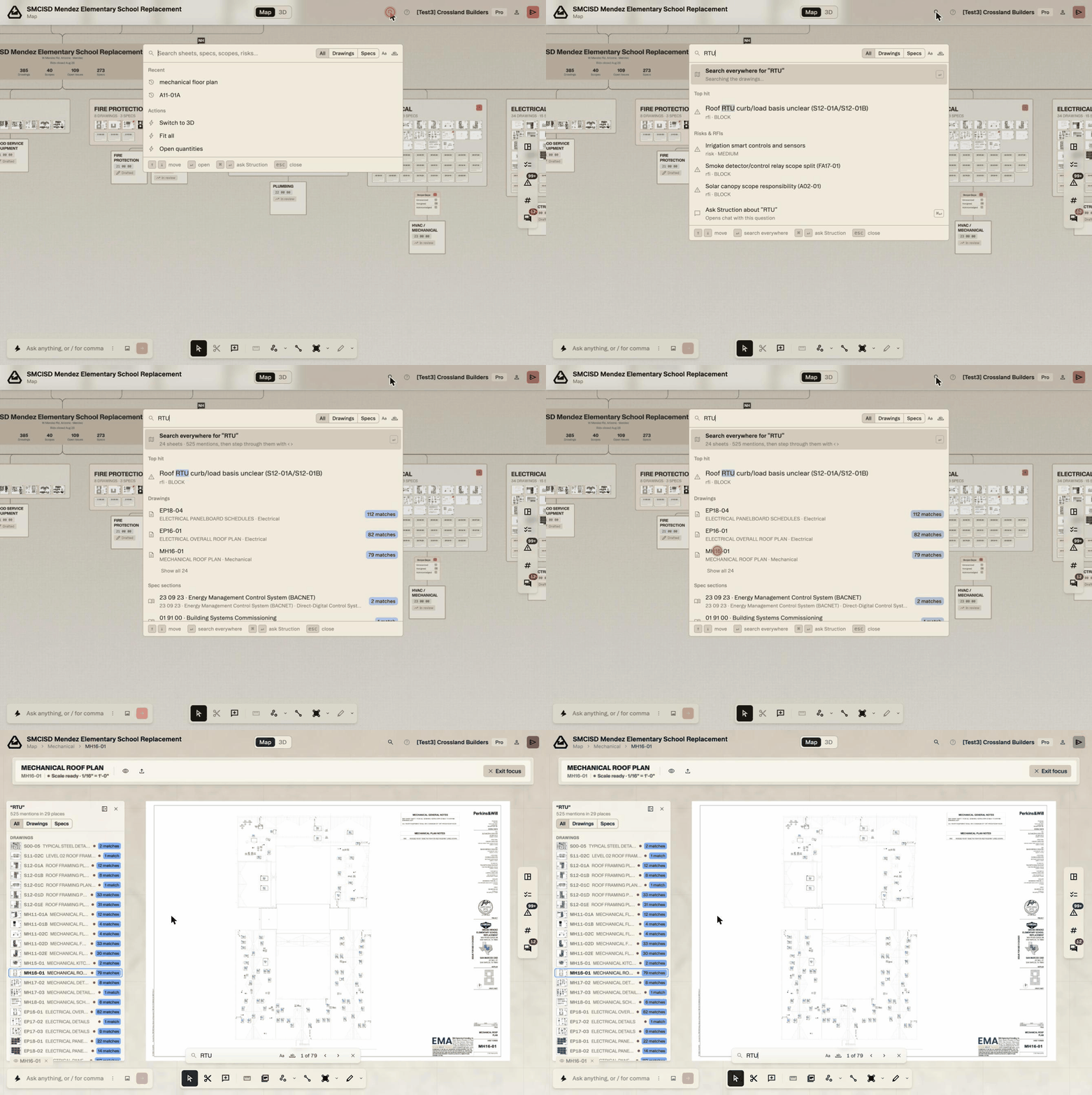
Search finds sheets, specs, scopes and risks by name, and it also searches the text on the sheets themselves: a room name, a detail reference, an equipment tag. Open it with the magnifier in the header or ⌘K. As you type, it shows a top hit, then drawings and spec sections with a match count for each; tabs narrow it to Drawings or Specs. Choose Search everywhere to list every sheet the text appears on. Open a drawing and it lands in Focus View with the results down the left and a find bar at the bottom — 1 of 79 — to step through each match on the sheet.
Ask chat
Ask chat about what's on the map — which scopes reference sheet S3.08? or show me the open critical issues on structural — and it answers with chips for the scopes, sheets and issues it found; click one to open it. Chat doesn't filter the map itself: asked to show me only HVAC, it answered with the HVAC / Mechanical scope.
Clear
Click empty canvas to bring everything back; Esc doesn't clear a selection. The shape of the project never changes while you filter, so you keep your sense of where you are.
More docs