Upload
You add documents when you create a project and any time after. Struction reads each file, works out what each page is, and places the pages on the map for you — nothing is sorted by hand.
Updated 6 minApplies to: MapFeedback →
Where you add documents
There are three places to bring files in:
- When you create a project. The create flow has a documents step.
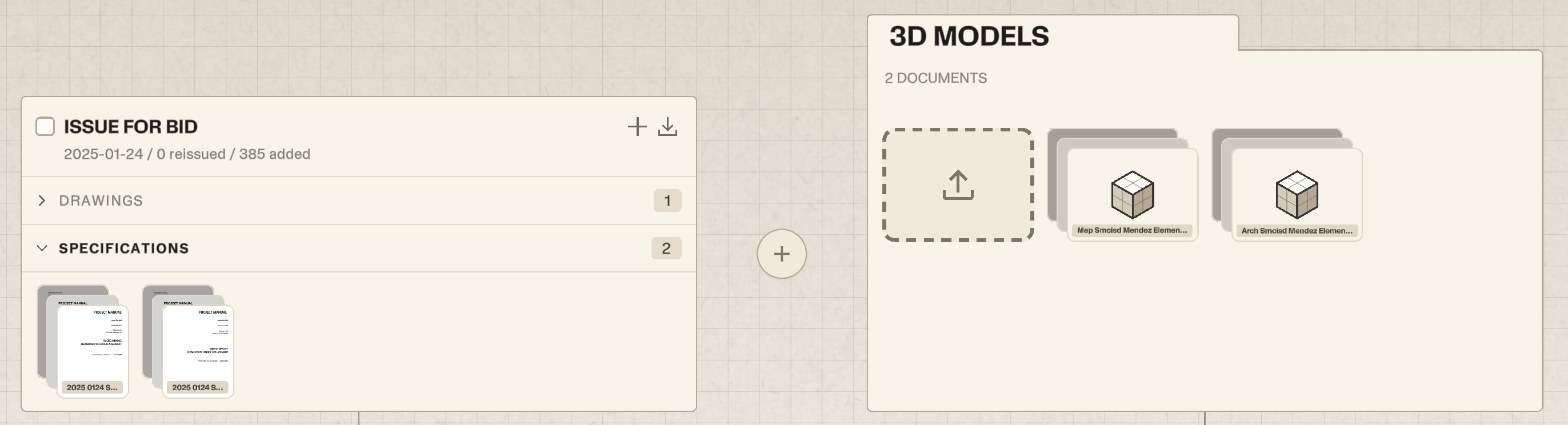
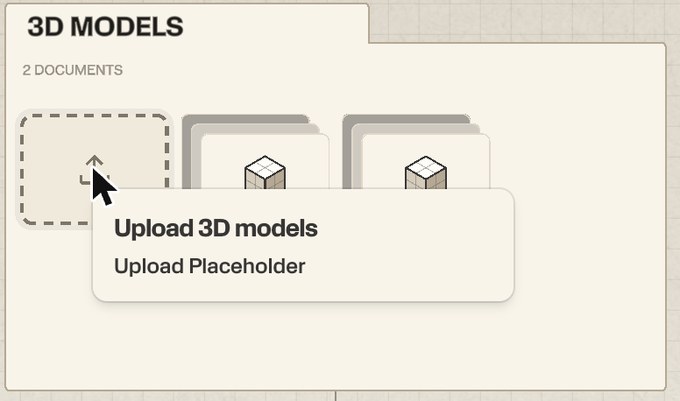
- On the map. The issuance band sits above the project card. Each issuance — Issue for Bid, for example — is a card with a + (Add documents) and a download button. The + between the cards is Add new set, for an addendum, bulletin or revised set. The 3D Models card has a dashed upload box for Upload 3D models or Upload Placeholder.
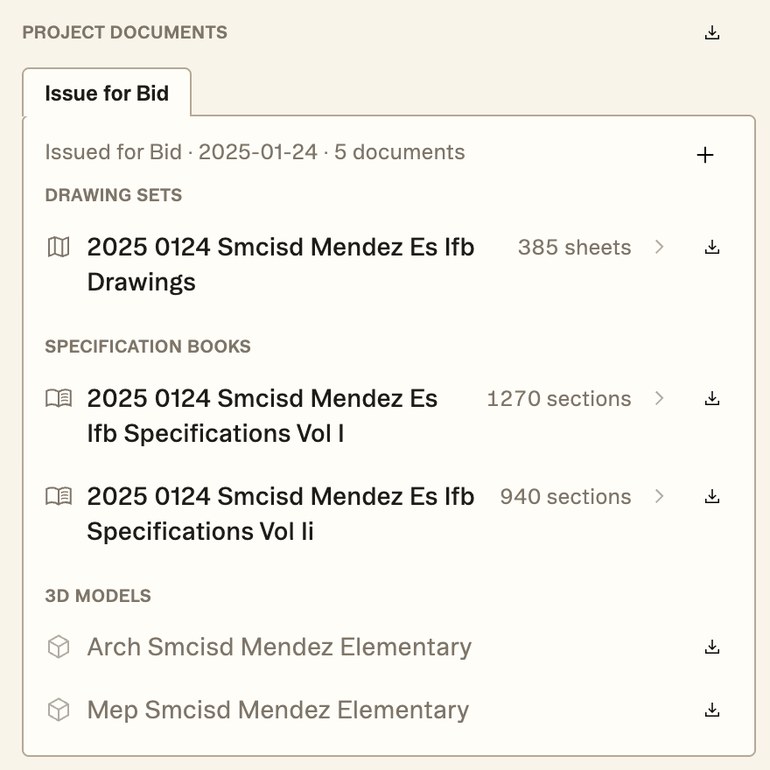
- In the Project panel. Under Project documents, each issuance has a tab, and its + is Add documents.
Adding an issuance
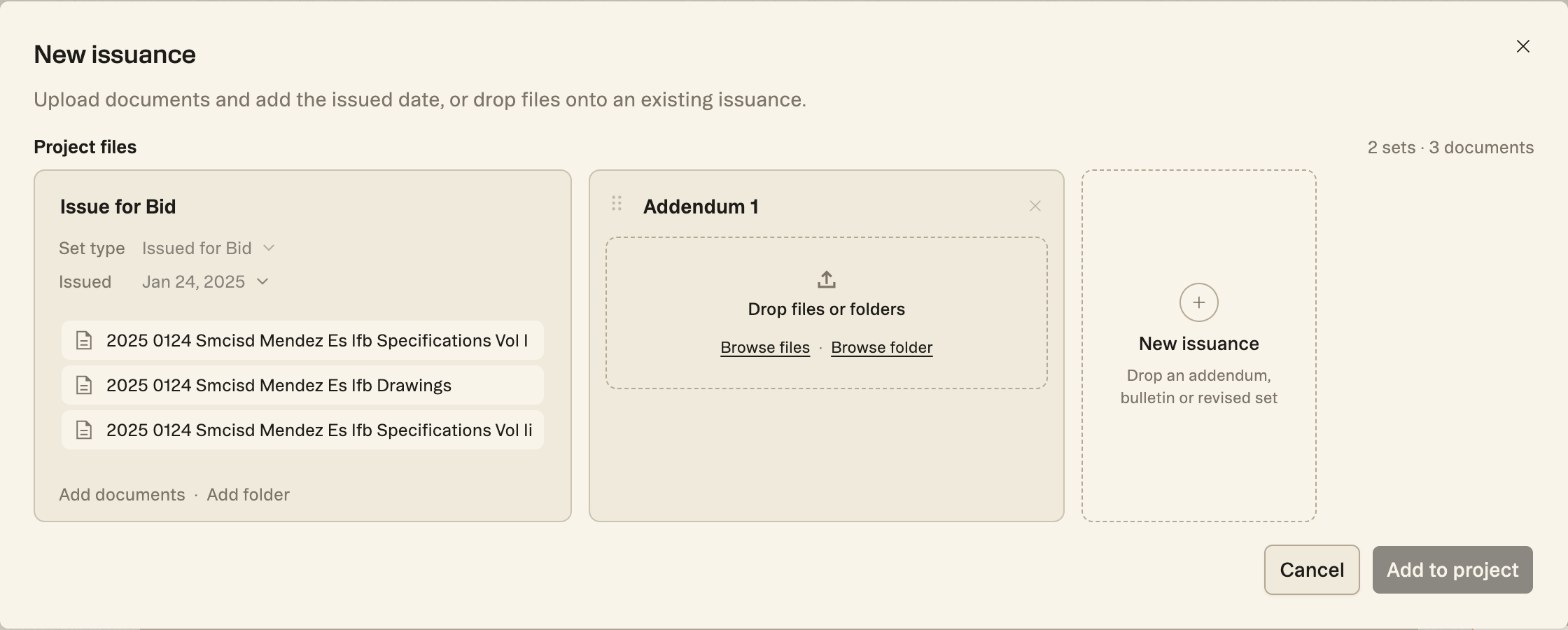
- Click the + between the issuance cards. The New issuance dialog opens with your existing issuances and a new Addendum 1 column.
- Drop files or folders onto the new column, or use Browse files or Browse folder. To add to an issuance that already exists, use its Add documents or Add folder instead.
- Once a file is in, the column asks for three things. Set type — Conceptual Design, Schematic Design, Design Development, Construction Documents, Issued for Bid, Issued for Permit, Issued for Construction, Addendum, Bulletin or Record Set. Delivery — Full set, or Changed sheets only. Issued — the date the set was issued. The date is required.
- Each file also has a Document type dropdown. You can leave it on None and let Struction work it out, or pick one yourself.
- Need more than one issuance? Click New issuance to add another column. Drag a column's handle to reorder it, or click its × to remove it.
- Click Add to project.
An existing issuance's Set type and Issued date are shown in the dialog but locked.
What happens next
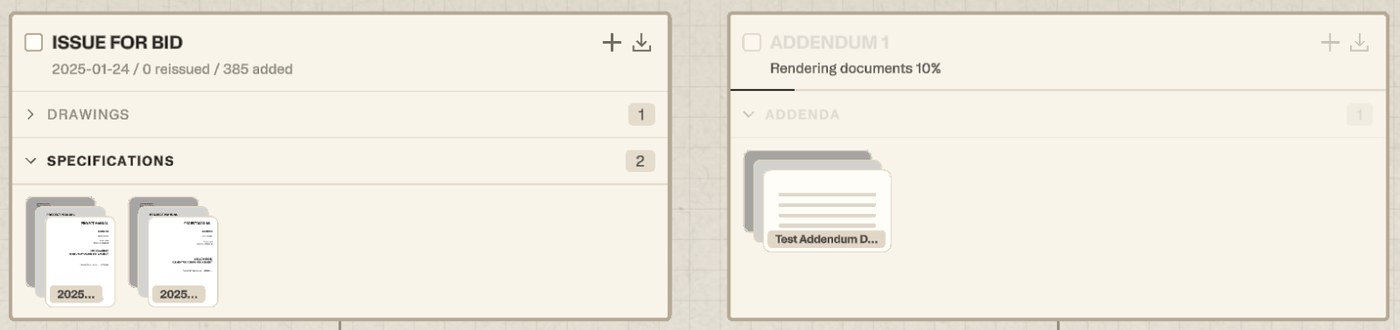
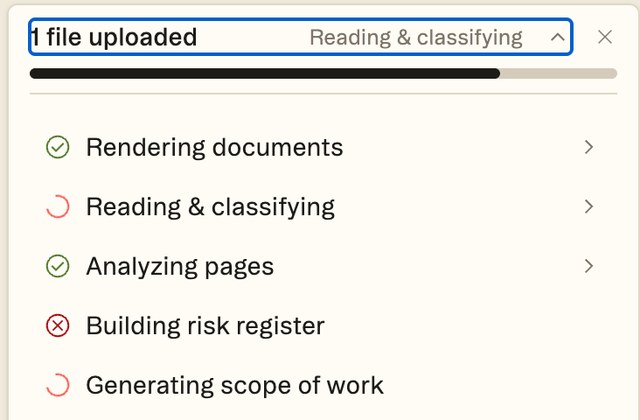
The new issuance appears in the band straight away, with a progress line under its name. Click the line to see each stage:
- Rendering documents
- Reading & classifying
- Analyzing pages
- Building risk register
- Generating scope of work
Each stage shows a tick when it's done, and you can open a stage to see each file in it. The project stays open while this runs, and pages appear on the map as they're read. Scope generation comes last and takes the longest. When everything is done, the progress line gives way to a summary — files processed, sheets changed and added, and whether the risk register and scopes were rebuilt. Struction emails you when a new project has finished processing.
Where pages end up
Struction reads every page for what it is. A drawing sheet gets its sheet number and title and joins its trade on the map — a sheet numbered A-901 lands under Architectural, and the project's Drawings count goes up by one. To check a document, Cmd-click it: the reader groups its pages by trade, and any page Struction couldn't place is listed under Unlabeled.
In the Project panel, Project documents has a tab for each issuance showing its set type, issued date and document count. The documents are grouped into Drawing sets, Specification books and 3D models. On the map, each issuance card groups its documents as Drawings, Specifications, Addenda or Other.
Document types
The Document type dropdown in the upload dialog offers:
| Type | Use it for |
|---|---|
| Construction Drawing | Plan sets, sections, details and schedules on sheets |
| Specification | The written technical requirements |
| Addendum Narrative | The written part of an addendum |
| Engineering Report | Soils, environmental and survey reports |
| Schedule | Milestone and phasing schedules |
| Existing Conditions | Site photos, as-builts and record drawings |
| BIM Model | IFC and RVT models |
| Bid & Contract Document | Instructions to bidders, bid forms and contract terms |
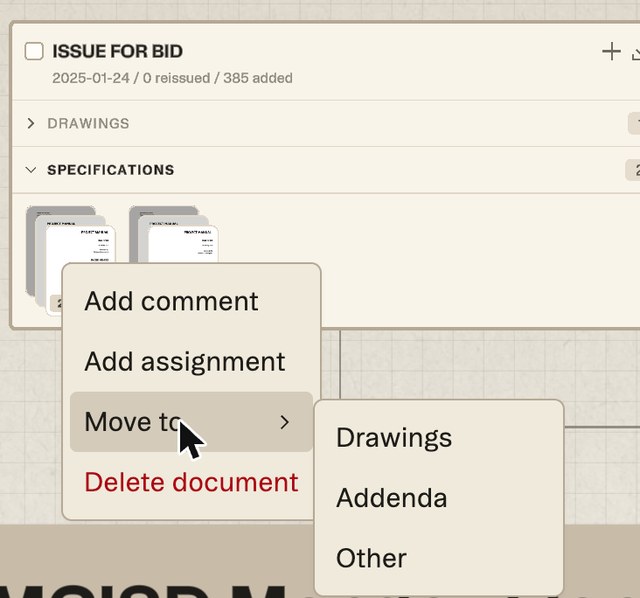
Tip — If a document is in the wrong group after upload, right-click it on the map and choose Move to, then pick Drawings, Specifications, Addenda or Other. The same menu has Add comment and Add assignment.
Accepted files and limits
| Where | Takes |
|---|---|
| New issuance and Add documents | PDF, IFC and RVT files, or whole folders |
| 3D Models upload box | IFC and RVT |
| Chat attachment (the image button in the chat box) | Images (JPG, PNG, GIF, WebP), PDF, Word (.docx), Excel (.xlsx), CSV, plain text, Markdown and JSON |
- File size: up to 3 GB per file. A bigger file is refused with Files must be 3 GB or smaller — split the set into its volumes and upload those.
- Pages: there's no limit on the number of pages in a project.
- Wrong file type: the file is refused with Only PDF and BIM model files (.ifc, .rvt) are allowed. If a few files in a batch are refused, the rest still upload and Struction tells you which ones it skipped. Hidden system files that ride along inside a folder are left out quietly.
- Chat attachments: up to 20 MB per file and up to 10 images. A file attached in chat goes with that message — to add a document to the project, use the map or the Project panel.
Removing and downloading
To remove a document you uploaded by mistake — a duplicate, or a file from another job — right-click it on the map and choose Delete document. Before anything is deleted, Struction shows what would go with it: the document's pages and spec sections, the measurements and annotations on them, any quantity groups that would be left empty, the scope-of-work citations that would be removed and the risk sources that would be detached. Read it before you confirm. Deleting a document doesn't remove its issuance: the card stays in the band, empty, and there's no way to delete an issuance yourself.
To get files back out, open the Project panel. The download button beside Project documents is Download project documents, and each drawing set, specification book and 3D model has its own download button. The issuance card on the map has a download button too.
Workflow example — The architect sends Addendum 1 as a drawing PDF and a spec PDF. Click the + between the issuance cards and drop both files into the Addendum 1 column. Set type is already Addendum; pick the issued date, and click Add to project. Watch the progress line on the new card, then Cmd-click the addendum to check that its sheets landed in the right trades.
More docs