Split-Screen
Split-Screen puts two items side by side so you can check that they agree — a drawing and the spec that governs it, a scope and its source sheet. It's how you verify ground truth when something feels off.
Updated 1 minApplies to: MapFeedback →
Compare two things
- Open the first item in Focus View.
- Click a chip in the sheet banner's References row — a scope, say — and it opens in the detail panel on the right while the sheet stays on the left. On the map, right-click any item and choose Open detail panel to do the same.
- Drag the panel's edge to give either side more room.
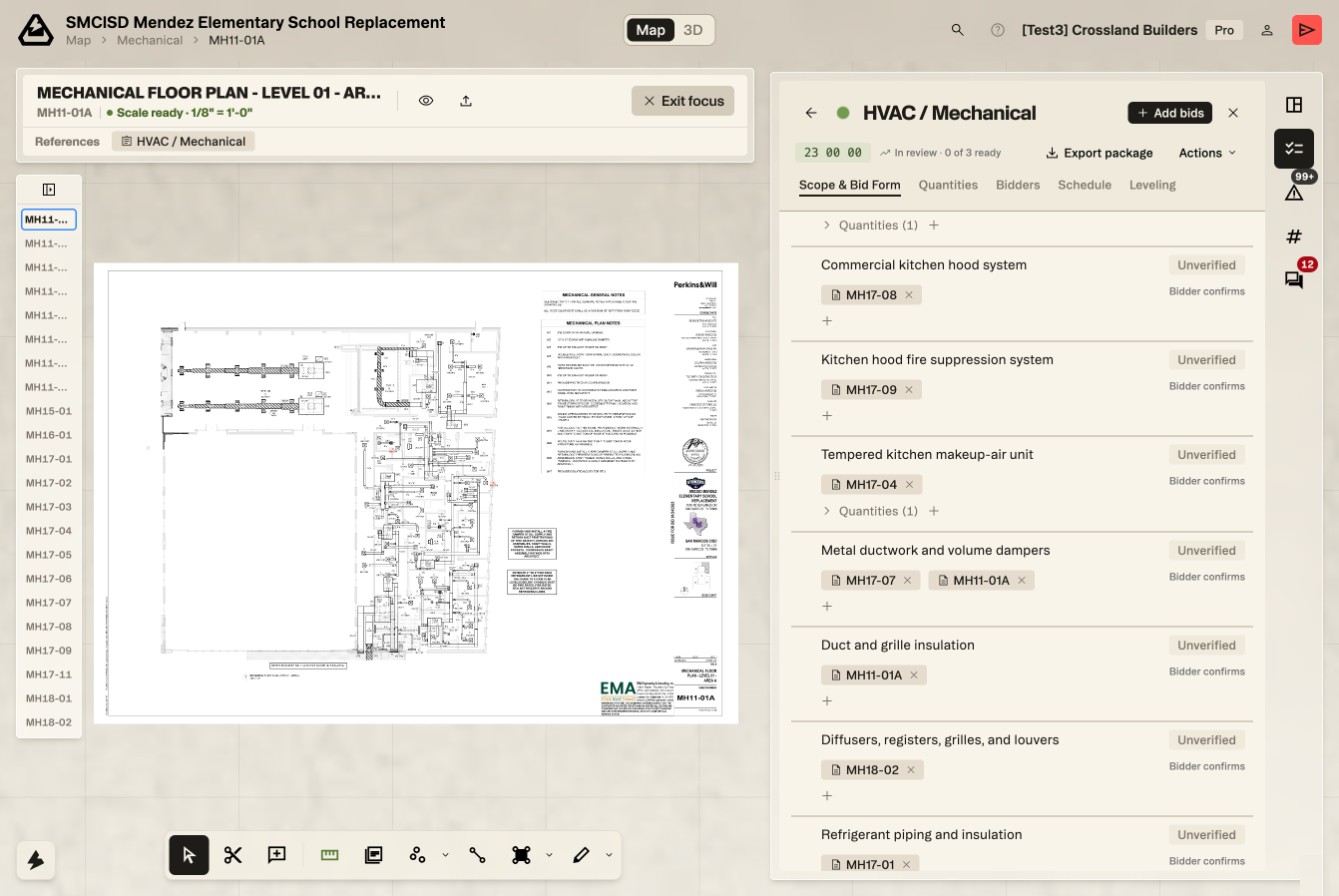
Workflow example — A spec calls for a 20-ton rooftop unit, but the mechanical plan looks like a 15-ton. Put the drawing on the left and the spec on the right, see the conflict directly, and create an RFI linked to that sheet without losing your place in the project — see RFIs.
Good to know — Anything that opens in the detail panel — a scope, a sheet, the Risk Register, a spec section — can be the right-hand side of a comparison. See The detail panel.
Was this page useful?Stuck? help@struction.com
More docs