Zones and tags
A drawing set is organized by sheet; a building is organized by place. Tags let you say where in the building a quantity belongs — a level, an area, a phase — and then see your quantities grouped that way.
Updated 1 minApplies to: MapFeedback →
Why tag
Your takeoff naturally comes out sheet by sheet: the slab on S-101, the walls on A-201. Subs and schedulers think in places: Level 2, the east wing, Phase 1. A tag attaches the place to the quantity so both views exist at once.
Add a tag
- In the Quantities panel, open the ⋮ menu on the quantity's row. It holds Add measurements, Rename, Merge into, Tags, Set formula… and Delete; measured quantities also offer Change unit.
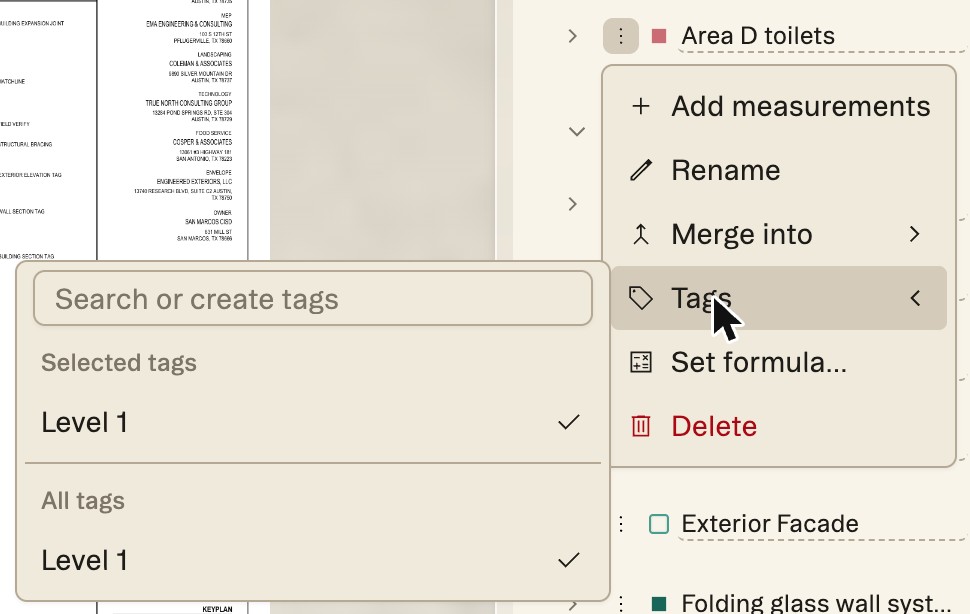
- Choose Tags. Tick a tag from the list, or type a new one in Search or create tags.
- A quantity can carry more than one tag. The ones it has are listed under Selected tags, and the first shows on its row.
The panel's Group by control then arranges the list by tag, with untagged quantities under No tag. Tag is one of five ways to group: Package, Sheet, Takeoff type, Tag and Created by. Use the + beside it to add a second level.
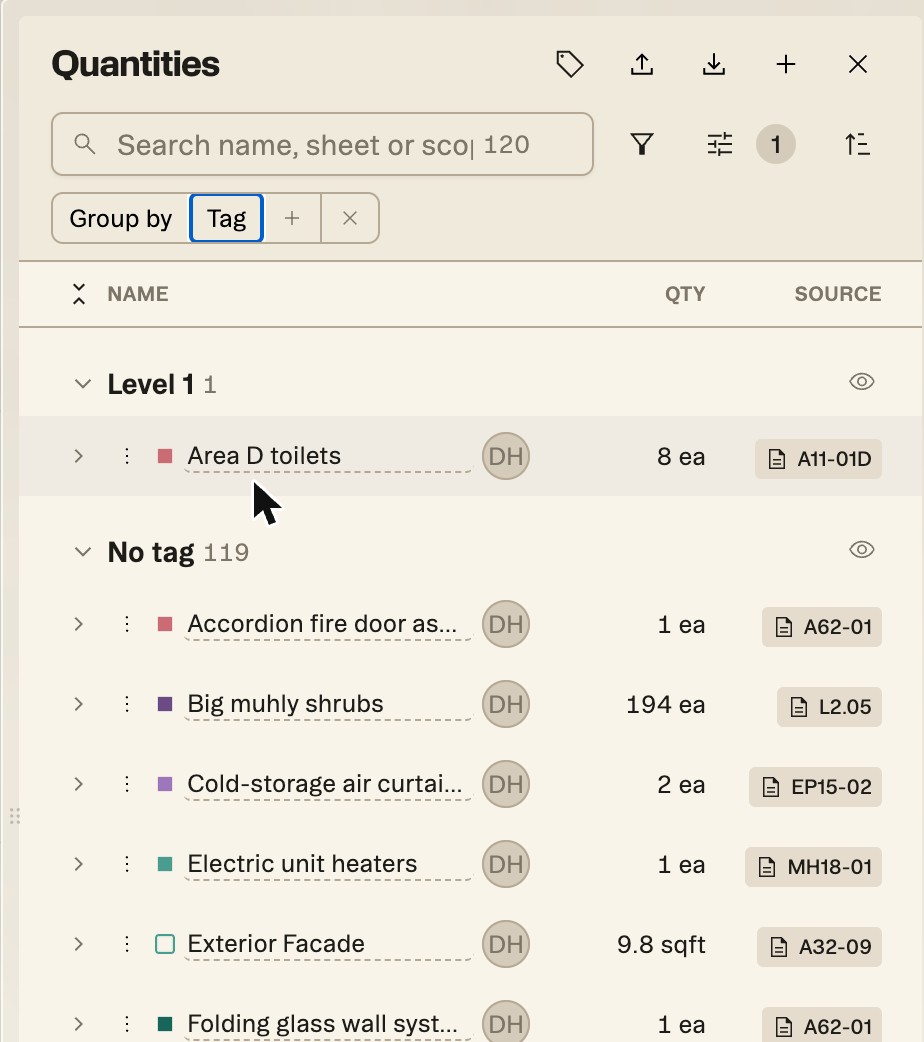
Workflow example — You're pricing drywall on a two-story clinic. Tag every partition quantity with its level and every exam-room area with Exam rooms. Group by tag and the panel reads like the schedule of values your sub will bid against, without any re-drawing.
Good to know — Tags describe where the work is, not what sheet it's on. Struction already knows the sheet — every measurement carries a source chip back to it.
More docs