Maps
Struction shows your project as a map you zoom and pan. Documents and trades share one canvas, and a toggle at the top switches between Map and 3D.
Updated 3 minApplies to: MapFeedback →
One map, plus 3D
Use the toggle at the top center to switch between Map and 3D. There is no separate Trade Map and Document Map any more: documents and trades share one canvas, with the document clusters in a band above the project card and the trade clusters below it.

The map
Your home base. Each discipline — Structural, Architectural, Mechanical, Electrical, and so on — is a cluster holding its drawing sheets and related spec sections. Clusters run in the standard discipline order left to right: General · Civil · Landscape · Structural · Architectural · Equipment · Fire Protection · Plumbing · Mechanical · Electrical · Telecommunications · Other, with anything Struction couldn't place landing in Other. A discipline with nothing in it doesn't get a cluster. Below the clusters sit the Scopes of Work drafted from them, and when you select a sheet, lines show which scopes it fed.
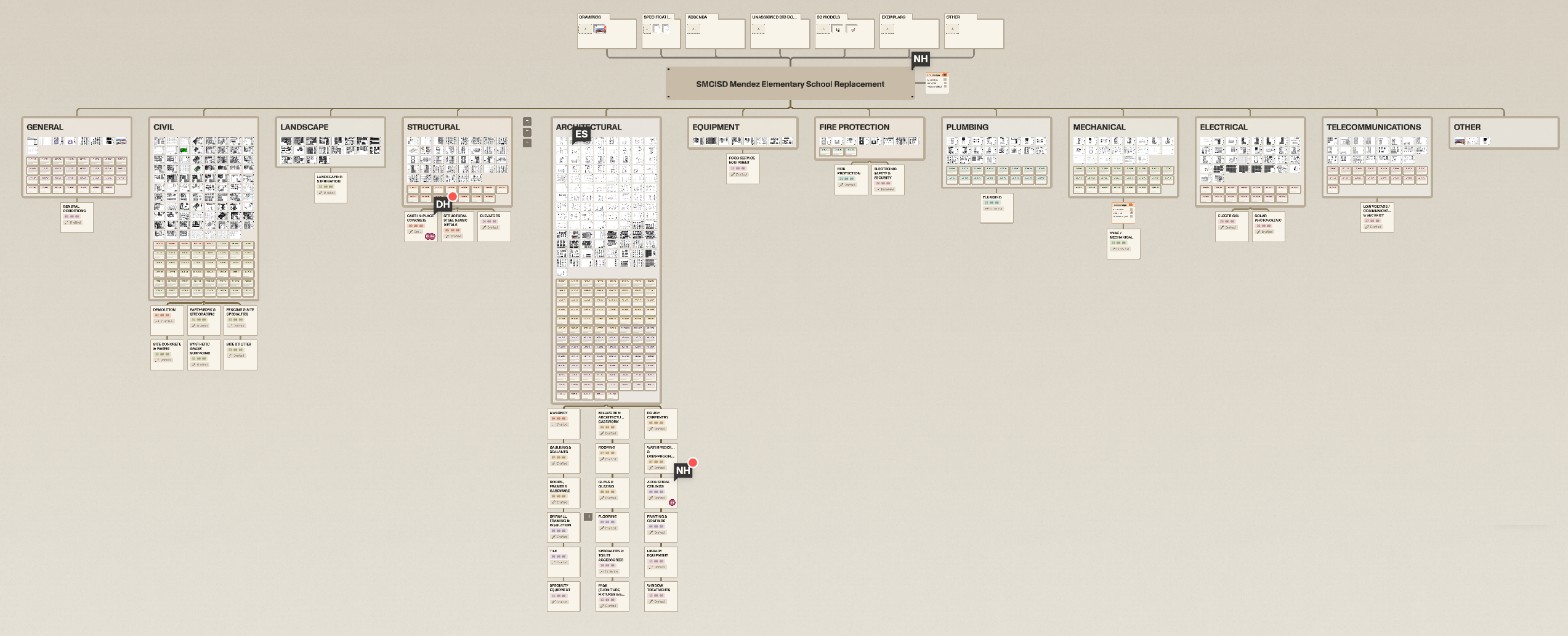
What you're looking at on a card:
- Sheets show as thumbnails; zoom in and the sheet number appears.
- Spec sections show as small cards labeled with their CSI code.
- Issues show as a red alert chip on the card — one chip however many open issues it carries, risks and RFIs alike, and the cluster itself carries one too. Hover a sheet for a card with its title, number and discipline and how many risks and scopes it has.
Progress lives in the Project panel, the top button on the right-hand rail. Its tiles show Risk, Docs, Blocking, Days to bid, Scopes and Export ready, with a bar under them for the share of issues resolved. The Scopes tile opens the Scopes of work panel, where you can see progress scope by scope.
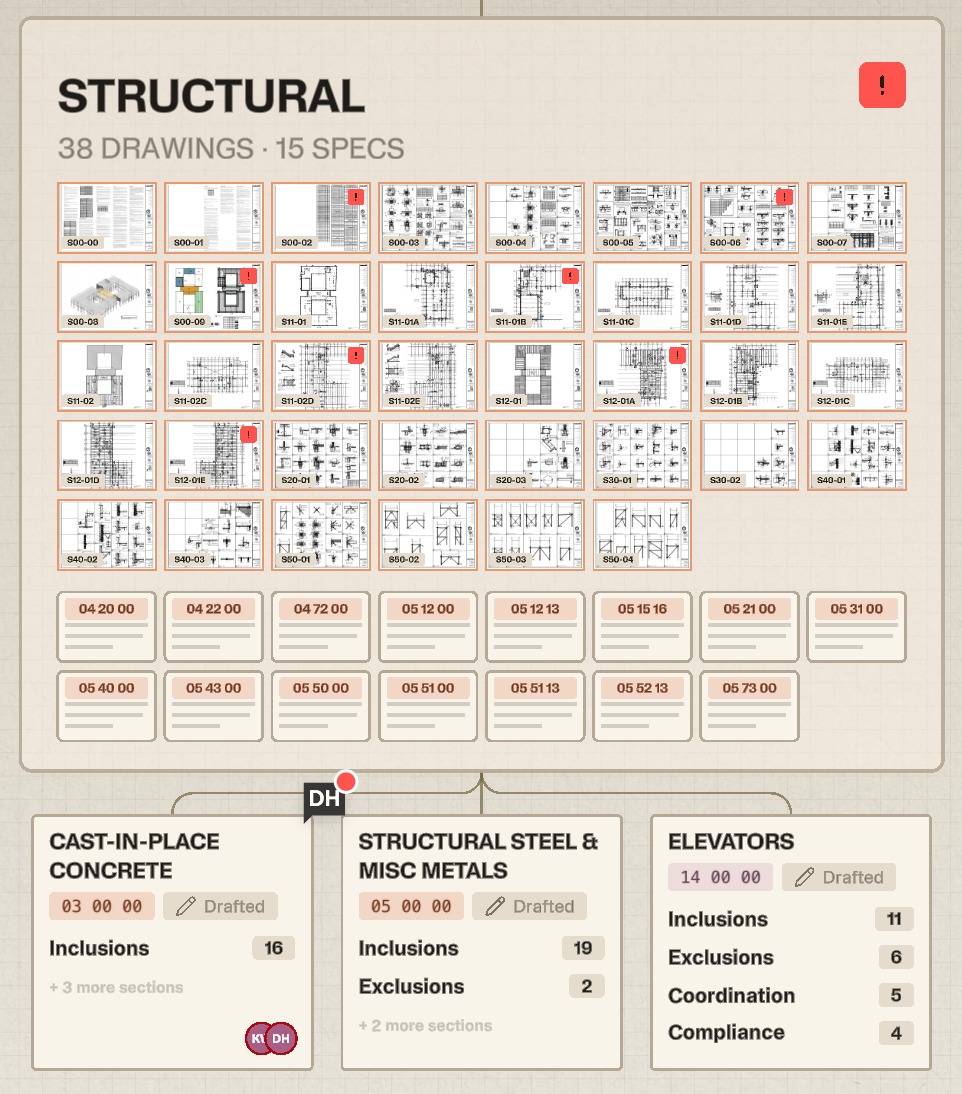
Workflow example — You want to know how big the electrical scope really is. On the map you can see at a glance that Electrical has far more sheets than Plumbing, carries open issues, and feeds four separate scopes — so you know how to prioritize your team's time before bid day.
The 3D view
If your project includes a BIM model — an IFC or Revit file — the 3D view lets you orbit, zoom and pan through it, click any element to see its attributes, and ask chat about what you're looking at. The viewer's controls are covered on 3D models (BIM).
Getting around
Drag to pan and scroll to zoom. Click a card to select it; everything it connects to brightens and the rest dims (see Filter & Search). Double-click a sheet to open it in Focus View. Hover a sheet to see its summary card.
Good to know — The map is the same for everyone in your organization.
More docs