The quote
The third stage, and the only one your customer ever sees. Every wall on the project in one list, a grand total, and a photoreal picture of what you are selling them.
Updated 2 minApplies to: Retaining WallFeedback →
Getting there
Quote is the third step in the bar across the top, after Takeoff and Quote Builder. Quote Builder is one wall at a time; Quote is the project.
What's on it
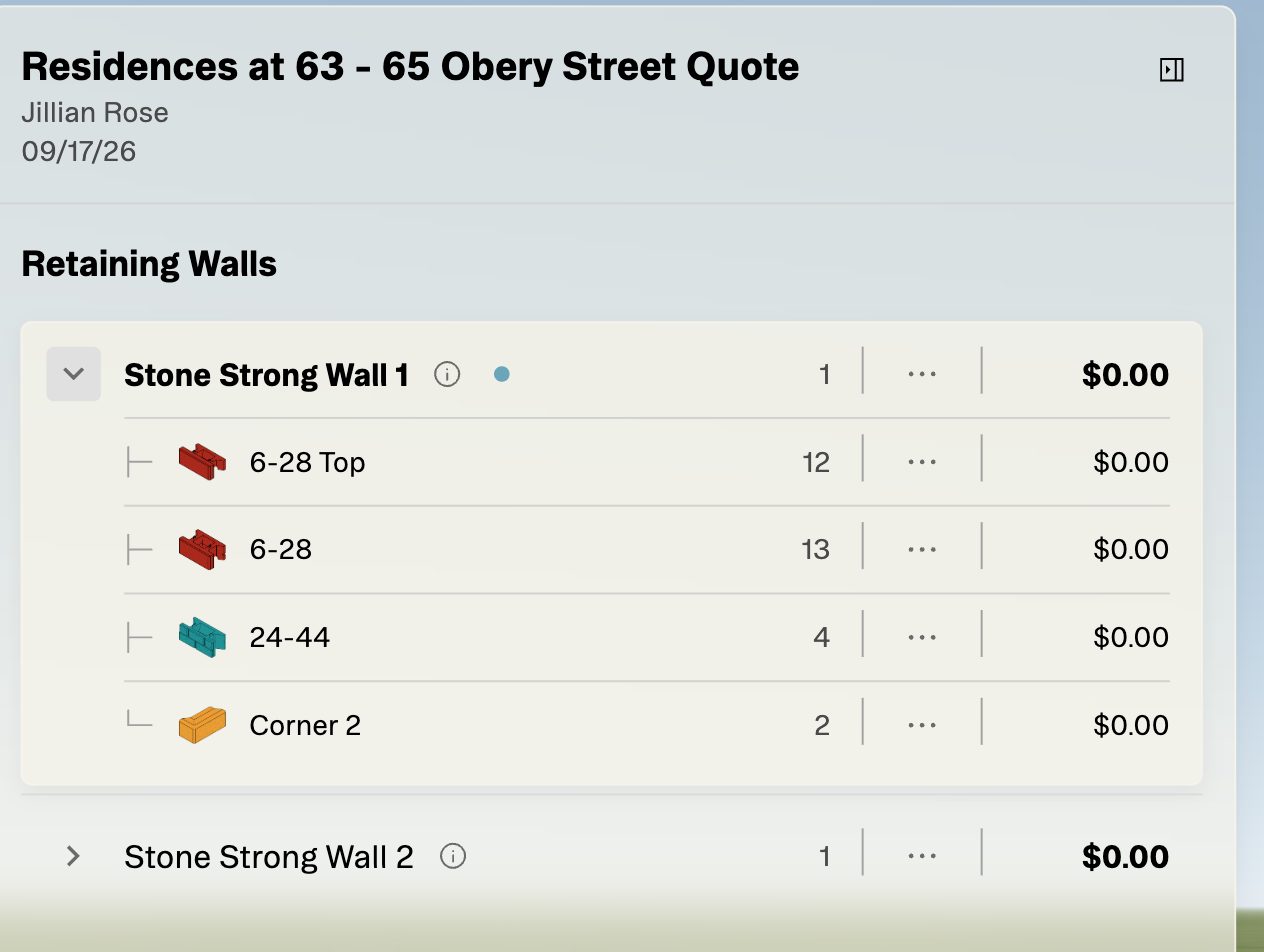
The document heads with the project name, who built it and the date. Under Retaining Walls, every wall on the project is its own line with its quantity (252 sf), a ⋯ button and its price. The ⋯ widens the panel into a full table: Quantity, Unit, Unit Price, Line Total and Total. Expand a wall and its units unfold underneath, each with its count in ea: on the sample, 6-28 Top ×12, 6-28 ×13, 24-44 ×4, Corner 2 ×2. Grand total sits at the foot, across every wall.
The wall, rendered
Beside the document, Struction draws the wall as it will actually look — real block texture, on grade, from a camera you can move. Front, Side and Top set the view, and a Show Unit Colors toggle swaps the render for the color-coded version you know from the canvas, so you can point at a course and say which unit it is.
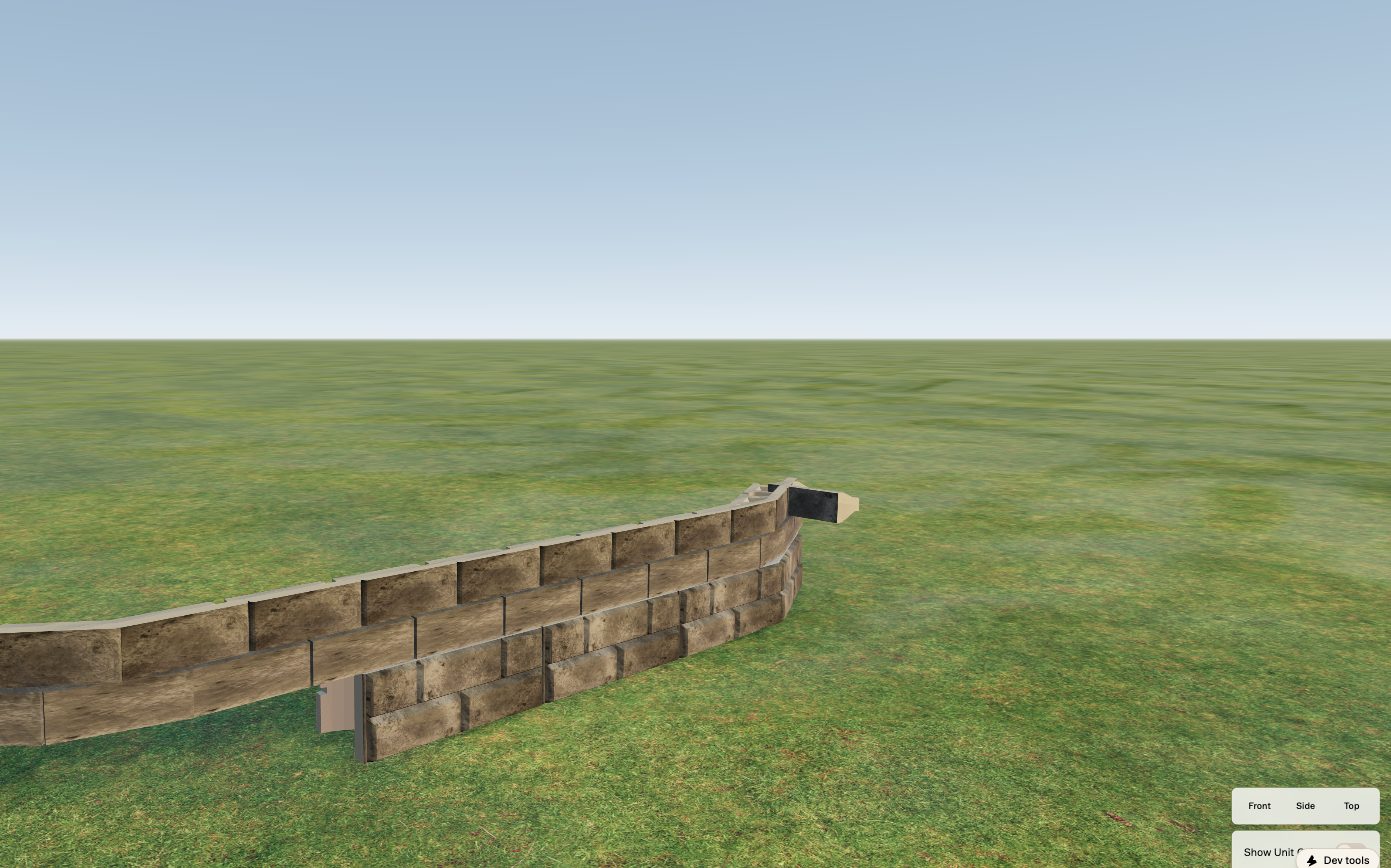
Tip — The render is the most persuasive thing in the product, and it is the reason to get the top of the wall right in Quote Builder before you send anything. Caps, end units and the setback all show.
Sending it
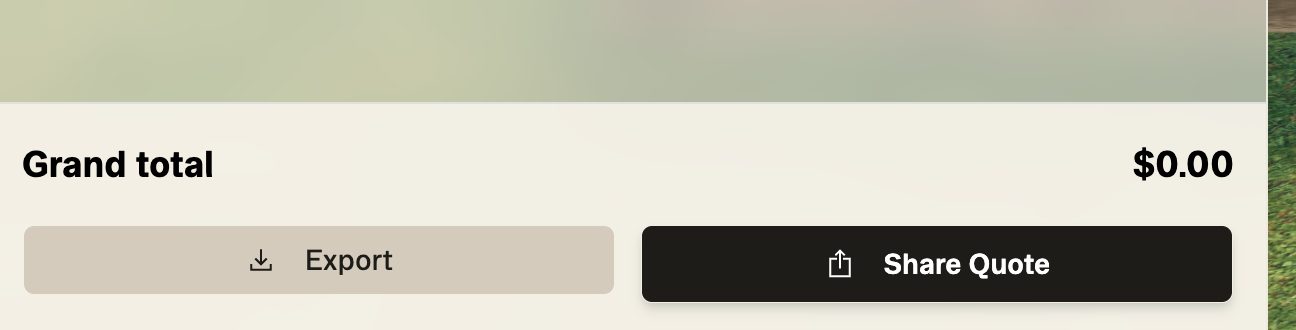
Two buttons at the foot: Export and Share Quote. See Publishing your quote for sharing.
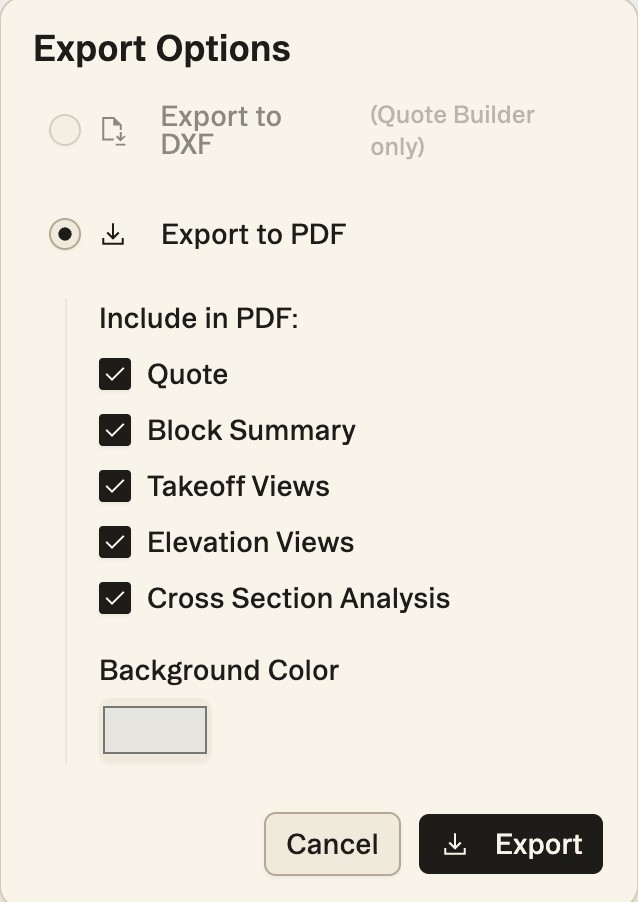
Export opens Export Options. From Quote, choose Export to PDF (Export to DXF is available from Quote Builder only) and tick what to include:
- Quote: each wall with its materials and freight, quantities, units, unit prices and totals.
- Block Summary: the total count of each unit across the project.
- Takeoff Views: each wall traced on its drawing page.
- Elevation Views: each wall in elevation, by station.
- Cross Section Analysis: each wall's sections with their factor of safety and whether they pass.
Pick a Background Color and click Export. The button reads Exporting… while the PDF is built, then it downloads, one titled page per part, marked Not for construction. The 3D render isn't part of the PDF.
More docs