The Canvas
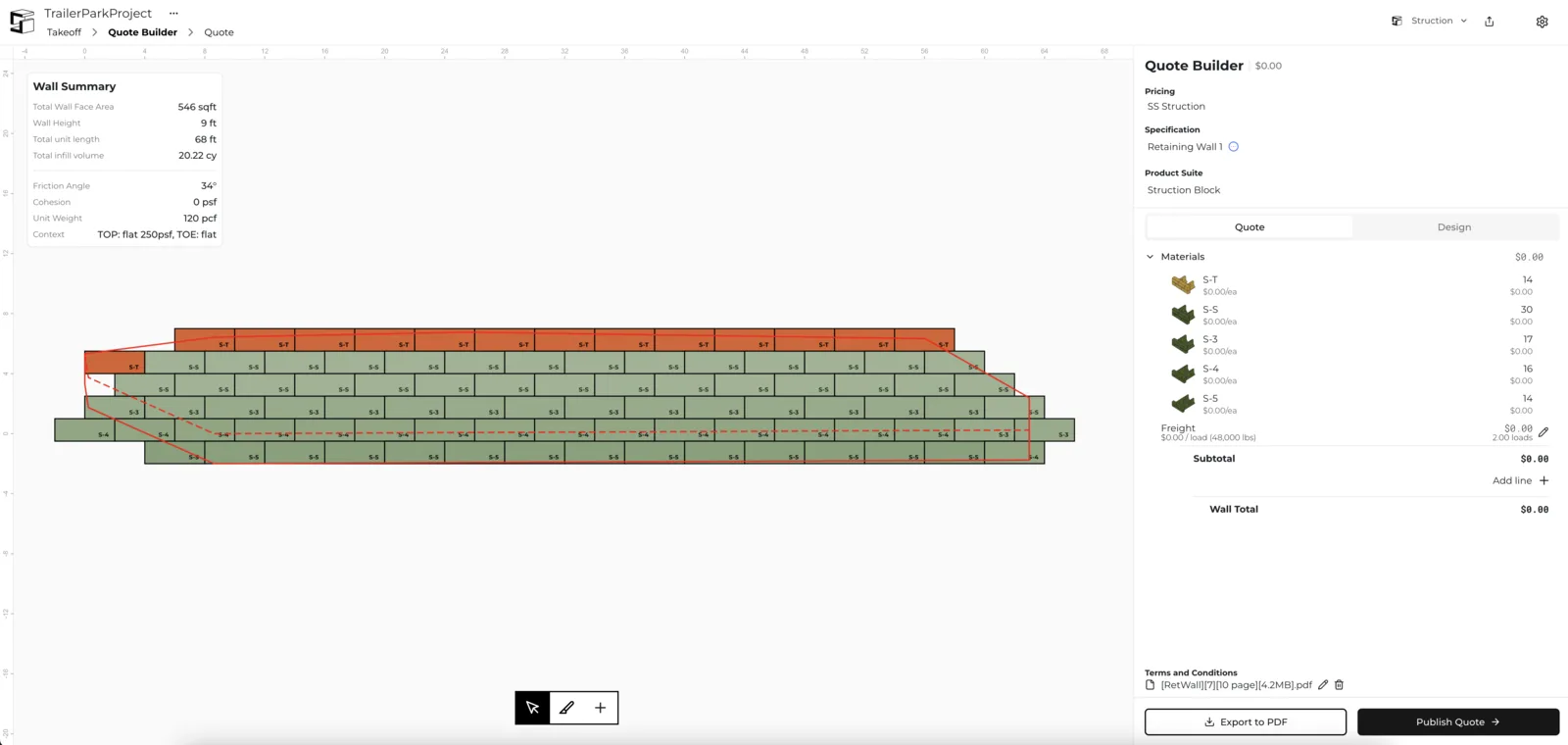
The Canvas is the middle portion of the screen, where the retaining wall is displayed. The Wall Summary sits in its upper left corner and Quote Builder runs down the right side. The Canvas has its own toolbar at the bottom.
Editing wall units
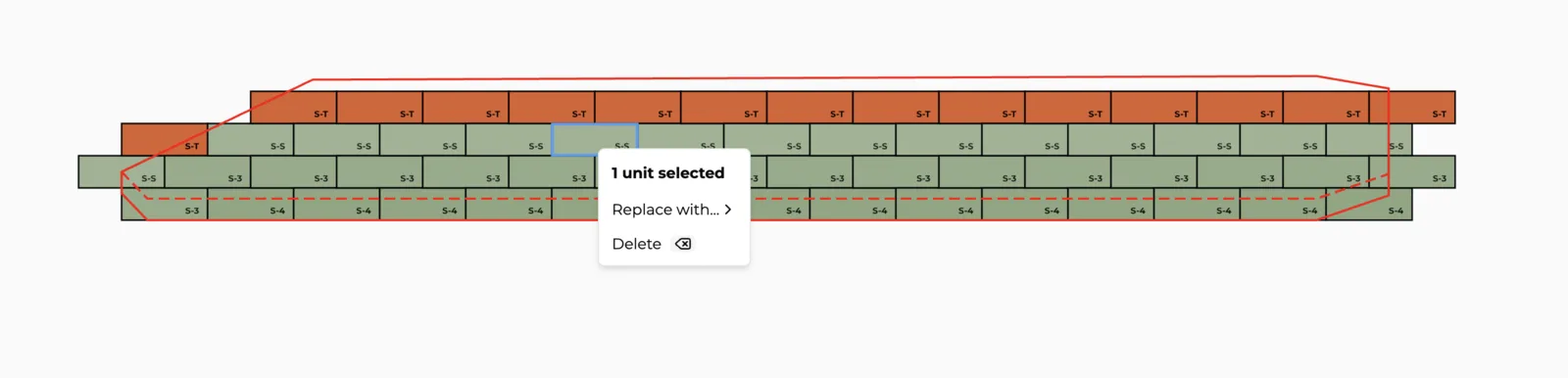
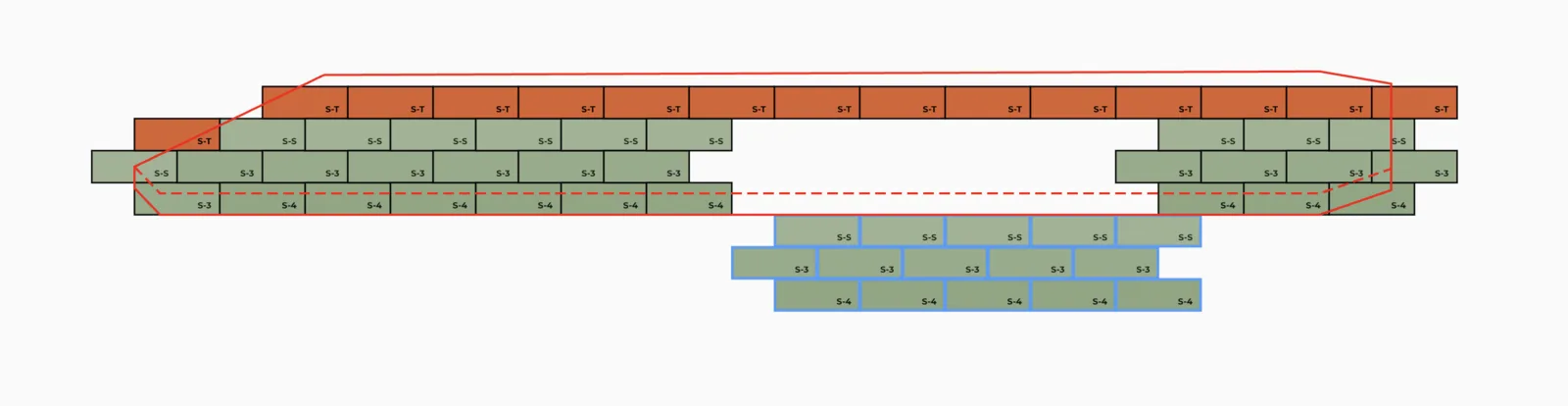
The Canvas lets you edit the units populated in the wall individually. Right-click any unit to replace or delete it. You can also group-select units by clicking and dragging, then click and drag to relocate that unit or group.
Cross-section analysis
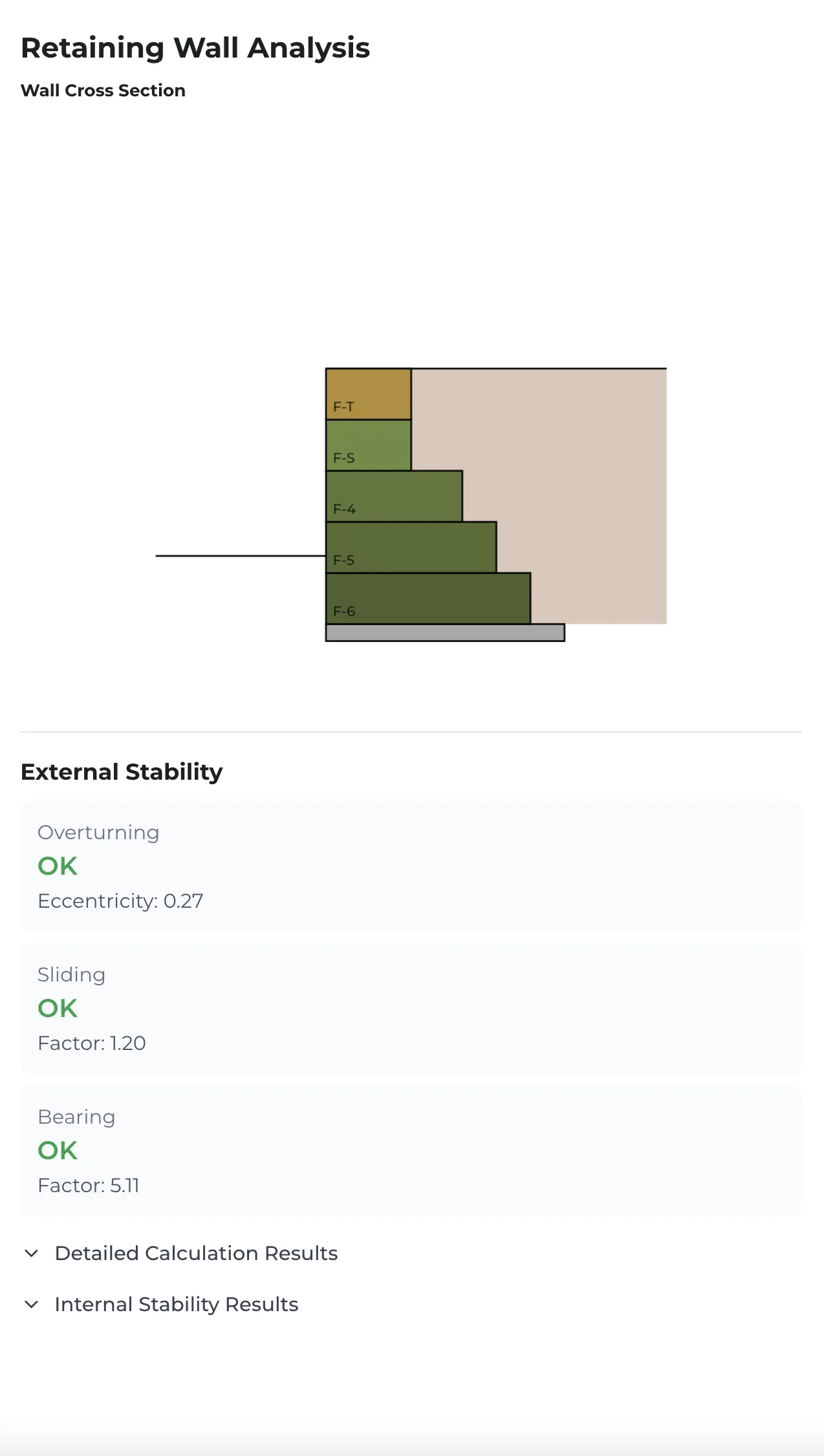
Click the cross-section tool in the toolbar to inspect a cross section and analyze the details of the design, including why that cross-section passes stability calculations. You can see whether the cross-section passes — as a whole and incrementally — for Overturning, Sliding, and Bearing failure modes. A green OK under a failure mode means it passes; a red FAIL means it doesn't. For more, click Detailed Calculation Results and Internal Stability Results.
Context and loading conditions
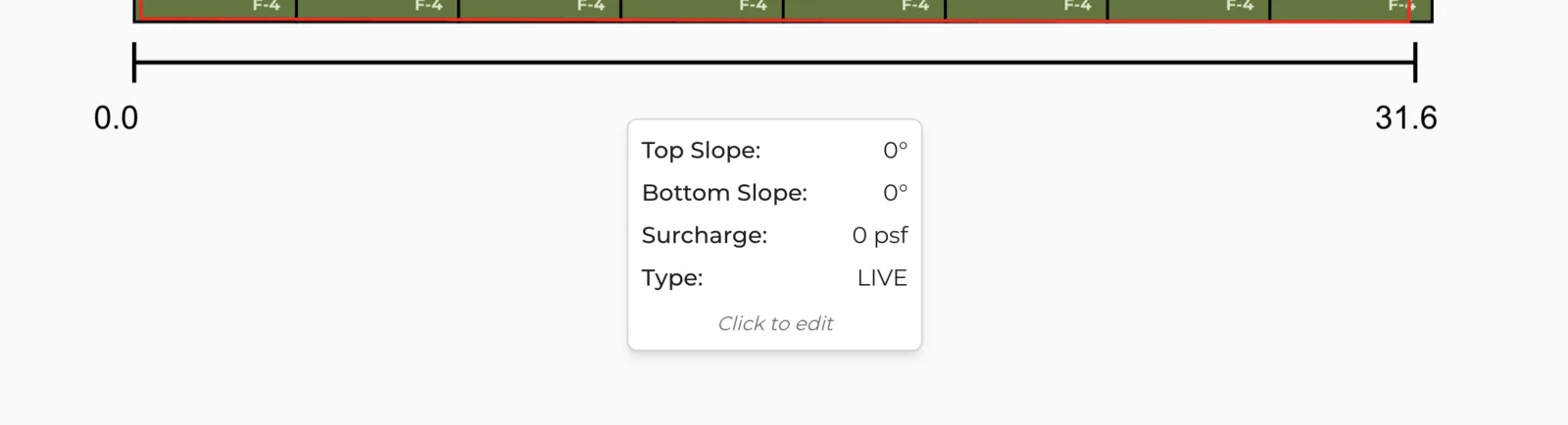
At the bottom of every wall is a Context bar, where you add loading conditions or context based on the site conditions the wall exists in. To add a whole-wall context, click the menu below the loading bar and input your context — slopes above or below (in degrees), plus surcharge and surcharge type.
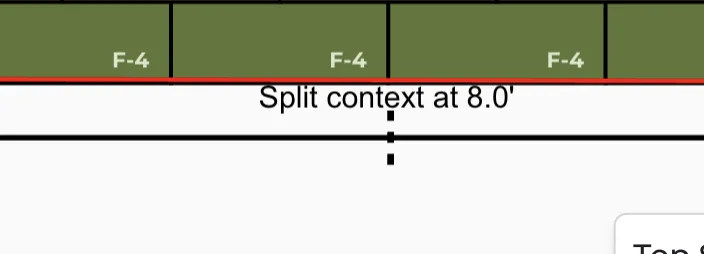
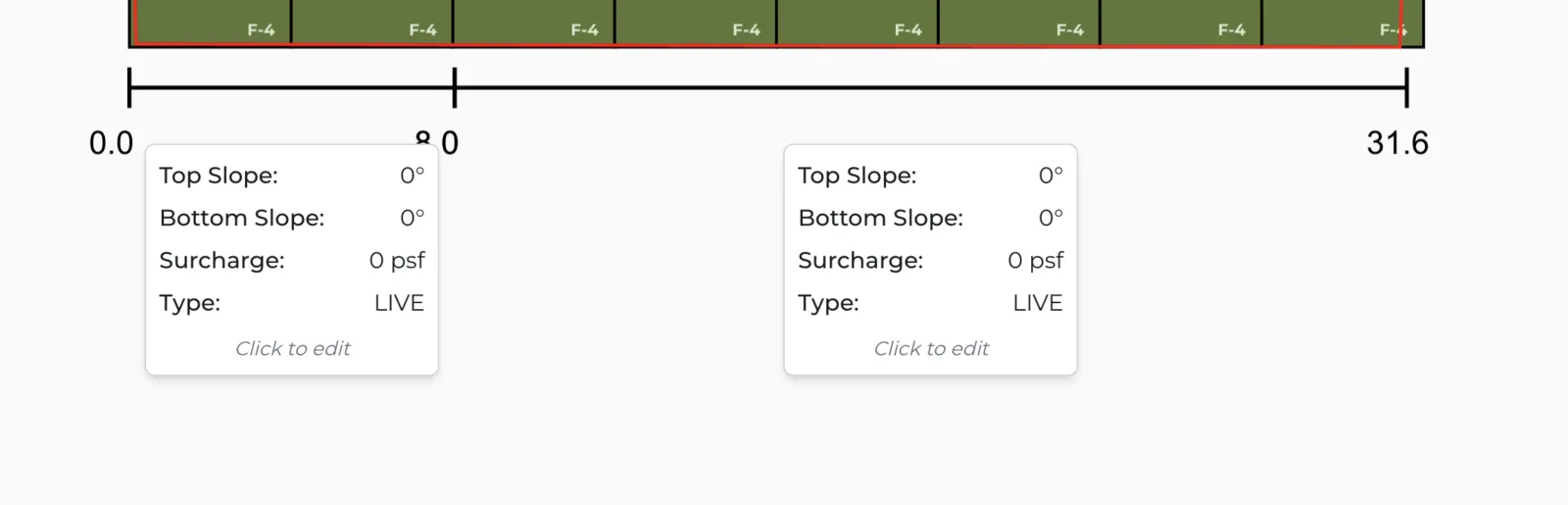
To vary context along the wall, hover above the loading bar and click where you want to split it. You'll then see one menu per context. You can split context as many times as required.
Adding custom units
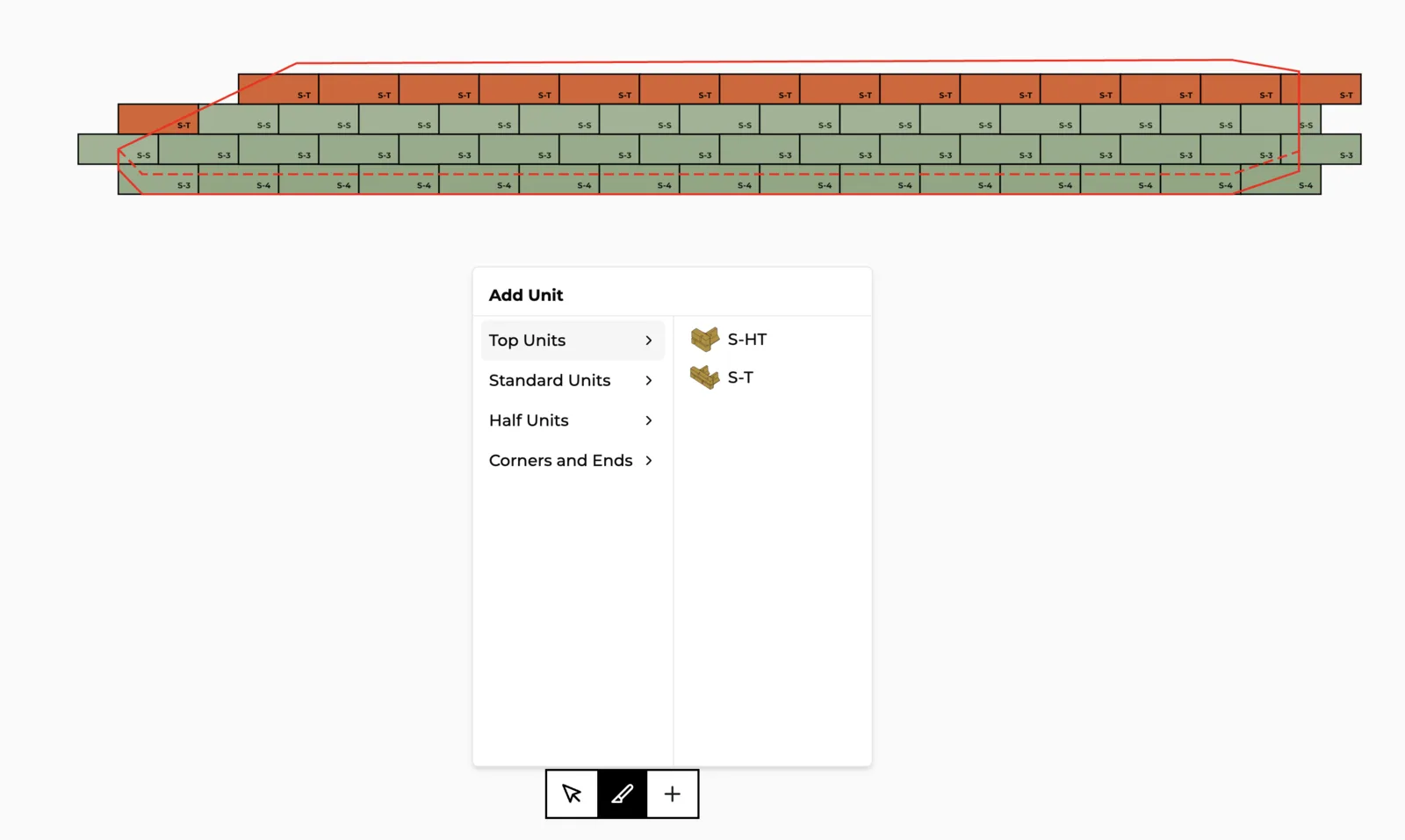
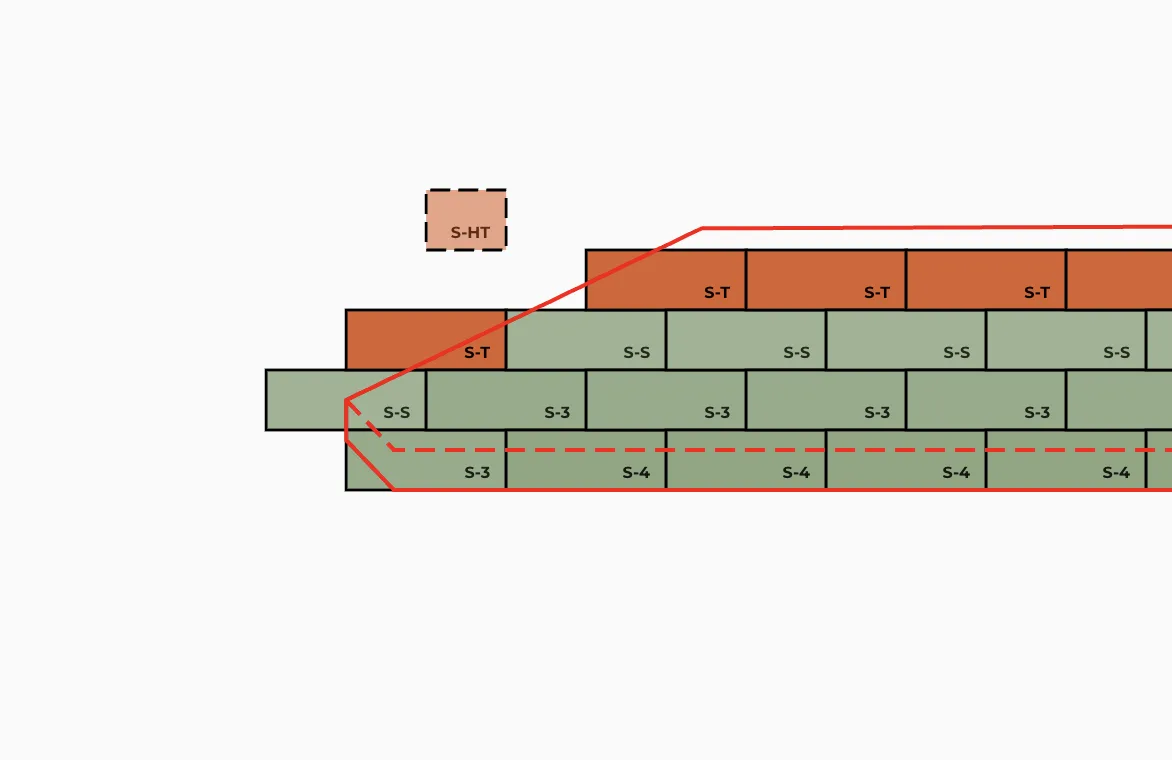
You can add any unit in your retaining wall system library to the wall by clicking the + button on the toolbar. Select the category the unit lives in, then click the unit. It follows your cursor, and you click to place it anywhere on the canvas.
More docs
Docs for