
Setting Scale
Once we've found a retaining wall on a page, set the scale of the drawing before you begin a takeoff. Plan views usually have one universal scale that applies in both the X and Y direction. Elevation views frequently have differing X and Y scales, to be more economical in the drawing.
Setting the scale
Click Set Scale in the upper right corner of the PDF Viewer.
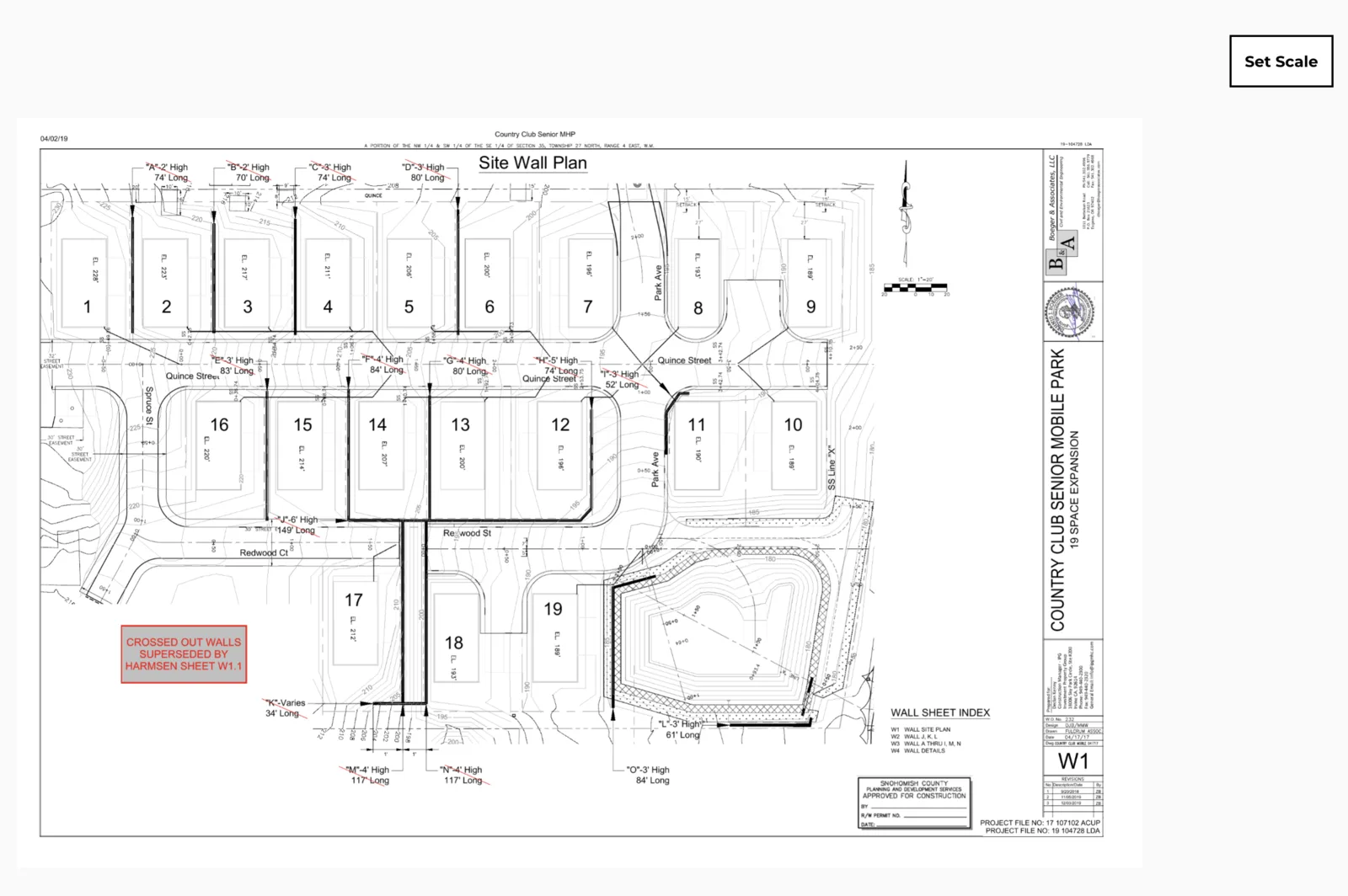
The Set Scale button turns black, meaning the scale tool is active. Click, hold, and trace a known dimension on the drawing. This can be any known dimension — a scale key, or something like stationing on a road.
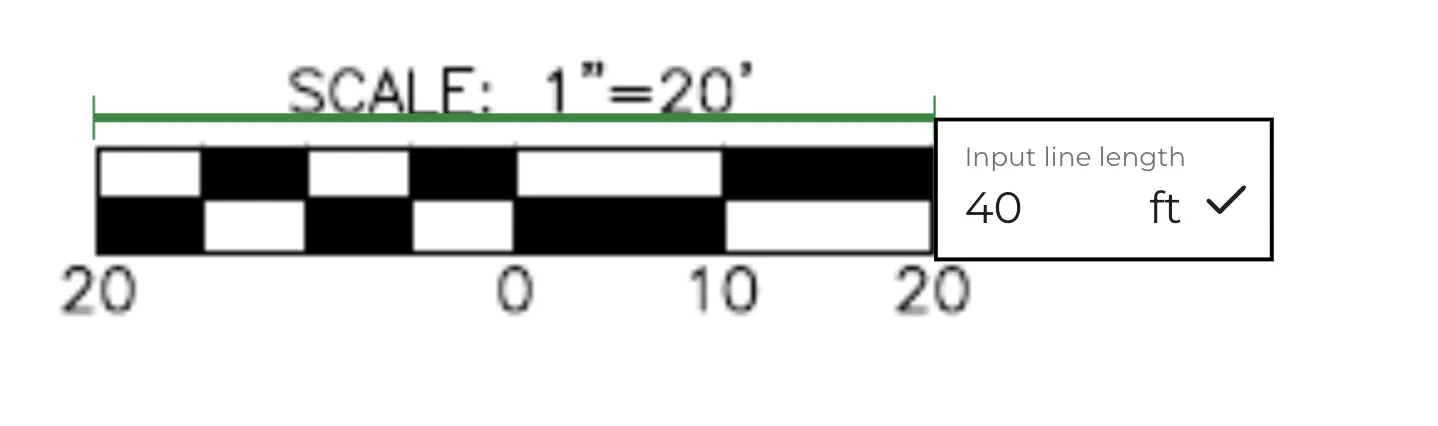
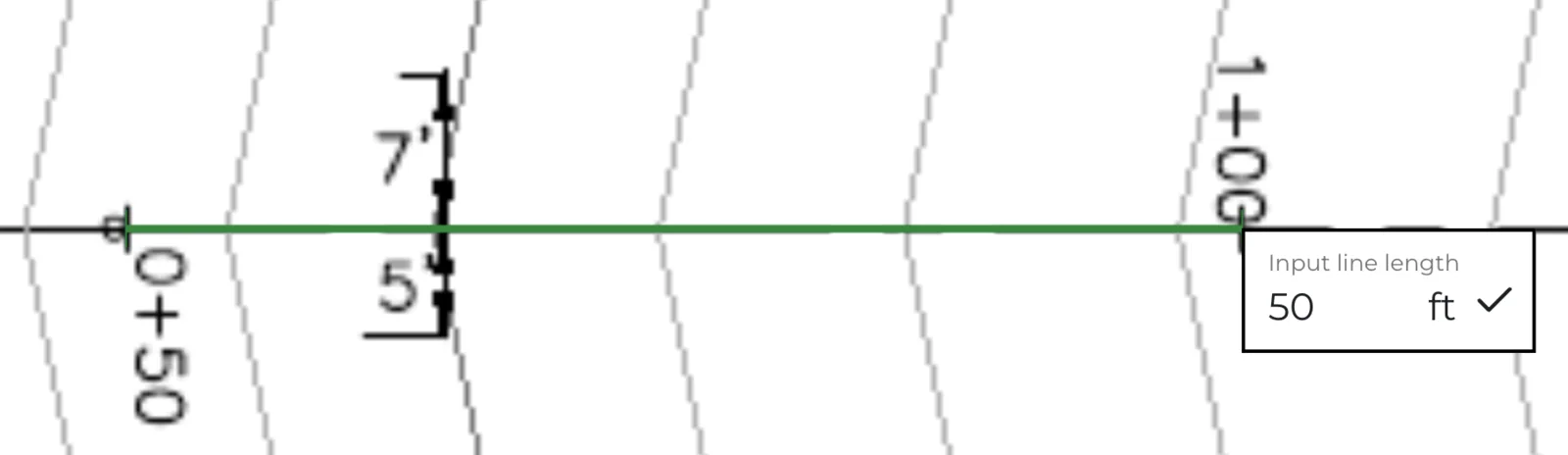
Be creative — every drawing we have seen has some known dimension on it.
More docs
Docs for