
Publishing Your Quote
Once your quote is complete, click **Publish Quote** to generate your finalized quote and 3D models.
The published quote page
The Quote page replicates the important information from Quote Builder, sweetened with a 3D model of your retaining walls. On the far left are quote details, including a Share Quote button that sends a link to your customers.
Using the white panel to the right of the quote details, you can switch between walls, see a basic envelope of each, and see your material counts. On the right of the page is the interactive 3D model, alongside a wall summary with details like infill quantities and total weight.
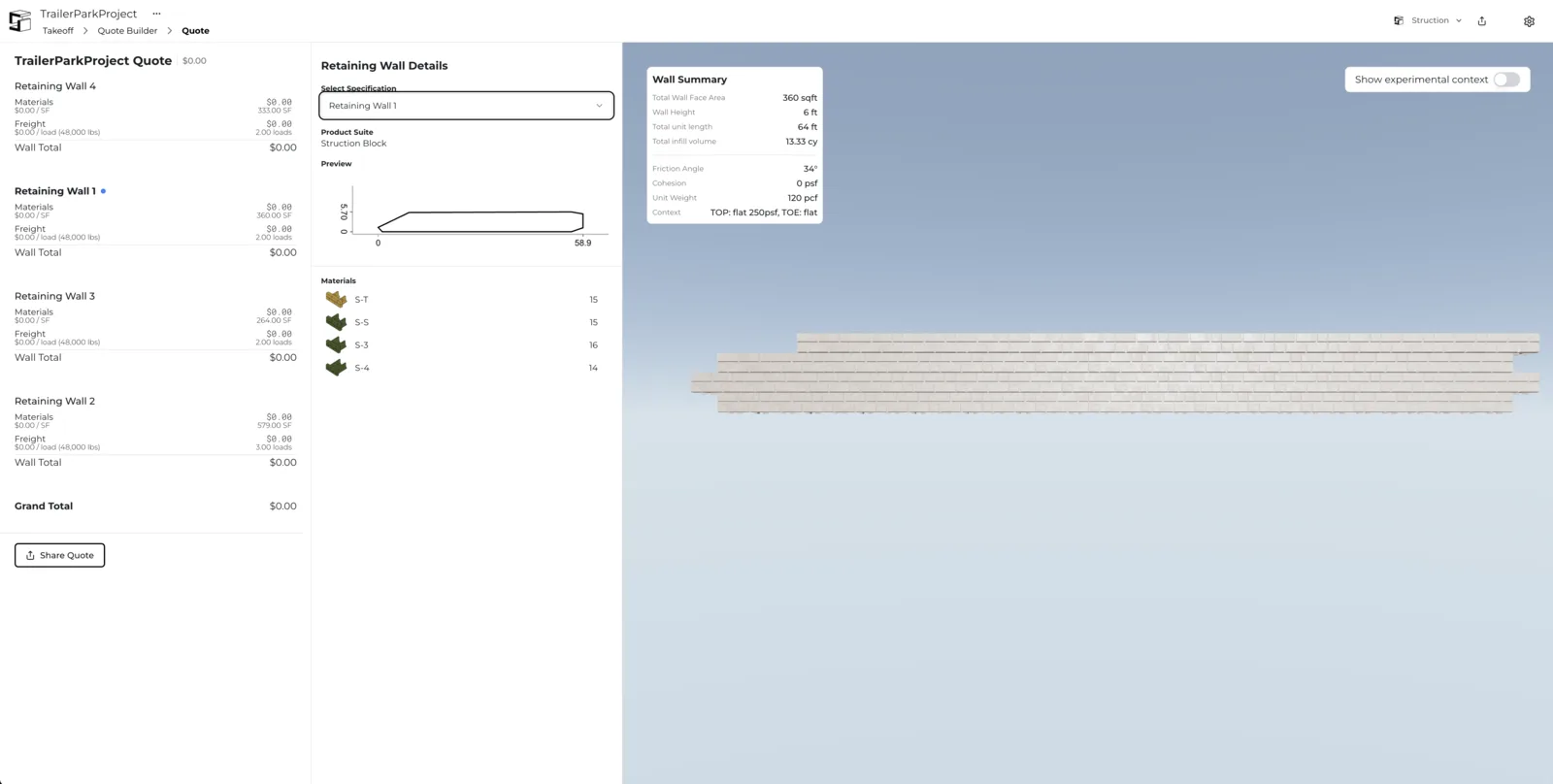
What your customer sees — the published Quote page is all your customer can see. They never see your Quote Builder page.
Key features of published quotes
- Customer-facing interface — clean, professional presentation.
- Interactive 3D models — customers can rotate and explore the wall design.
- Material counts — a detailed breakdown of units and quantities.
- Wall summaries — technical specifications including infill volumes and weights.
- Shareable links — easy distribution to customers and stakeholders.
More docs
Docs for