
Pricing Configuration
Your pricing tables are what Quote Builder multiplies unit quantities against, so they're worth getting right before your first quote.
Setting up pricing
To upload pricing, click the gear icon to the right of the Create Project button, then click Pricing.
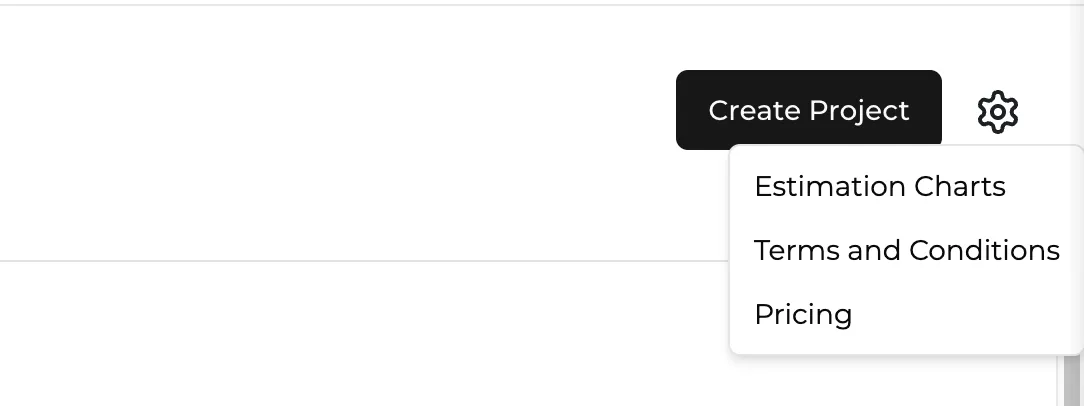
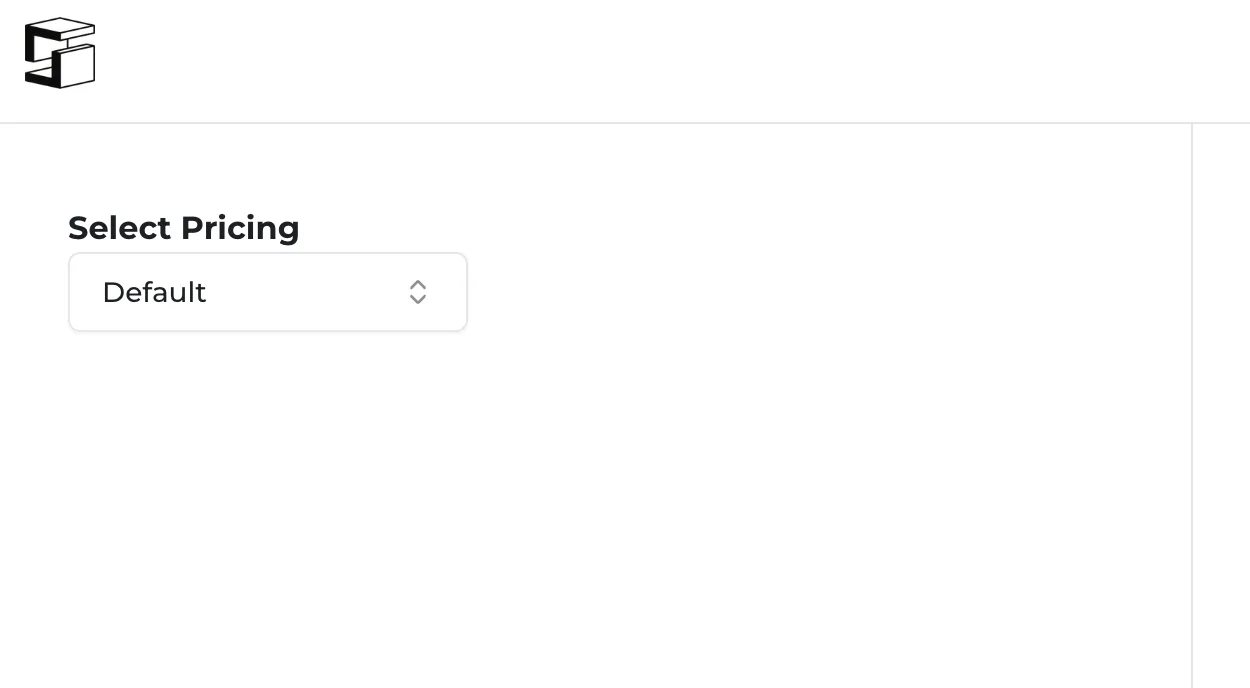
This takes you to the Pricing page. A Default pricing table is selected under the "Select Pricing" label on the left. In the middle of the screen are tabs representing your products — click one.
Creating custom pricing tables
You can either adjust the prices in the Default table or create your own. To create your own, click the dropdown underneath Select Pricing and start typing the name you want. When you've finished typing, click Add [name you typed] in the dropdown. That creates your new pricing table.
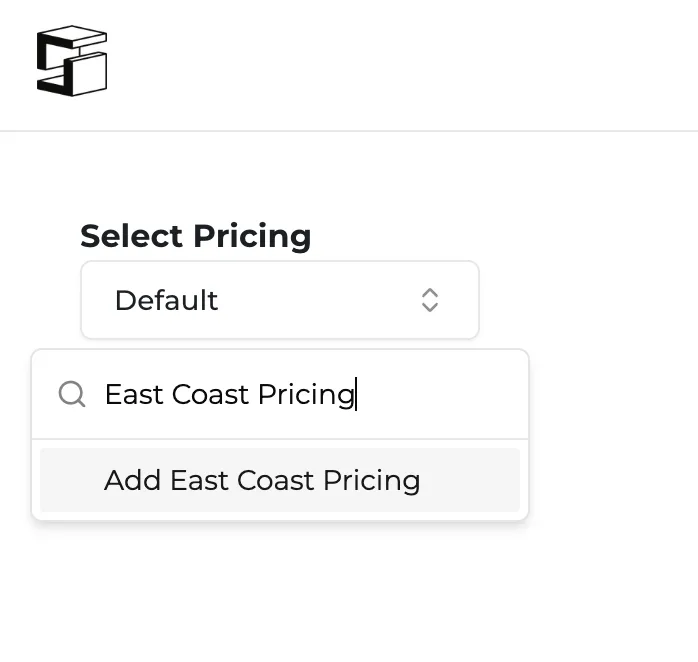
Refresh the page, then click the new pricing table in the dropdown. You can now click a products tab and enter pricing. These tables are available any time you create a quote in Quote Builder.
No save button — anything you enter on the Struction platform is saved automatically.
More docs
Docs for