See the formula behind every quantity
Nov 2026
Formulas
A number you can trace on bid day
A grade beam runs 367.3 feet around one block of the building and stands three feet tall, so you set a formula and the panel reports 1,101.8 square feet of face. Three weeks later someone else picks up the estimate, sees 1,101.8, and has no way to tell where it came from without opening the quantity and reverse-engineering it.
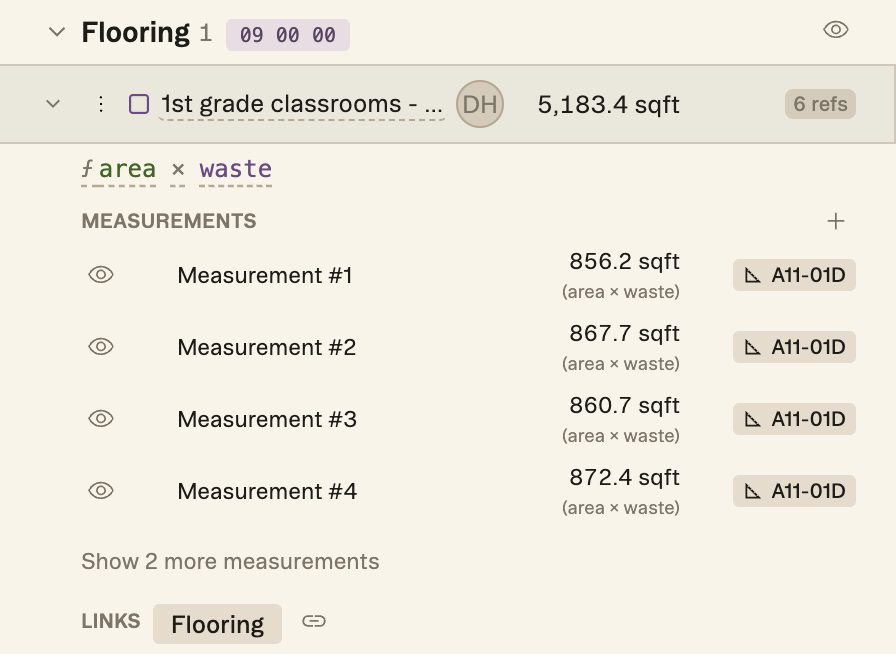
We kept seeing this in our own takeoffs and in the estimates customers walked us through, so we went after it before it became anyone’s bid-day problem. When a quantity runs through a formula, the panel now prints that formula under the quantity name and again under every measurement it produced.
Constants
Name the numbers you’d otherwise bury
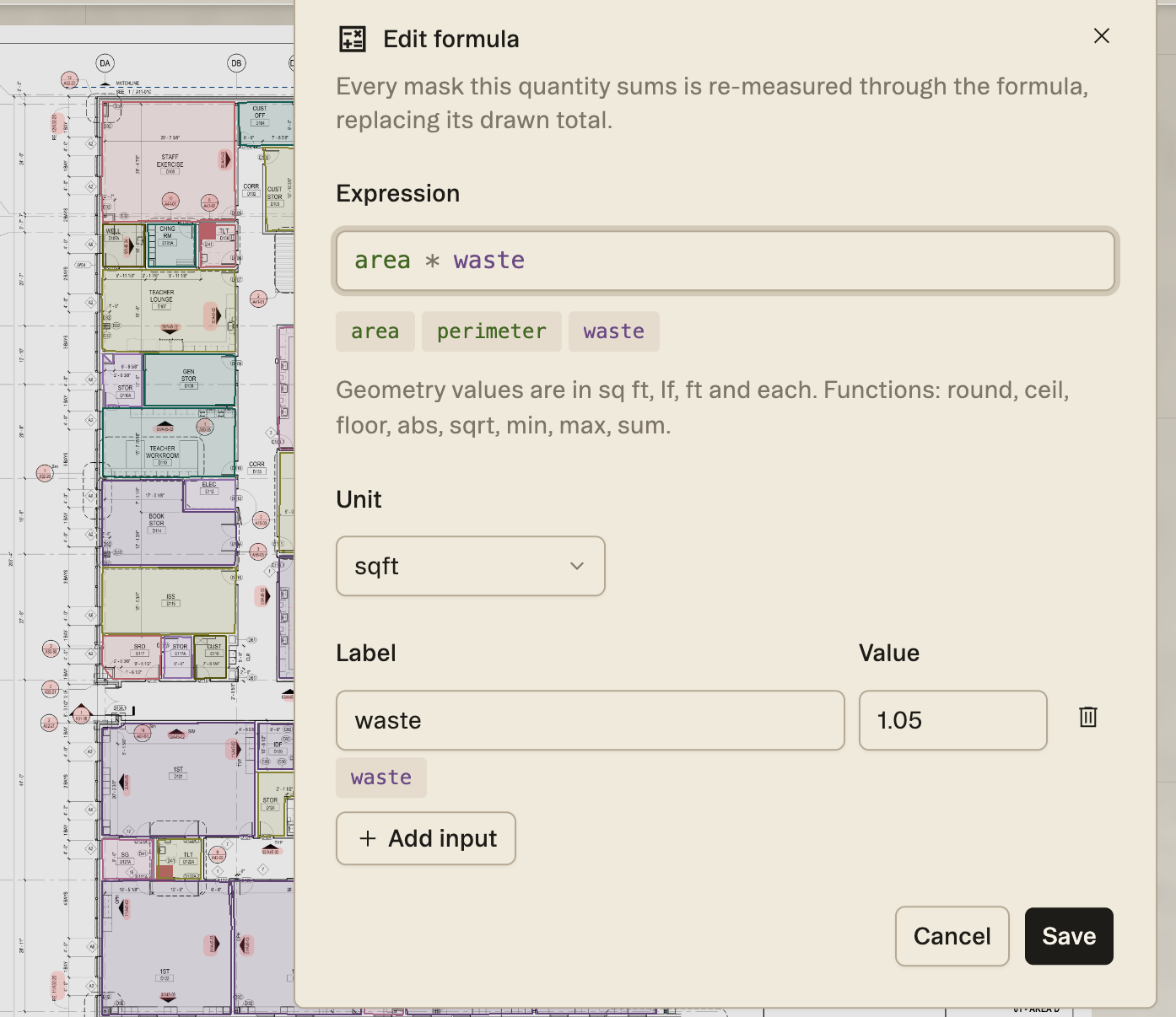
Formulas can now use named constants: a waste factor, a wall height, a beam depth. In the formula window they’re added with Add input. Give one a label and a value, and the label becomes a token you can use right alongside area and perimeter.
For the classrooms above, we added a constant labeled waste set to 1.05 and wrote area * waste. The six rooms measured 4,936.6 sq ft as drawn, and the quantity now reports 5,183.4 sq ft with five percent added. The arithmetic is the same as typing 1.05 into the expression, but the next estimator who opens the quantity can see the intention behind the 1.05 factor.
Setting it up
Write the formula once per quantity
- In the Quantities panel, open the three-dot menu on the quantity’s row and choose Set formula. Once a formula exists, the same menu item reads Edit formula.
- Type the expression. The chips under the field show what you can use: area and perimeter for an area quantity, plus any constants you add. Geometry comes through in square feet, linear feet, feet and each.
- Pick the output unit and apply. Every measurement in the quantity is re-measured through the formula, and the quantity total becomes the sum of those results.
The expression accepts round, ceil, floor, abs, sqrt, min, max and sum, which covers most of what usually lives three columns over in the takeoff workbook.
Worked example
A grade beam with a height you can change
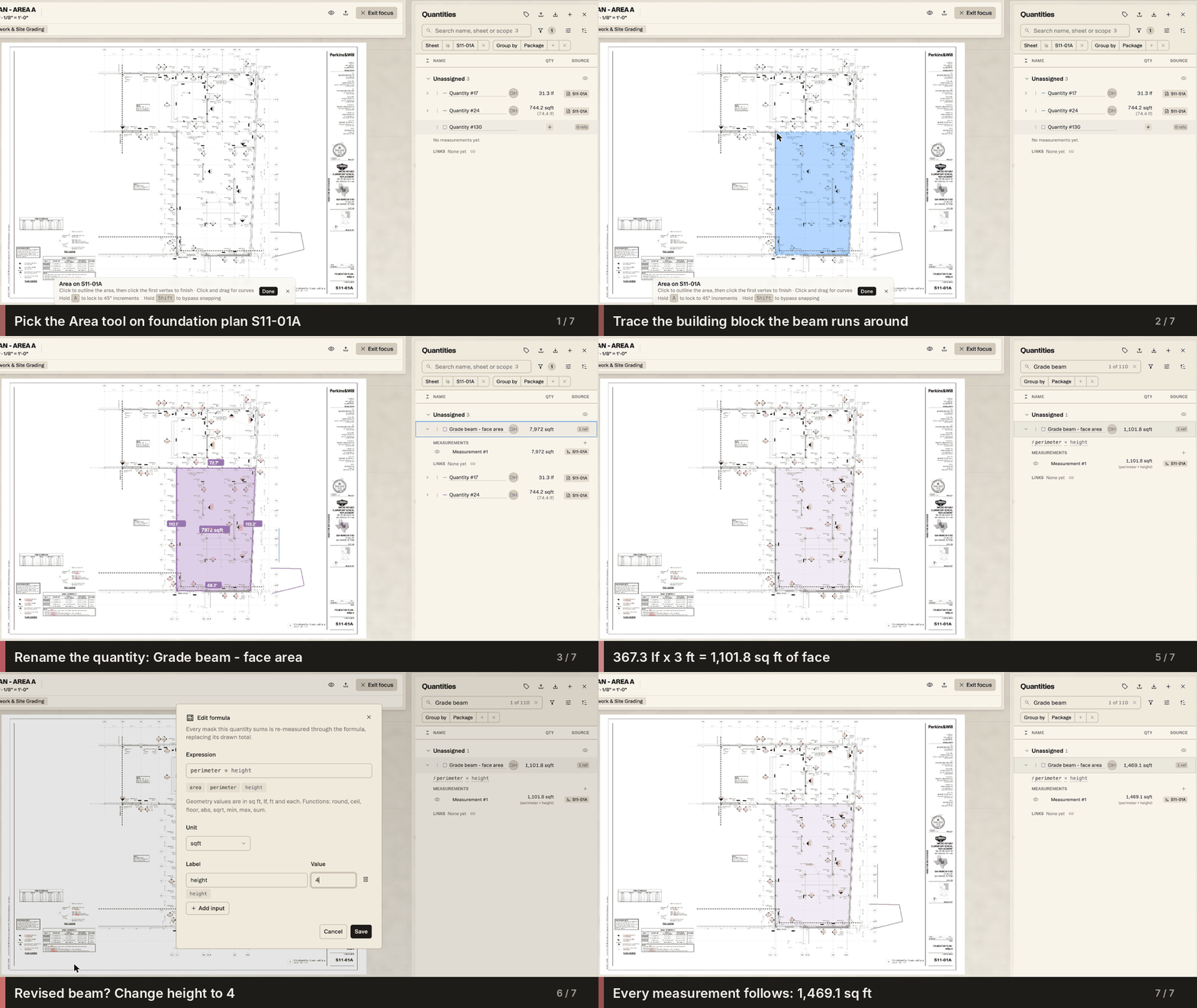
That grade beam is real. On S11-01A, the Area A foundation plan of the elementary school in our test project, we traced the block as an area so perimeter would be available, and renamed the quantity Grade beam - face area. Then we set the formula to perimeter * height, with a constant labeled height set to 3.
The quantity reported 1,101.8 sq ft of beam face, with perimeter × height printed under the measurement. When we changed height to 4, as you would when a revised structural set deepens the beam, the quantity moved to 1,469.1 sq ft. That’s one field changed, and it’s the value you’d be most likely to miss on an addendum if it were buried inside the expression.
Related
Reuse the formulas you write every job
If you set the same formula on every project, put it in a measurement preset instead. Presets carry their formula with them, so a conversion like depth to cubic yards is set up once and ready on any sheet.
Put it against a real set.
Upload one project free with a work email. Struction reads the drawings, drafts the scopes trade by trade, and keeps every line pointed back at the sheet it came from.
Upload a set →