Attach your form. Get it back finished.
Oct 27th, 2026
CHAT ATTACHMENTS
Bring the paperwork your shop already uses
Most of preconstruction runs on your own spreadsheets: the bid form that goes out with each package, the furnish/install matrix that settles who buys what, the sheet that feeds your estimating system. Project chat now reads those files right next to the drawings and specs on the project.
Attach one, say what you need, and chat does the work in your format. Ask for the finished version and it hands the form back as a document under your company header, ready to export to Excel, Word or PDF.
To show it, we built three forms for Crossland Builders, the general contractor in our test account, and ran each one on an elementary school job with a full bid set and project manual.
THE ASK
A bid form, attached to a question
EXAMPLE 1
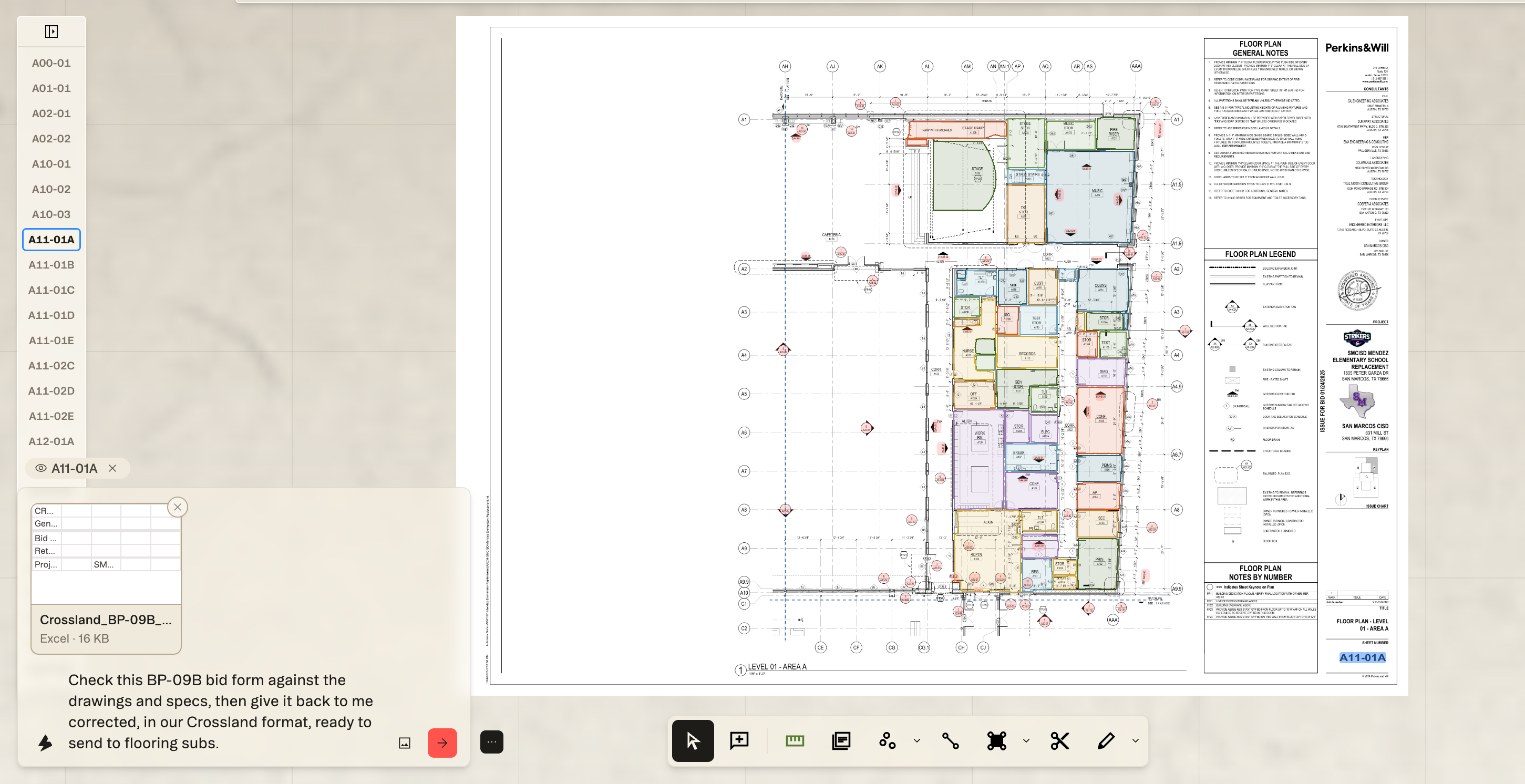
Send a bid form out right the first time
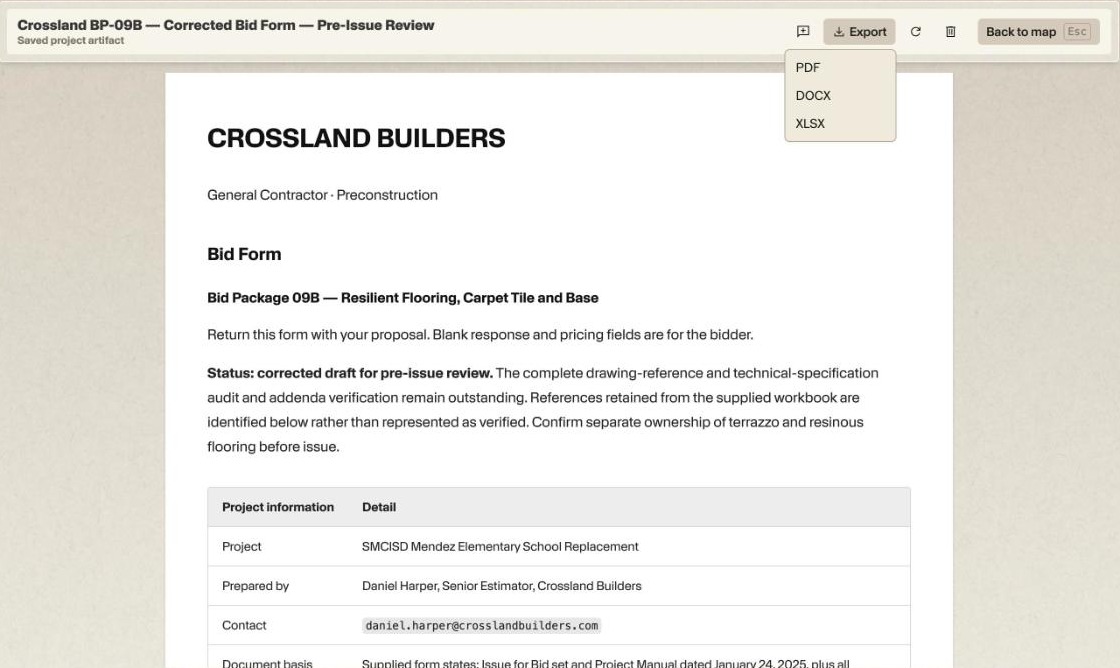
Our flooring bid form was nearly ready to go to subs. Chat checked every line against the set and came back with a corrected version.
It named Alternate No. 01 from Section 01 23 00, the swap from terrazzo to resilient flooring in the corridors and cafeteria, which our form had left unnamed. It split concrete sealing into general sealing and the mechanical-room coating that 09 61 16 treats separately, and it separated base, transitions and stair treads into their own lines.
It also caught an item we had put in the base bid on one tab and in the exclusions on the other. That’s exactly the kind of slip that turns into a bidder question a week before bid day.
WHAT CAME BACK
Your bid form, corrected and ready to export
EXAMPLE 2
Turn the matrix into a buyout checklist
Next came a matrix of 20 owner-furnished and contractor-furnished items, from toilet accessories to the AED, each with a spec section and sheet. Chat checked every row against the documents and sorted them into Confirmed, Conflict and Needs review.
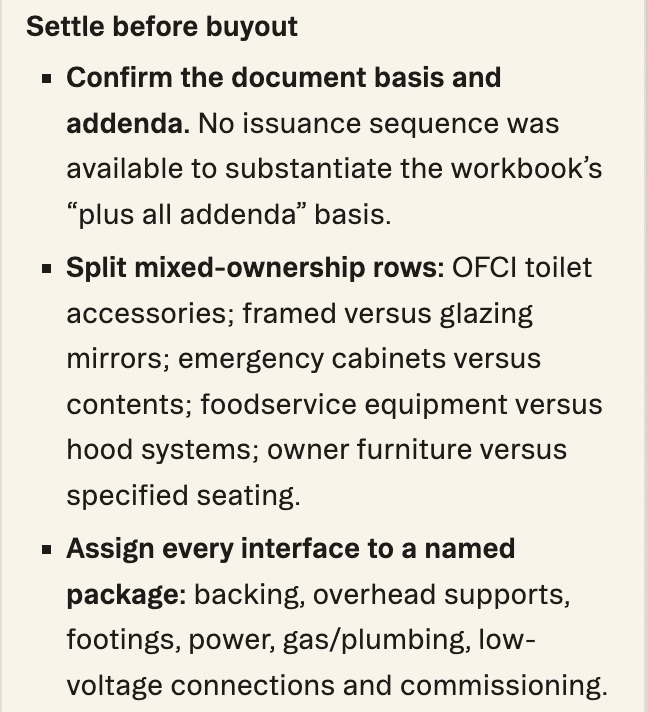
Then it turned the review into a checklist for buyout. It picked out the rows that mix two owners and should be split: owner-furnished, contractor-installed toilet accessories, framed versus glazing mirrors, emergency cabinets versus their contents, and foodservice equipment versus the hood systems.
It also listed every interface that needs a named package before you buy it out: backing, overhead supports, footings, power, gas and plumbing, low-voltage connections and commissioning.
WHAT CAME BACK
A checklist to settle before buyout
EXAMPLE 3
Keep your estimate sheet’s layout to the column
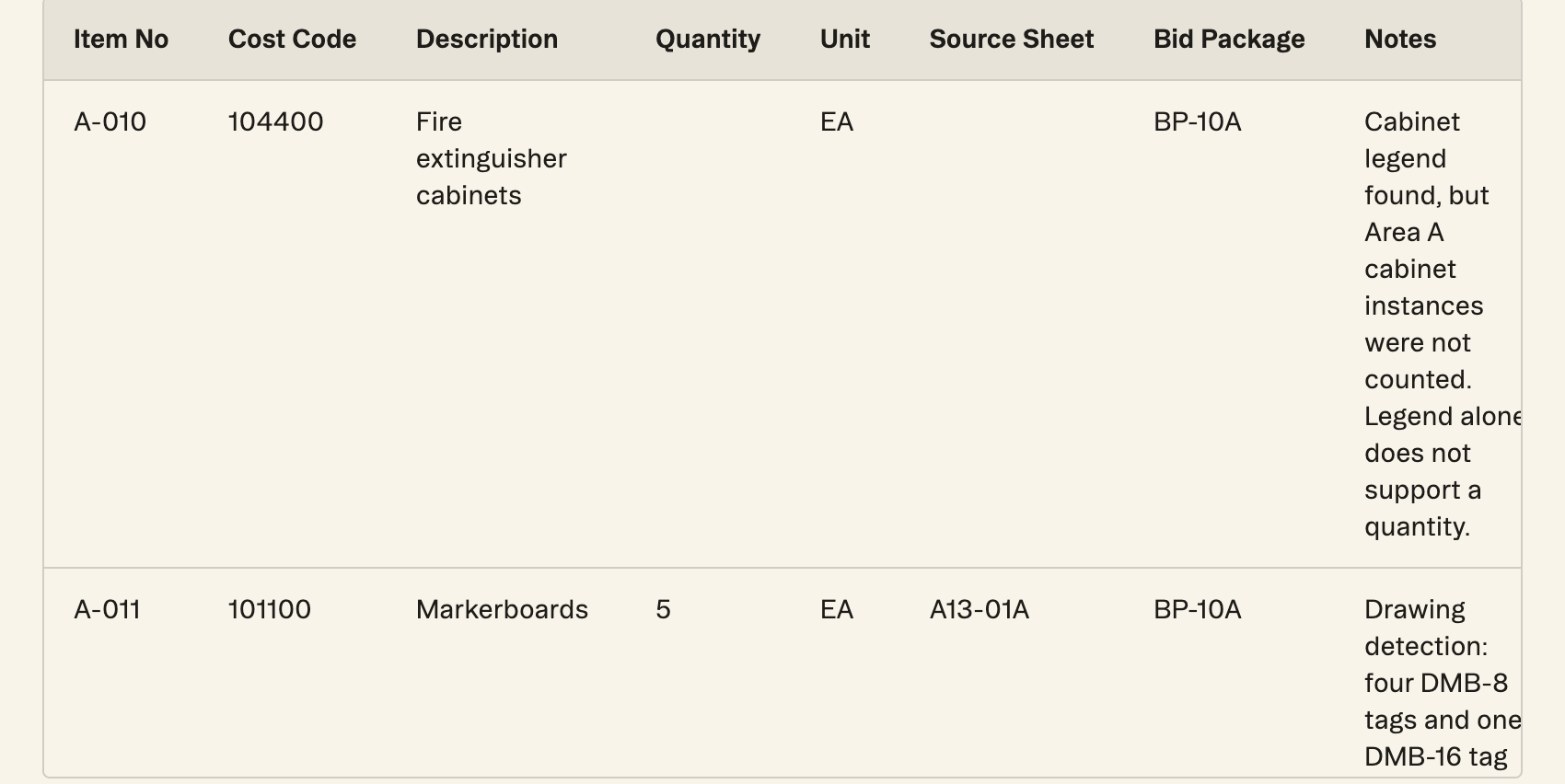
The third file feeds an estimating system, so the layout can’t move: item number, cost code, description, quantity, unit, source sheet, bid package and notes. Chat kept every row, cost code and unit exactly where we had them, and it recognized our example row for what it was.
Where the drawings back a number, it filled it in and named the sheet. On A13-01A it found four DMB-8 and one DMB-16 markerboard tags in Area A, so the markerboard row came back as 5 EA from A13-01A.
Where a quantity needs more than the plan shows, the note says exactly what: wall lengths and heights for partitions, ceiling areas by type for ACT. Chat also told us what would let it fill more, takeoffs tied to named rooms and finishes, which is a good reason to name rooms as you save them with Auto room.
WHAT CAME BACK
Your columns, with a source for every row
EXPORT IT
Get the file your team expects
Ask chat to give the result back as an artifact and it drafts a document under your header, with your columns. Nothing is saved until you approve it, and then it lives with the project.
From there, Export turns it into a PDF to send, a Word file to mark up, or an Excel workbook for your estimating team. Your original file stays as it was, so you can compare the two side by side.
HOW TO RUN IT
Attach, ask, approve, export
1. Click the attach button in the chat bar and pick your file. Chat takes PDFs, Word and Excel files, CSVs, plain text, Markdown, JSON and images, and you can attach several at once.
2. Say what you want: check it before issue, fill what the drawings support, and give it back in our format as an artifact.
3. Read the draft, approve it, and use Export for PDF, Word or Excel.
TRY IT
Start with the form you send most
Pick the bid form or matrix you rebuild on every job and attach it to your next project’s chat. Ask for it back finished, and see what it catches before your subs do.
Put it against a real set.
Upload one project free with a work email. Struction reads the drawings, drafts the scopes trade by trade, and keeps every line pointed back at the sheet it came from.
Upload a set →