Linking markups to a scope of work
Sept 21st, 2026
Markups
The markup is the link
Somebody on your team keeps a coordination set in Bluebeam Studio. Clouds and highlights in a color per trade, one file, shared out to the subs. It's the most useful document on the job and it is also a second set of drawings that has to be kept in step with the first.
A precon team put it to us plainly earlier this year: give us a tool in the toolbar where you draw a markup, and the markup is the link to a scope of work.
That's built. Here's how it works.
How it works
Pick a scope, then draw
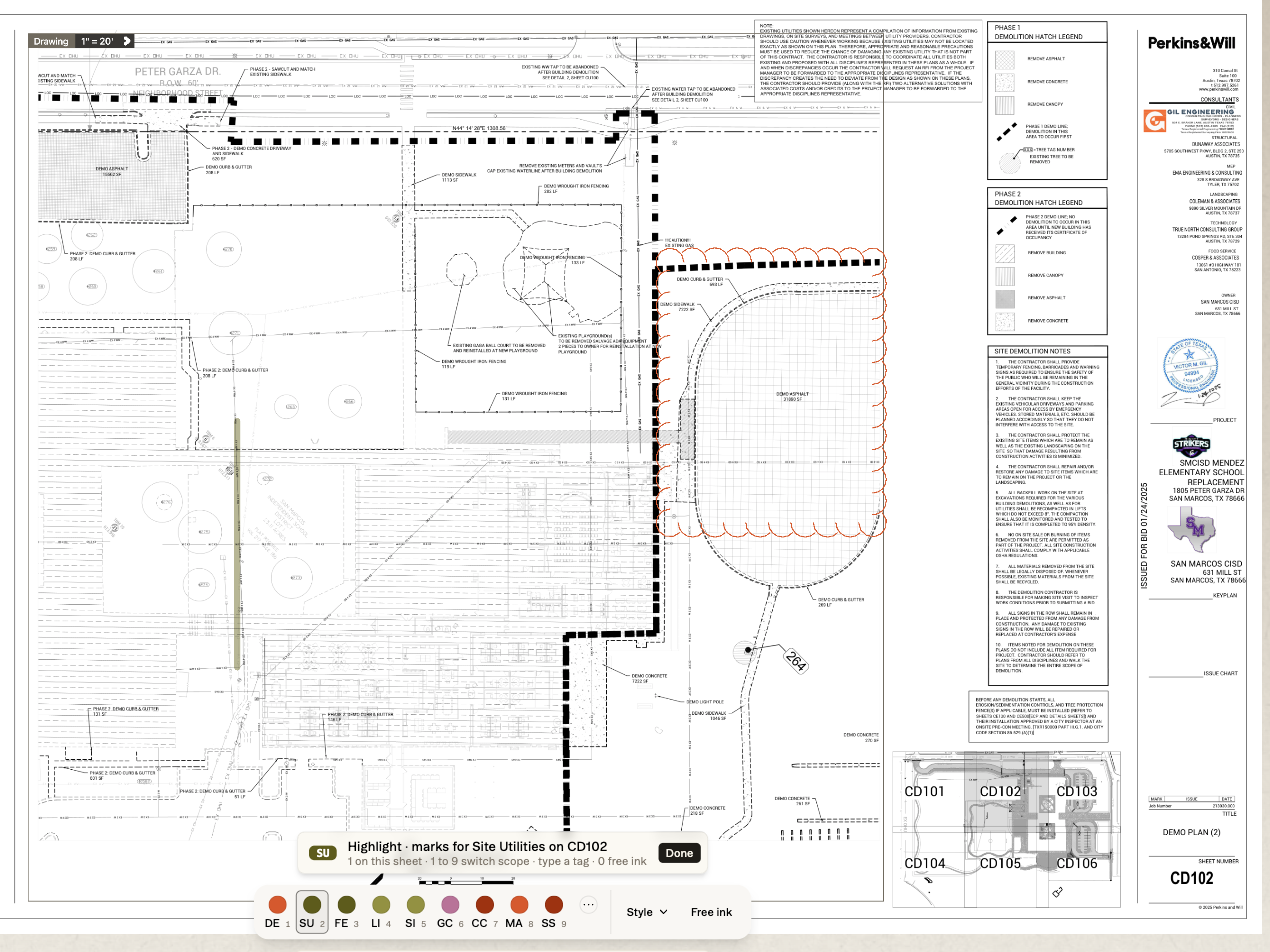
Choose a markup tool on a sheet and a second bar appears above the toolbar with a Scope button on it. Pick a scope and everything you draw from then on belongs to it.
Color isn't arbitrary. It comes off the scope and is set by the organization to keep consistency across projects. Demolition draws orange because Demolition is orange, and once you're in a scope the only styling left to you is stroke width and opacity.
Two estimators marking the same sheet land on the same color palette without having to coordinate it.
Scopes sit on the number keys, and the bar along the bottom of the screen shows you which is which. If you'd rather not hunt for it, type the scope's two-letter tag — DE, GC, SI — and you're in it. Either way, switching trades is a matter of keystrokes, and a banner tells you which scope you're in and how many marks it already has on that sheet.
The scope doesn't have to exist yet. Type a name that matches nothing and you get the option to create it, out of the CSI catalog or as free text, and it lands in the scopes panel immediately.
Not every mark belongs to a trade. Free ink sits at the end of the same bar and hands the pen back to you, color and all, for the notes that are just notes. The banner counts those separately, so it stays clear which marks carry a scope and which are only ink.
Muscle memory
Your Bluebeam hotkeys already work
The fastest way to make a tool feel slow is to move the keys. Estimators who have spent years in Revu keep the shortcuts in their hands rather than their heads, and a toolbar that renumbers them costs a week of fumbling before anyone is back up to speed.
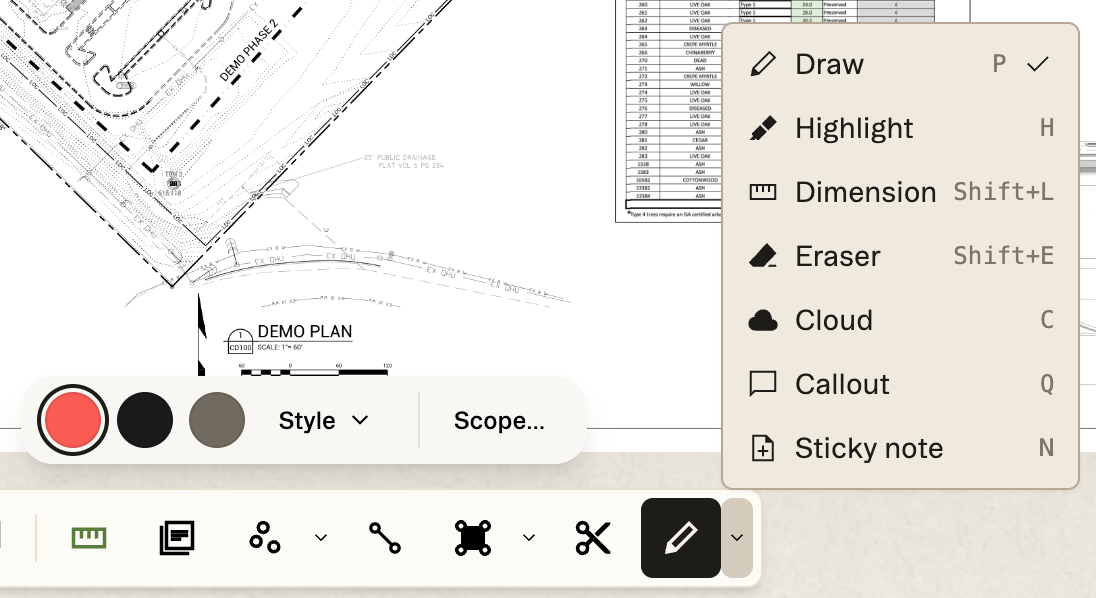
So we didn't renumber them. The drawing toolbar uses the Revu keymap. P is the pen and H the highlighter. C draws a cloud, Q a callout, N a sticky note. Shift+E erases and Shift+L measures a length. Open the tool menu and every shortcut is printed beside its tool, so nobody has to keep a cheat sheet taped to a monitor.
There is one wrinkle Revu has no equivalent for, and it is worth knowing before it surprises you. While the scope picker is open the keyboard belongs to the scopes: 1 through 9 jump between them, and typing a two-letter tag filters to the one you want. Press C at that moment and you are reaching for Cast-in-Place Concrete, not the cloud. Press Done and the letters go back to being tools.
The scope is stickier than the tool, which is the part that makes a coordination pass quick. Switch tools halfway through and the banner still reads marks for Site Utilities — clouds, dimensions and highlights all land in the same scope, in the same color, until you pick a different one or step out.
Collaboration
Everyone on the project sees them
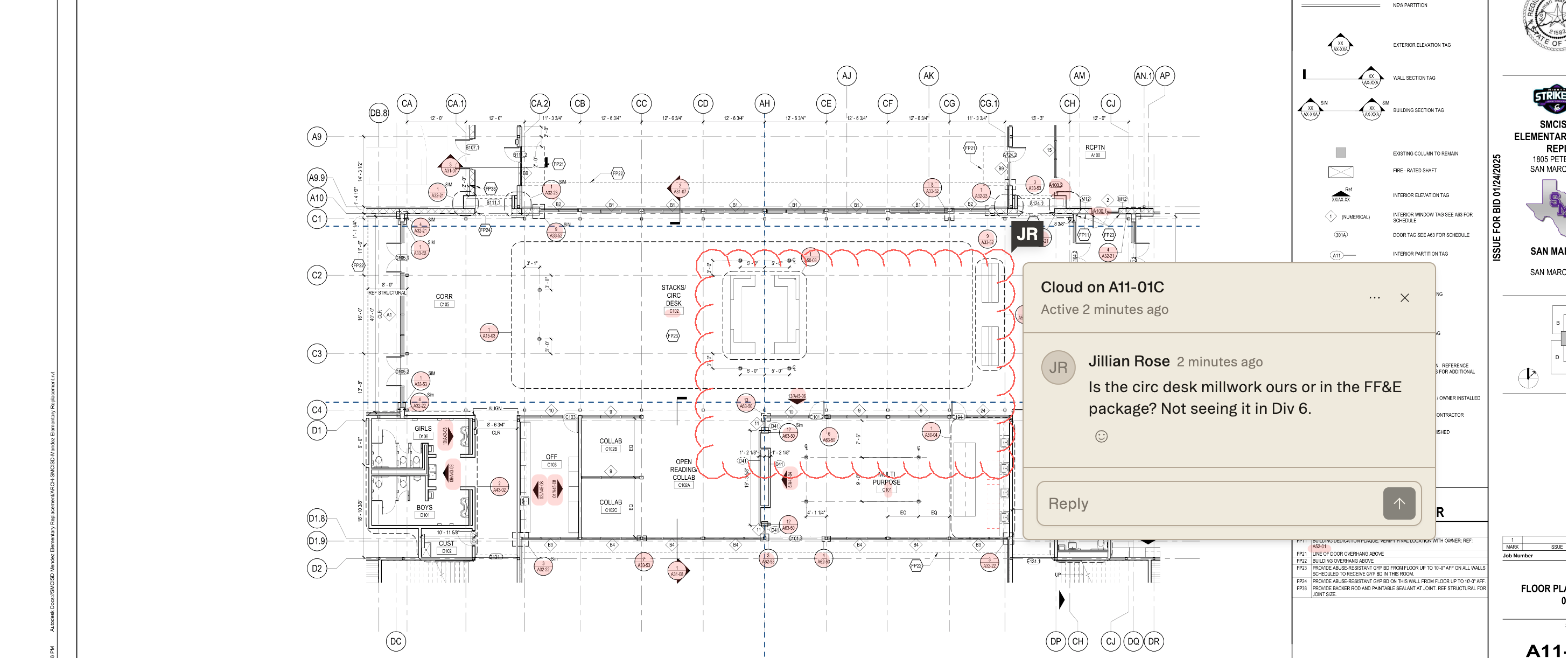
Markups live on the project, not on your machine. Your takeoff lead marks up CS100 on Tuesday and the PM opens it Thursday and sees exactly that, colors intact.
You can comment on a mark and put someone's name against it. So the coordination conversation happens on the sheet where the question is, instead of in a thread where somebody has to describe which markup they mean.
Hands on
Try it on your current job
Nothing to switch on. The markup tools are already in the drawing toolbar on every project you have open.
Open a sheet on whatever you're bidding now, press a number to pick the scope, then mark up the way you always have. Whatever you draw carries that scope's color, and Shift+E takes it back off.