Sort your scopes by what you need to know next
Nov 2026
New map
Bid day, laid out
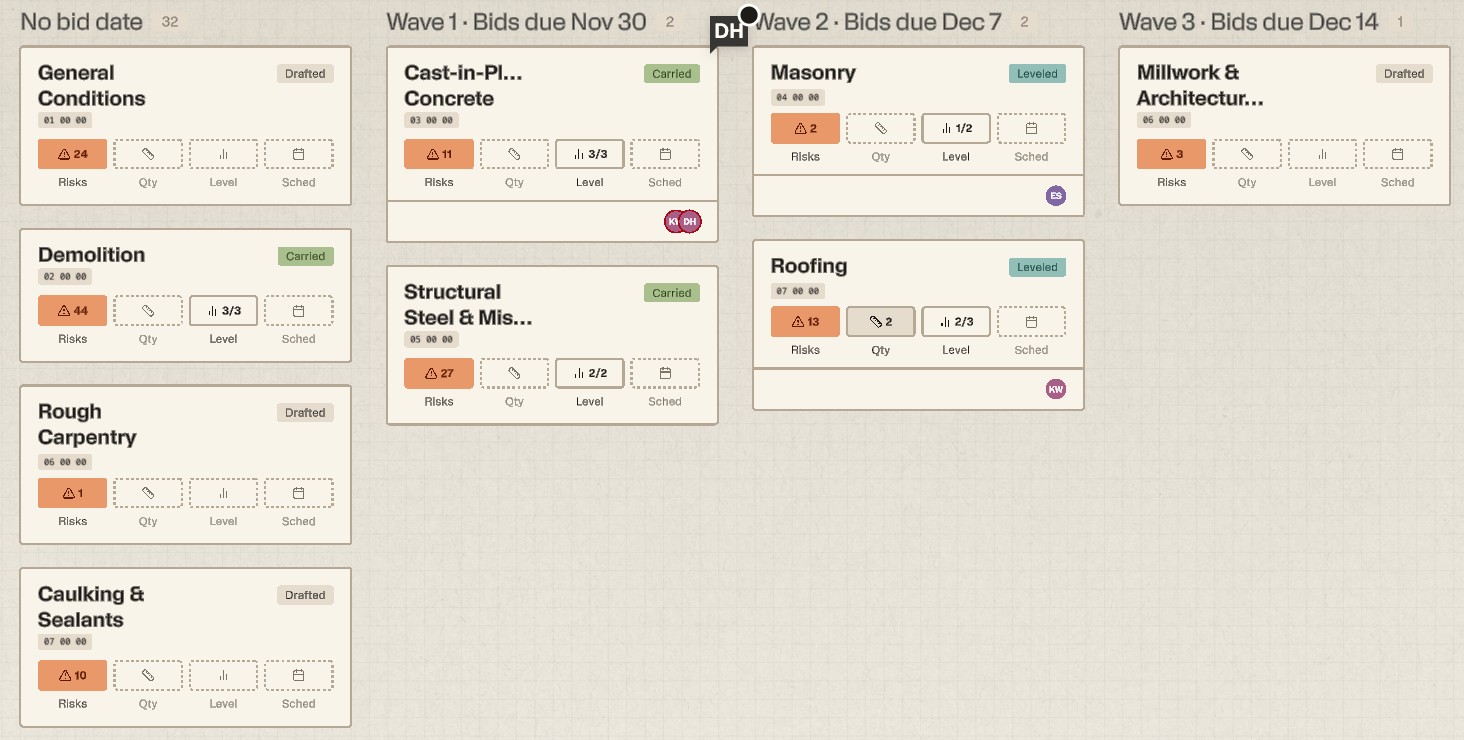
Concrete and structural steel bids are due this week. Masonry and roofing follow next week, millwork the week after, and 32 more packages don’t have a date yet. That’s a normal precon calendar, and until now the map showed it to you in CSI order.
Now the map can organize your scopes three ways: by CSI division, by bid date or by stage. Drawings and specs stay put whichever you pick, and Filter narrows any of them down to what you’re hunting for.
How to
Switch the grouping from Display
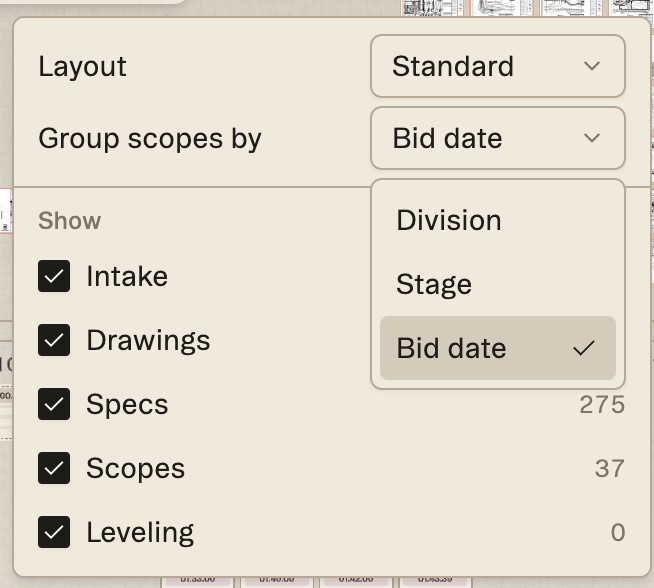
- Open a project’s map and click Display in the toolbar at the top left.
- Find Group scopes by. It’s set to Division until you change it.
- Pick Bid date or Stage.
The map remembers the choice. Reload the page and your scopes are still grouped the way you left them.
Division
Check every spec section against a package
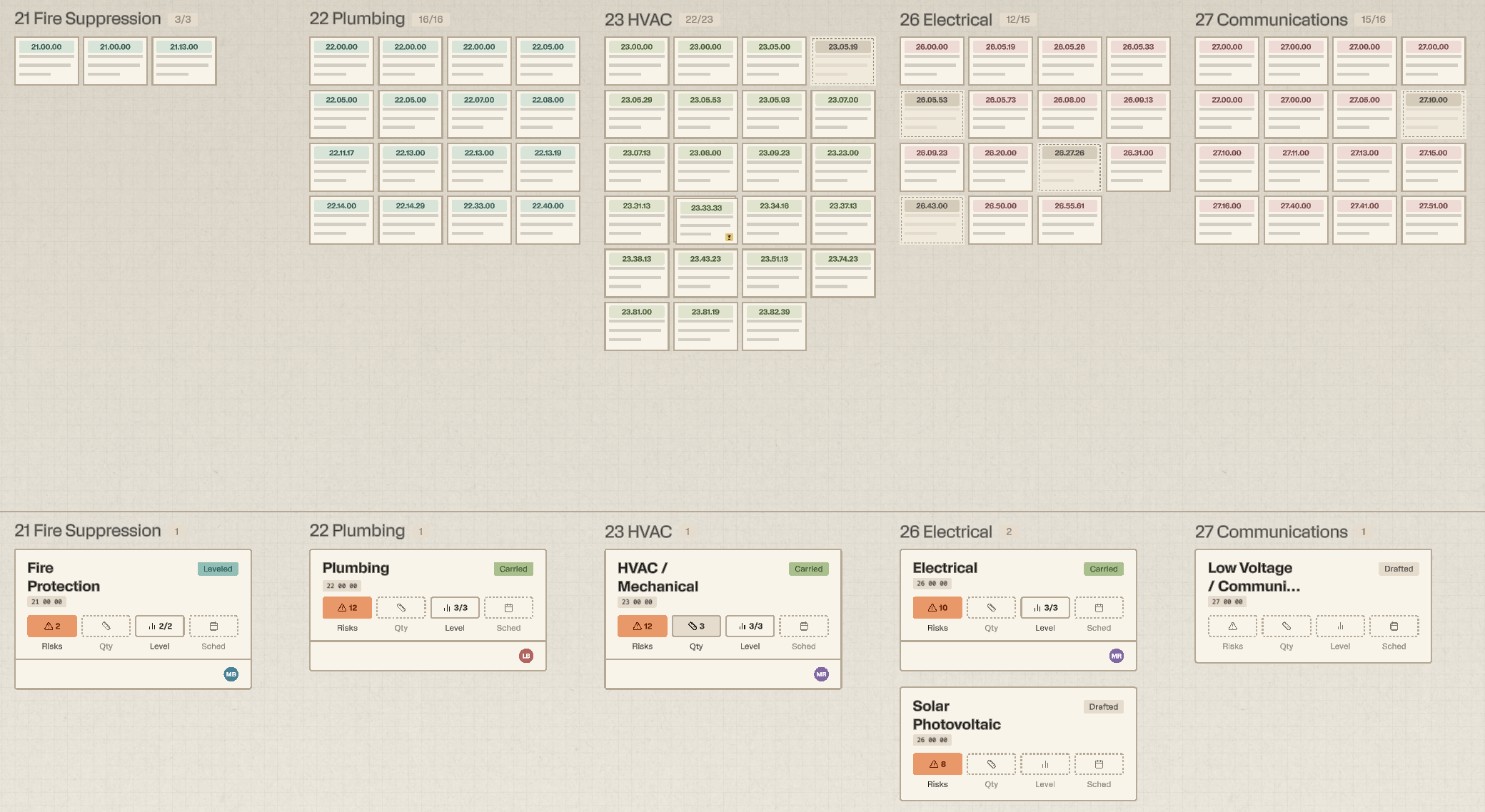
Division is the default. Spec sections are grouped in CSI division columns, and each scope card appears directly below its division.
The number beside each division name counts the spec sections tied to a scope, out of the total. 26 Electrical reads 12/15, so three of its fifteen sections aren’t in any package yet. Those three are grayed out with a dashed edge.
Any division where the two numbers don’t match has spec sections nobody has been asked to price. Check those before bids go out.
Scope cards
Read a scope card
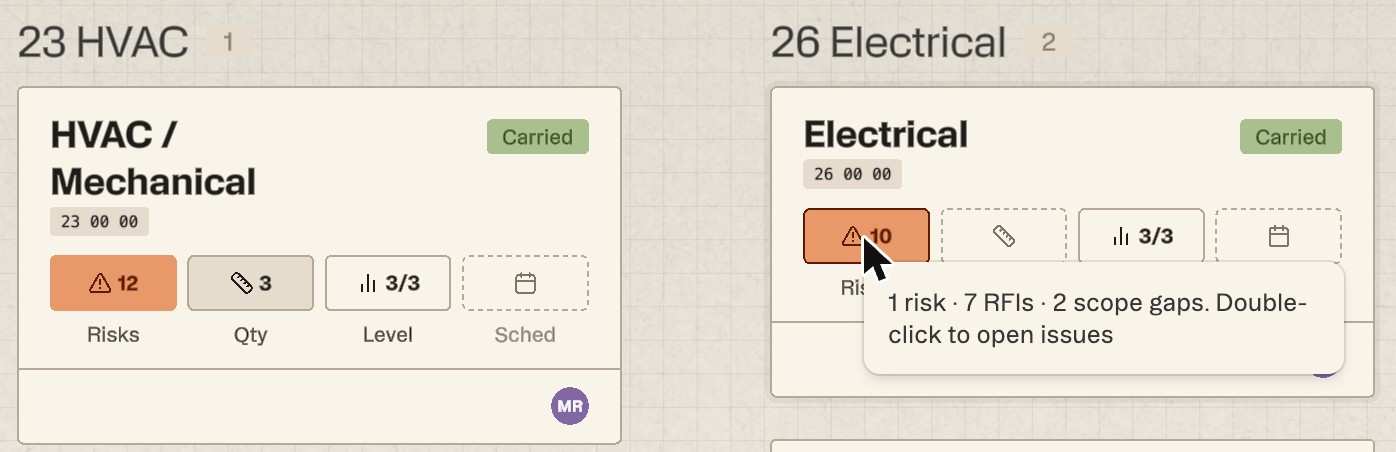
Every scope card shows the same things in every grouping. The package name and CSI code are at the top left, and its stage is at the top right.
The four tiles underneath are Risks, Qty, Level and Schedule:
- Risks counts open risks, RFIs and scope gaps together, and turns orange when there are any. Hover it for the split, like 1 risk, 7 RFIs and 2 scope gaps.
- Qty opens the package’s quantities and shows a count when it has some.
- Level shows bids received out of bidders invited, like 3/3.
- Schedule opens the package’s schedule.
A dashed tile has nothing in it yet. Double-click any tile to open that work in the side panel.
Bid date
Line up your bid waves
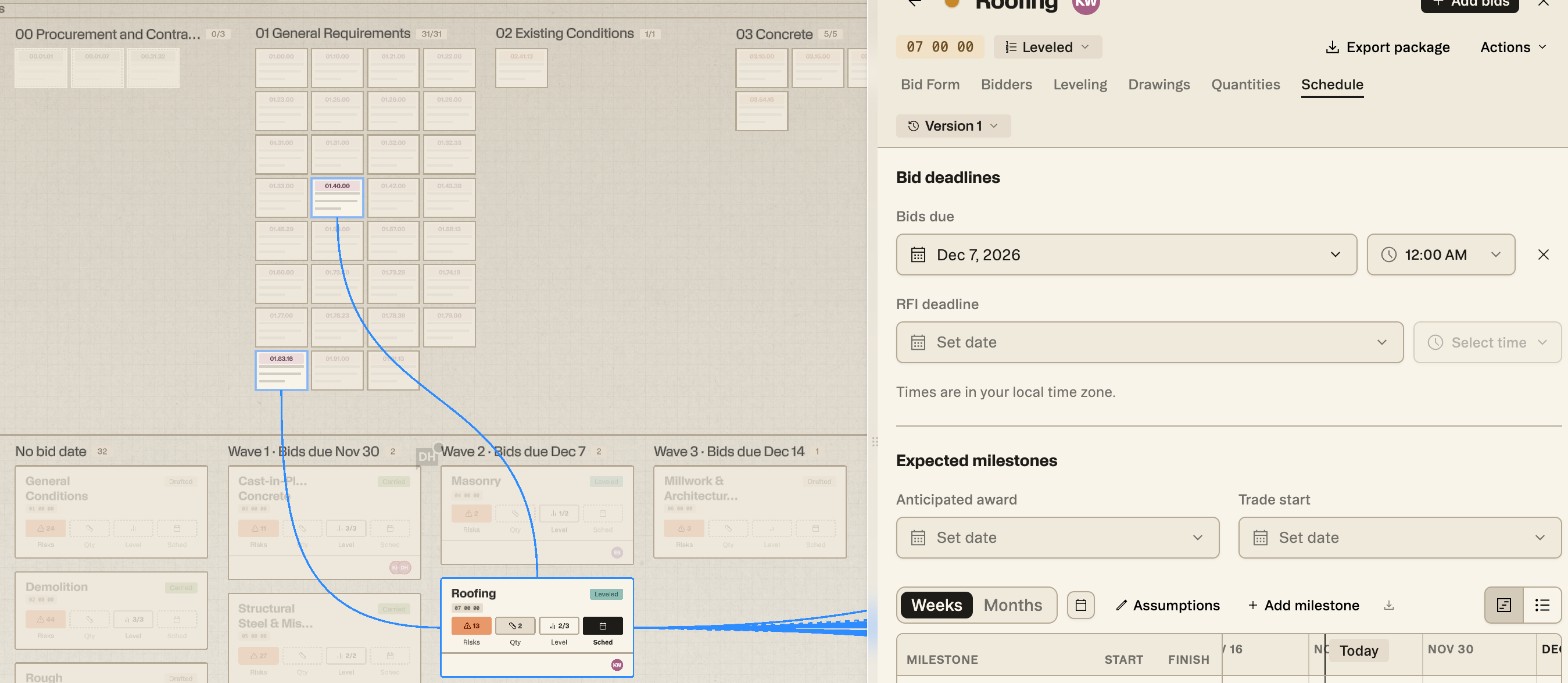
Group by Bid date and each scope moves into a column for its Bids due date, which you set on the scope’s Schedule tab. Columns are numbered in date order, so Wave 1 is due first.
Each date gets its own wave. Packages due the same day share one, and a package due even a day later starts the next wave.
Packages without a date wait under No bid date, with a count beside it. Cards keep their stage label in this view, so a Drafted card in Wave 1 is a package that’s due first and hasn’t gone out to bid.
Click a card to see what it covers. In the shot below, Roofing is selected: its card gets a blue outline, the rest of the map fades, and blue lines run up to the spec sections and sheets its scope includes. The panel on the right is open to its Schedule tab, where Bids due matches the Wave 2 header.
Stage
See where each package stands
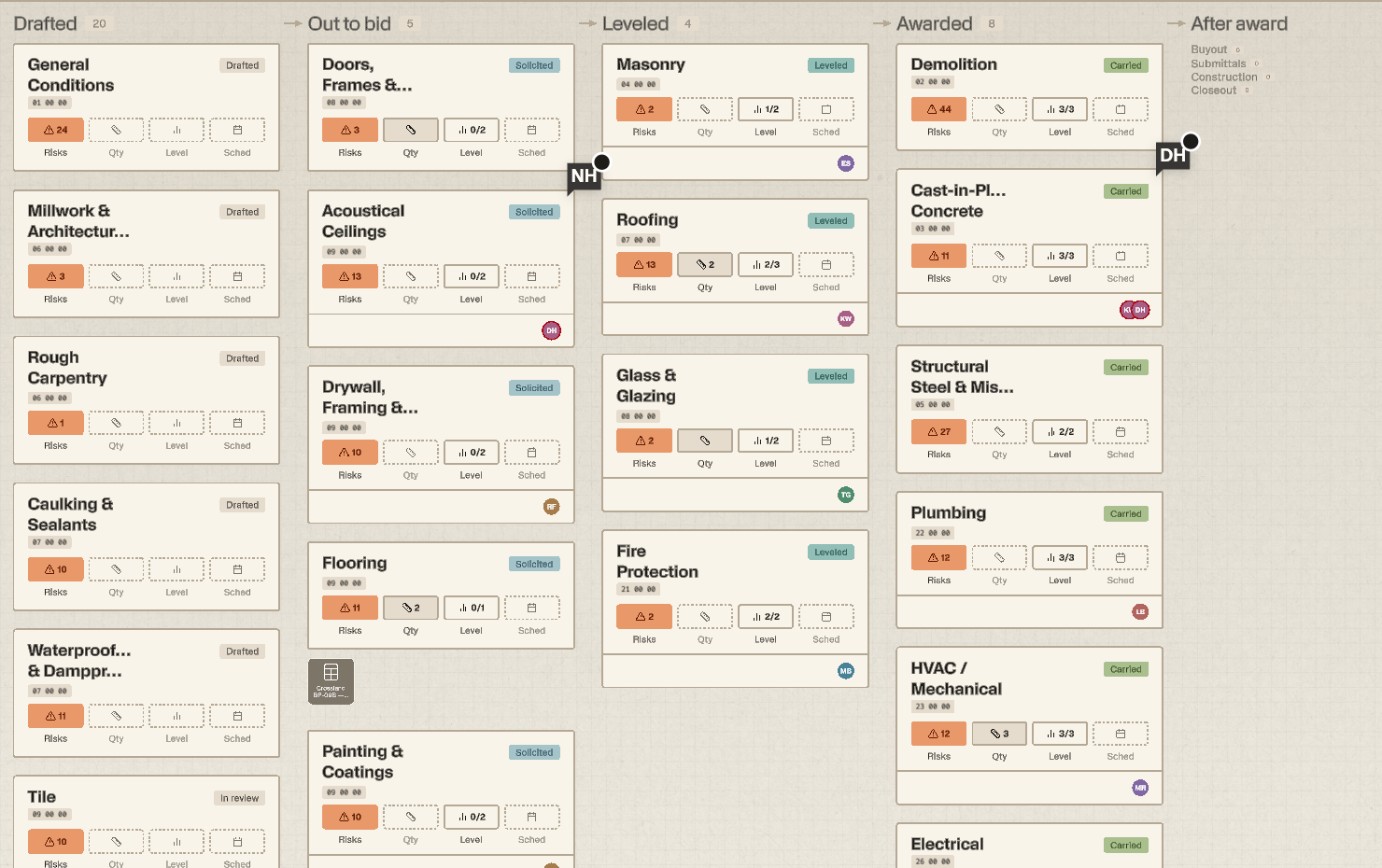
Stage groups the same cards by how far each package has moved: Drafted, Out to bid, Leveled and Awarded, with a count beside each column.
After award lists Buyout, Submittals, Construction and Closeout with a count beside each, even at zero, so you can see how much of the pipeline is still ahead.
Bring it to the weekly precon meeting. The Drafted column is the list of packages that still need to go out.
Filter
Find the specs no scope covers
Filter works on top of any grouping. Its menu is split by band: Issuance for drawings and specs together, Discipline for drawings, Division and Coverage for specs, and Bid stage, Name and Status for scopes.
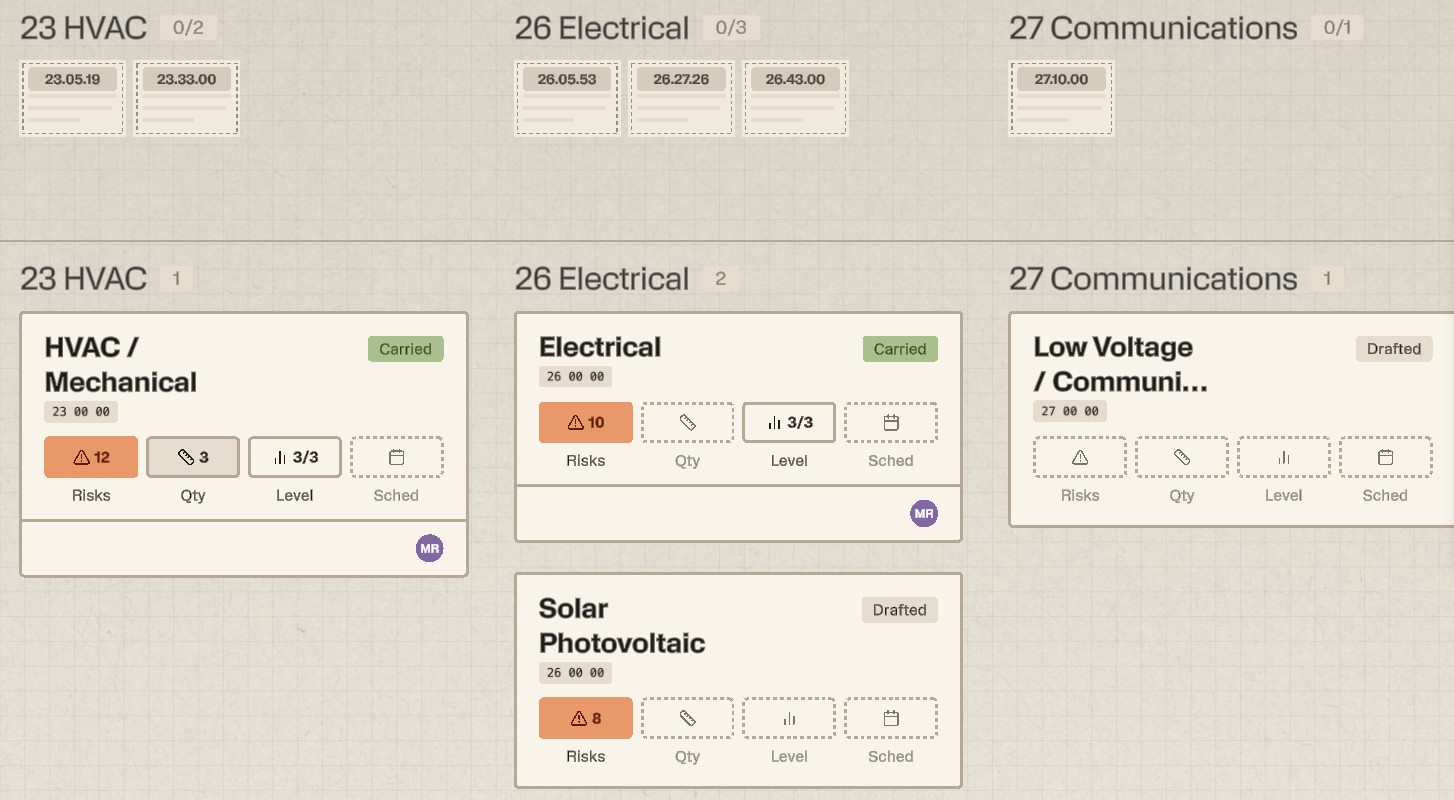
Coverage has one option, Not carried by a scope. The number beside it is how many spec sections on the project aren’t tied to a scope. Pick it and every section tied to a package drops off the map. The division counts change to match, so 26 Electrical reads 0/3: none of the three sections left is tied to a scope.
In the shot below, those three are Identification for Electrical Systems, Wiring Devices and Surge Protective Devices, directly above the Electrical package. Before that package goes to contract, ask the electrical bidders whether their numbers include labeling, wiring devices and surge protection. Then add the sections to the scope or write them in as exclusions.
Filter
Hide the rest or dim it
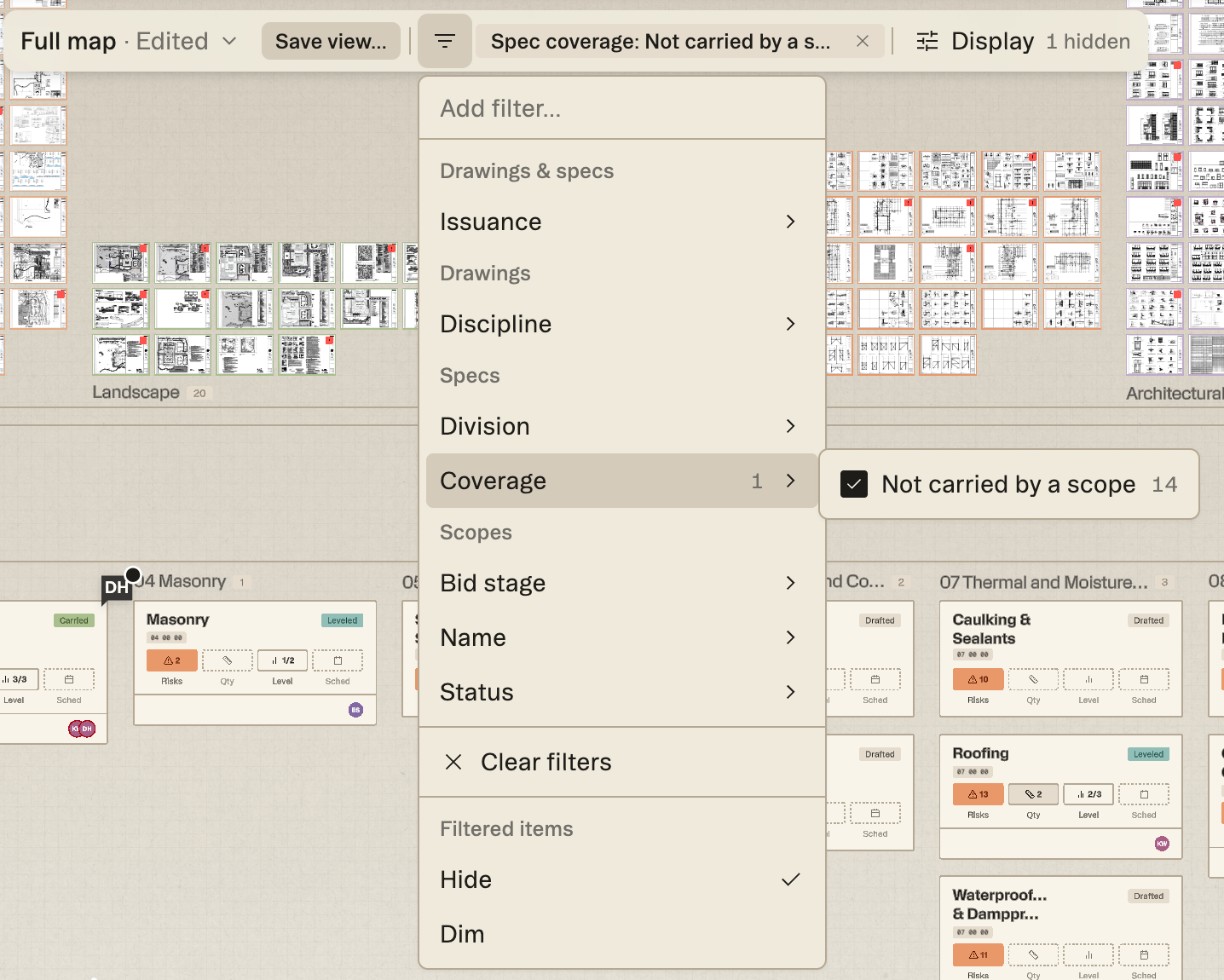
An active filter shows as a chip in the toolbar, like Spec coverage: Not carried by a scope. Click its x to clear it, or use Clear filters in the menu.
At the bottom of the Filter menu, Filtered items sets what happens to everything that doesn’t match. Hide takes it off the map. Dim fades it, so the neighboring sections stay in view.
Saved views
Save the layout you check every morning
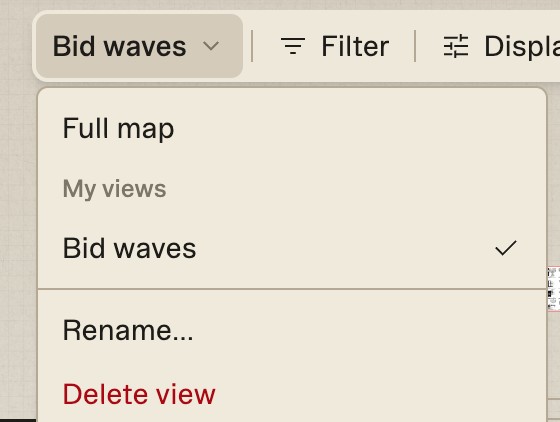
Changing the grouping marks the view as Edited and puts a Save view button beside it. Name it something like Bid waves and it joins the views menu under My views, where you can rename or delete it later.
To give the rest of precon the same layout, tick Share with the project team when you save.
What stays put
Keep your place on the drawings
Only the scope band regroups. Sheets stay grouped by discipline, and spec sections stay in their CSI division columns whichever option you pick.
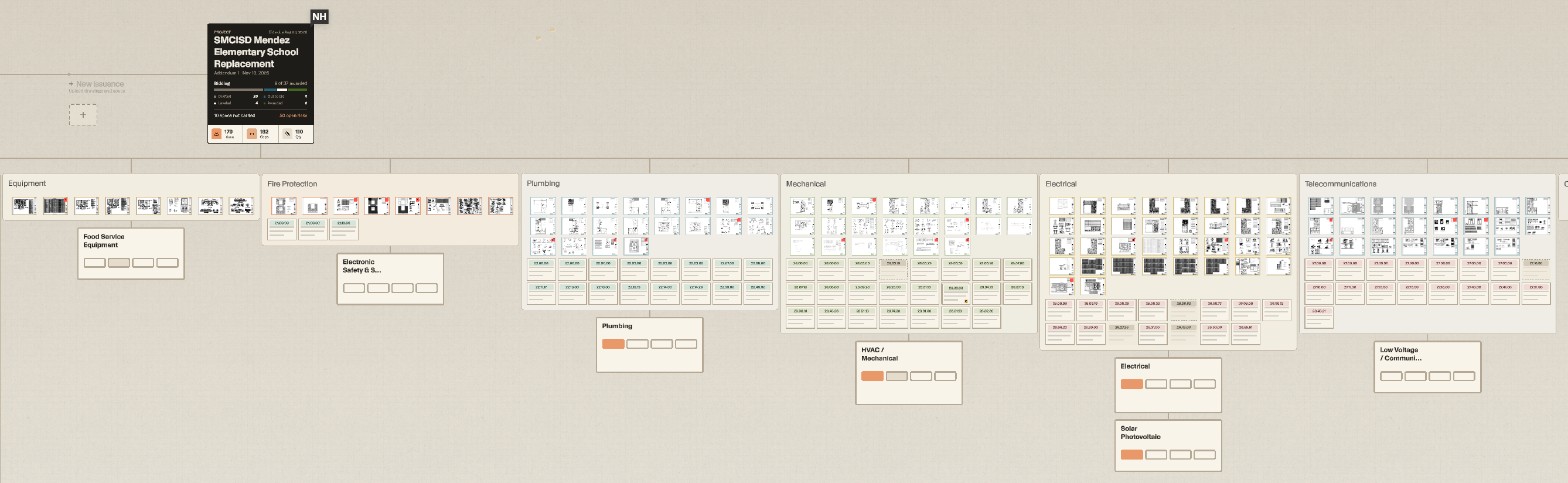
Prefer the tree layout? Open Display and set Layout to Classic. It puts the project card on top and hangs each drawing discipline below it, with that discipline’s sheets, spec sections and scope cards together. Switching layouts resets Group scopes by to Division.
Try it
Set bids due on your next three packages, switch the map to Bid date, then run the coverage filter. If the waves look wrong, the calendar’s wrong, and now you know before the subs do.
Put it against a real set.
Upload one project free with a work email. Struction reads the drawings, drafts the scopes trade by trade, and keeps every line pointed back at the sheet it came from.
Upload a set →