Download drawings with your markups and takeoffs on them
Nov 2026
Downloads
Take the marked-up sheet with you
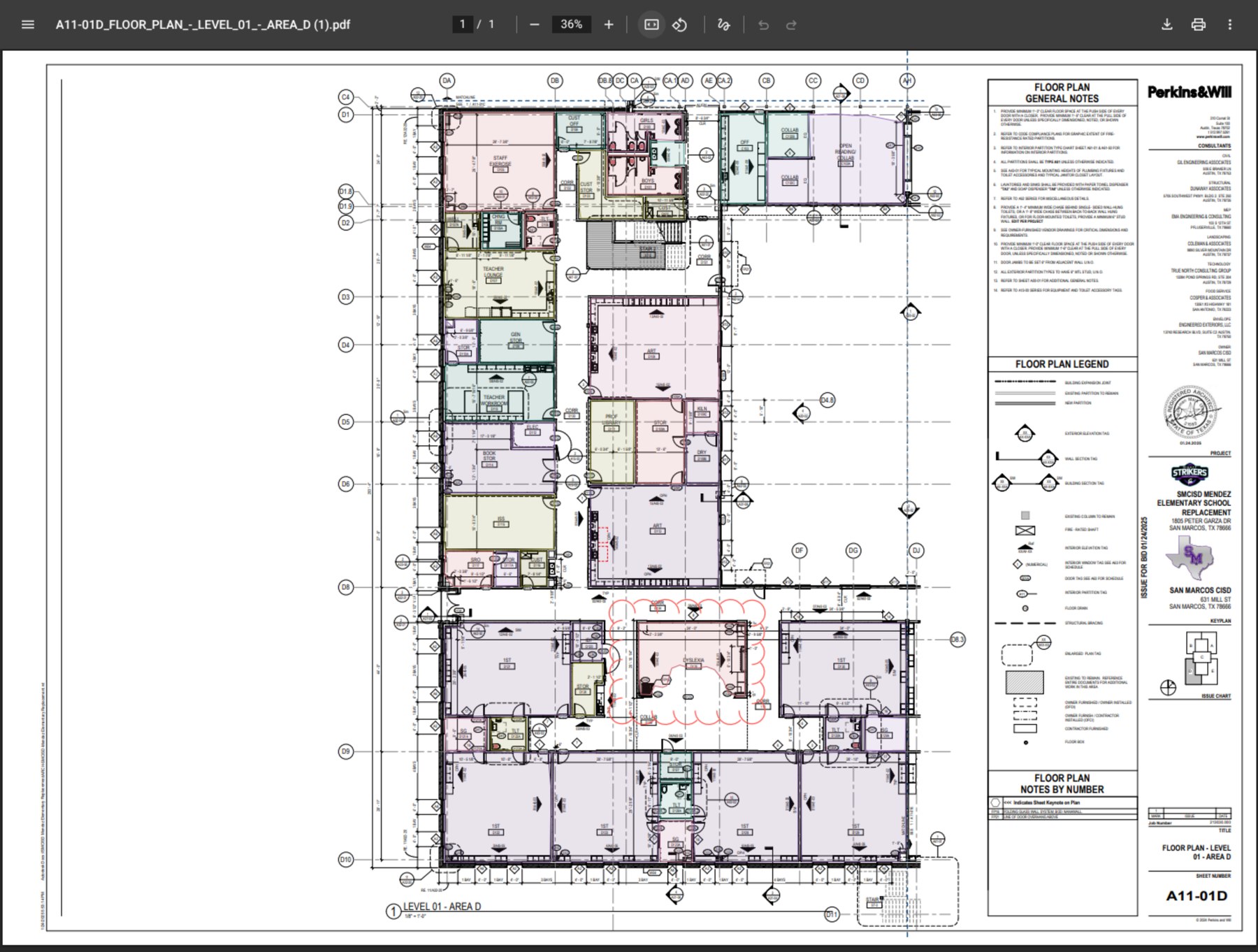
Download a sheet from Struction and your markups and takeoffs come with it, drawn right onto the PDF. On the floor plan below, that’s a red revision cloud around the dyslexia room and every room takeoff, each shaded in its quantity’s color.
Until now a download gave you the clean drawing, and anything you’d marked or measured stayed behind in Struction. Now the sheet you send a sub, attach to the bid or print for the trailer shows the same clouds and quantities you see on screen.
One sheet
Download the sheet in front of you
- Open a sheet in focus view.
- Click the download icon in the sheet header, beside the eye. Its tooltip reads Download with markups and takeoffs.
- The PDF lands in your downloads folder, named after the sheet number and title.
Whole project
Or pull every set at once
For more than one sheet, click the project card on the map to open the project panel. There’s a download icon beside the Project documents heading.
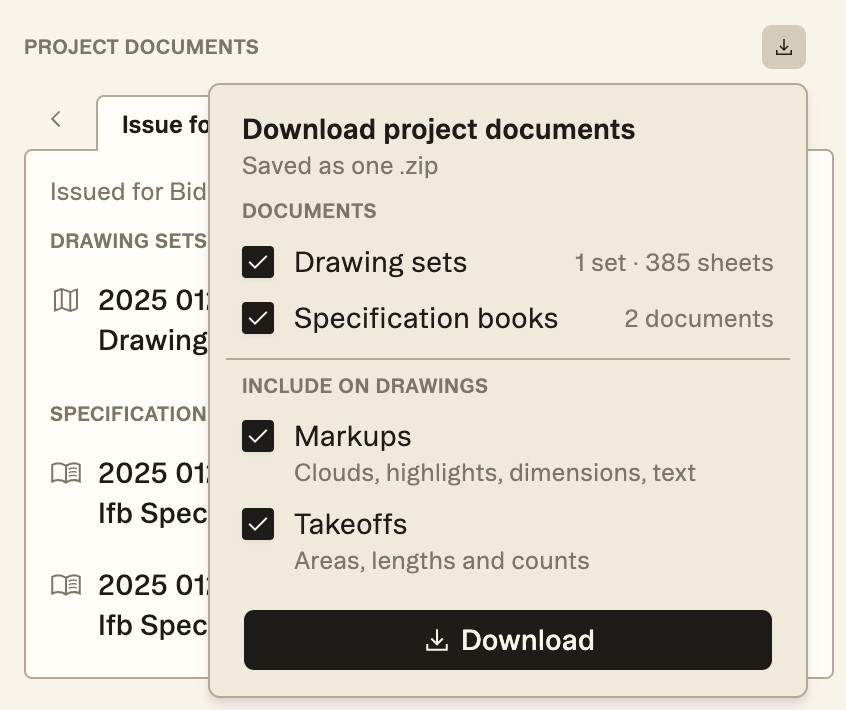
It opens a short checklist headed Download project documents, saved as one .zip. Under Documents you choose Drawing sets and Specification books, each listed with its count. Under Include on drawings you choose Markups, which covers clouds, highlights, dimensions and text, and Takeoffs, which covers areas, lengths and counts.
Both drawing options start checked, and they’re separate checkboxes, so a set can include one without the other. Clear both when someone needs the drawings exactly as the architect issued them.
Drawn on
Your marks travel as part of the page
Markups and takeoffs are drawn onto the PDF page itself instead of riding along as separate annotations. Whoever opens the file sees exactly what you saw, in any PDF reader, and nobody can drag your cloud off the area it was marking.
Where it helps
Put the marked-up sheet to work
Send a sub the sheets for their scope with your clouds already on them, so the RFI starts from the same picture you’re looking at.
Hand your takeoffs to an estimator who lives in Bluebeam, without anyone redrawing an area.
Keep a copy of the sheets exactly as they stood on the day the package went out.
Put it against a real set.
Upload one project free with a work email. Struction reads the drawings, drafts the scopes trade by trade, and keeps every line pointed back at the sheet it came from.
Upload a set →