Auto count now searches a whole trade
Oct 13th, 2026
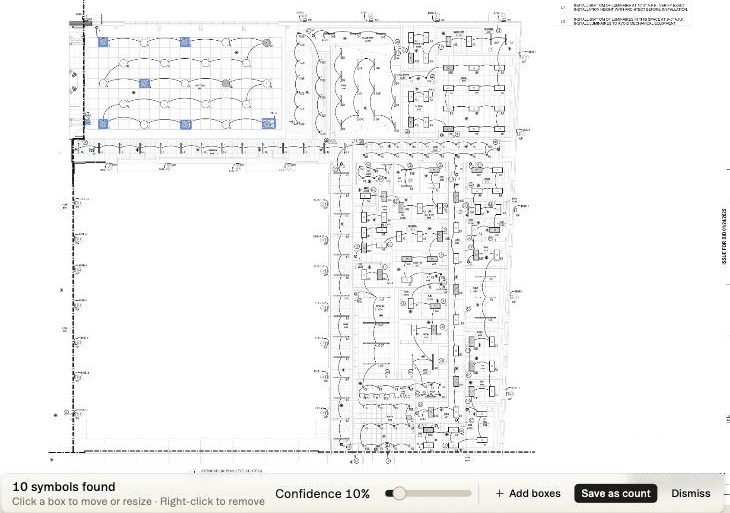
Eight emergency fixtures on a lighting plan, drawn as shaded circles, sitting in rows among open circles of almost the same size. That’s a hard sheet for any symbol search, and it’s exactly the kind auto count is built for.
Box one symbol, then choose where to look: this sheet, or every sheet in the trade. A Confidence slider on the results decides how close a match has to be before it gets a box.
THE SLIDER
Decide how picky it should be
A customer asked for this one on a call at the end of September. Their worry was symbol variants: the same fixture drawn at another rotation, or with a slightly different tag, slipping past the search.
The slider starts at 30%. Push it down and the search accepts looser matches, so it catches more variants and more look-alikes. Push it up and you get fewer boxes you have to clear, and more that you have to add by hand.
SETTING IT UP
Start with a clean box
The first box is the pattern everything else is matched against. Draw it tight around one clean instance of the symbol, clear of any text or linework that crosses it.
Then set the slider on a single sheet before you go wide. Start at the default 30% and look at what comes back. If it skipped fixtures you can see, slide it down. If it boxed look-alikes, slide it up. Once one sheet looks right, run the same box across the trade.
SHEET OR TRADE
Match the search to the question
Sheet is the right call when the question is local: how many of this fixture on this floor, in this area. It’s also the quick place to see what the slider does to your symbol.
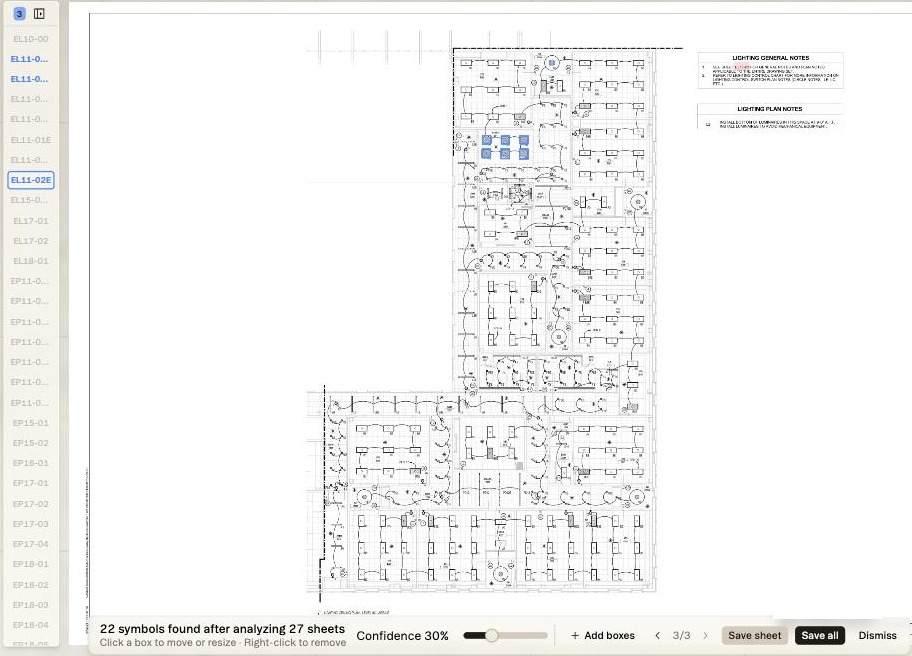
Trade runs the same match across every sheet the map files under that trade. On this set, one box on a shaded emergency fixture searched 27 Electrical sheets and found matches on 3 of them: all eight cafeteria fixtures on EL11-01A, six in a stair on EL11-02E, and one tagged G24E on EL11-01B, along with a few open-circle look-alikes to clear before saving.
The arrows on the results bar step you through each sheet that matched, so you can clear or add boxes sheet by sheet, then save them all at once.
HOW TO RUN IT
Five steps from one box
1. Open a sheet in focus view. In the bottom toolbar, open the menu next to the count tool and choose Auto count.
2. Drag a box around one example of the symbol. You can move or resize the box before you search, or draw a new one.
3. Choose where to search: this sheet, or every sheet in the trade.
4. Review the results. Click a box to move or resize it, right-click a box to remove it, and use Add boxes for anything it missed. After a trade search, the arrows step you through each sheet with matches.
5. Save the count. After a sheet search, click Save as count. After a trade search, click Save sheet for the sheet you’re on, or Save all for every sheet at once. If you try to leave with unsaved boxes, Struction checks with you first.
WHERE IT FITS
Run it, then check it
Auto count does the clicking. You look over what it found, fix anything that’s off and save, so the count that goes in the bid is one you’ve checked.
It works on whatever symbol you box, from devices on an electrical plan to embeds on a precast shop drawing.
Box one, then check the rest.
Put it against a real set.
Upload one project free with a work email. Struction reads the drawings, drafts the scopes trade by trade, and keeps every line pointed back at the sheet it came from.
Upload a set →