Addenda Comparison
Sept 1st, 2026
The set forgets. You don't.
Addendum 3 lands on a Thursday and the bid's due Monday. The cover letter tells you which sheets were reissued. It doesn't tell you what moved on them, which of your scopes just changed, or whether the thing you priced two weeks ago is still in the drawings.
So it gets done by eye, sheet against sheet, on the clock. And you just have to hope that the detaild that changed are the ones you looked at.
WHAT IT DOES
Every version, in order
Upload the base package and each addendum as separate issuances in a single flow. Struction stacks them in the order they arrived and holds the lineage — which sheet supersedes which, and which one is current right now.
All versions stay open to you. Look at the current set, a superseded sheet, or any prior issuance. Months later, when somebody asks what you priced against, the answer is a click rather than something you have to dig for.
What moved, marked
Two diff engines run underneath. One works on the drawn geometry, one works on the pixels. That matters more than it sounds like it should, because a bid set collects PDFs from a dozen sources and some of them have been through a printer twice — a scanned or flattened sheet compares just as well as a native one.
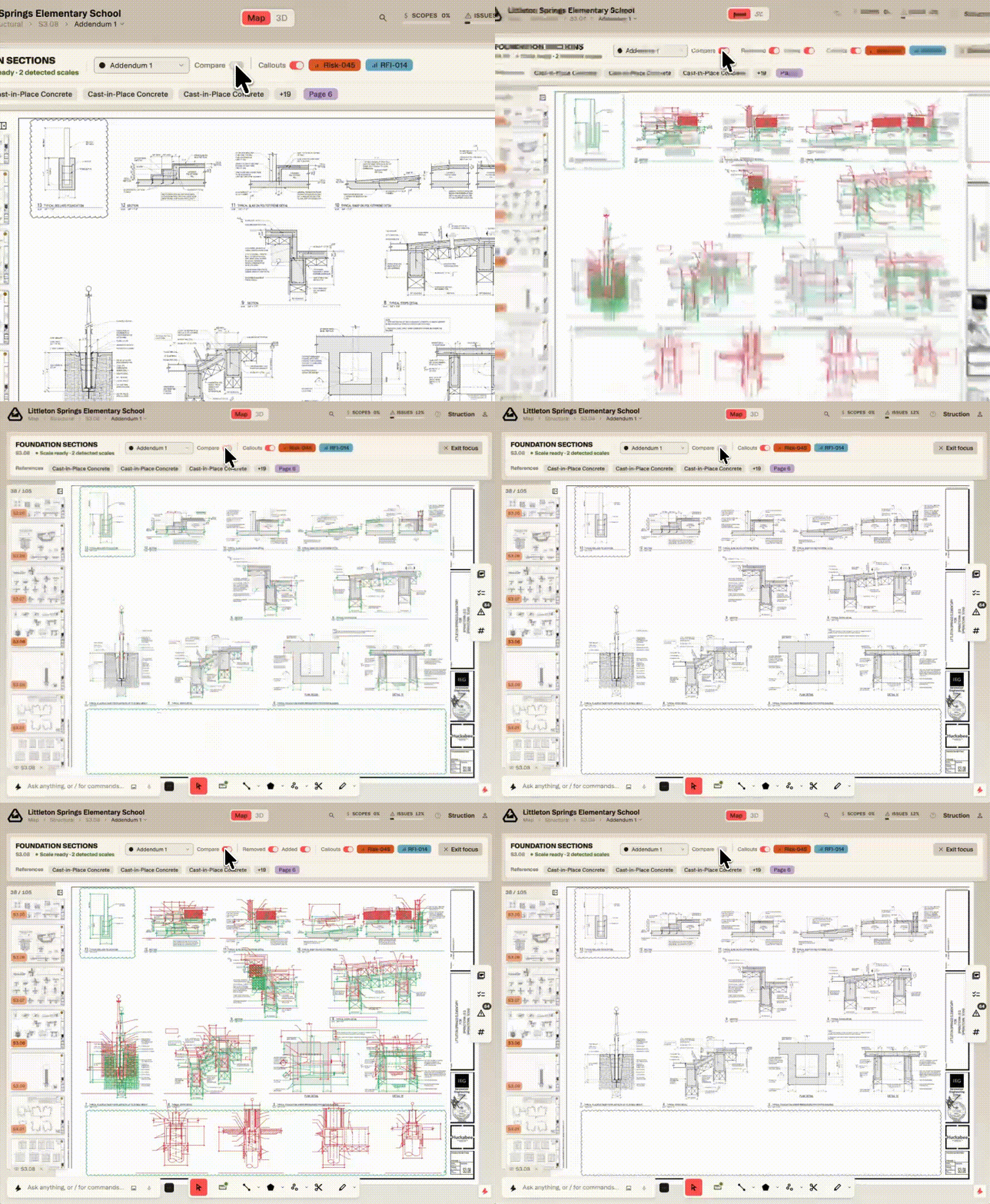
Green is what arrived, red is what left. Removed and Added are their own switches, so you can read one side at a time. Scoping added work? Turn Removed off. Checking whether something you already priced got deleted out from under you? The other way round.
Documents as they arrive
Add a document to an issuance you've already created, or open a new issuance, without leaving the project. Adding doesn't disturb the order of anything already in there, and there's a review step before it saves. Use this for the one for the spec that turns up two days behind the drawings.
And best of all, chat keeps up. Ask about the project and the answer comes from your latest issuance by default, rather than a sheet that has been updated three times.
WHY IT MATTERS
Four versions, one contract
An estimator prices four versions of the same job, but only one of them ends up under contract.
The trouble isn't finding a diffing tool. It's that the version truth lives in a folder with four PDFs in it that somebody named by hand. The current version is marked only in a filename and someone's memory. So as the baseline shifts, it ends up unclear, even inside your own team, which set a number was built on, which leads to it's own set of problems:
• The hours. Finding the delta across a few hundred sheets is manual work that produces nothing you can bill for.
• The exposure. A comparison is only as good as the pair you picked. Pick wrong and the answer isn't blank, it's confidently wrong.
• The record. Tying a bid to the exact document set it used is critical and not always done till a leveling meeting or after award, and by then the folder is no help.
Holding the lineage inside the project fixes all three at once. You stop choosing the pair, because the set knows its own order. You stop maintaining a record, because the versions are the record.
HOW TO
Running a comparison
1. Upload every issuance, not just the latest. Struction can't tell you what changed between two versions it has only seen one of.
2. Pick the version you want to look at. Open a document and the menu lists every base set and addendum with the date each one came in, laid out as a timeline. The breadcrumb states where you are — Structural, S3.08, Addendum 1 — so the version you're reading is on screen rather than inferred from a filename.
3. Flip Compare in the document header. The overlay comes up on the sheet. Toggle it back off and you have the clean sheet again.
4. Isolate one side when you only care about one. Compare brings two more switches with it, Removed and Added. Most of the time you want both, but "what got added to my scope" and "what disappeared from it" are two different questions and they deserve separate answers.
5. Zoom in and it follows you. In map view, select a set and zoom into a drawing and compare turns itself on.
6. Add documents as they arrive. When the spec or the revised sheet lands later, add it to the right issuance or open a new one. You'll get a review screen before it commits.
7. Ask about it. Chat scopes to your latest issuance. If you want an answer off an earlier version, say which one.
NEXT
Where this goes
What's live tells you what changed. The next piece is making the rest of the job react to it — the scopes, risks and RFIs you've already generated updating themselves off a new issuance instead of waiting for you to run them again.